


Home widgets: what's on the board and how to change it
Home is a board of widgets: small live cards that each answer one question about your training, like what is on today, how the week is going, or whether a lift is moving. Widgets appear as your data builds up, and you can move, resize, remove or add any of them.
This guide goes through each one, and the editor. Getting Started gives Home a quicker tour.
Last reviewed 2026-10-20 · matches app v1.1.1.105
How the board fills up
A widget with nothing to show is not on the board, so there are no empty tiles. A new account starts small and widgets join as their data arrives: Last Workout and the charts after your first session, Cardio when you log cardio, Sleep and Nutrition when a health app sends them, Recovery after about a month of training. That only applies to widgets you have not decided about. Remove one and it stays gone until you add it back.
On day one there is no board yet. A First Session card leads instead, with Start Your First Workout (it opens the exercise picker), and Browse Programs and Import History beside it. Under it, two chart previews say "After 1 session". Log one workout or finish an import and the board takes over.
Above the board, the This Week strip shows the seven days: done days in green, planned days, today ringed, and a missed planned session in amber. Tap a day to open what it holds. A card also appears above the board when a month you trained in has ended, offering its Review (in January, the year's). Customize Home leaves that card alone, because it is not a widget.
Widgets come in sizes, and a bigger size shows more, not just a bigger version. A small Bodyweight is your weight and its change; a bigger one is the chart. A bigger size never changes the numbers. On a phone the board is two columns; on a tablet or a computer it has more, with every widget keeping its size and order.
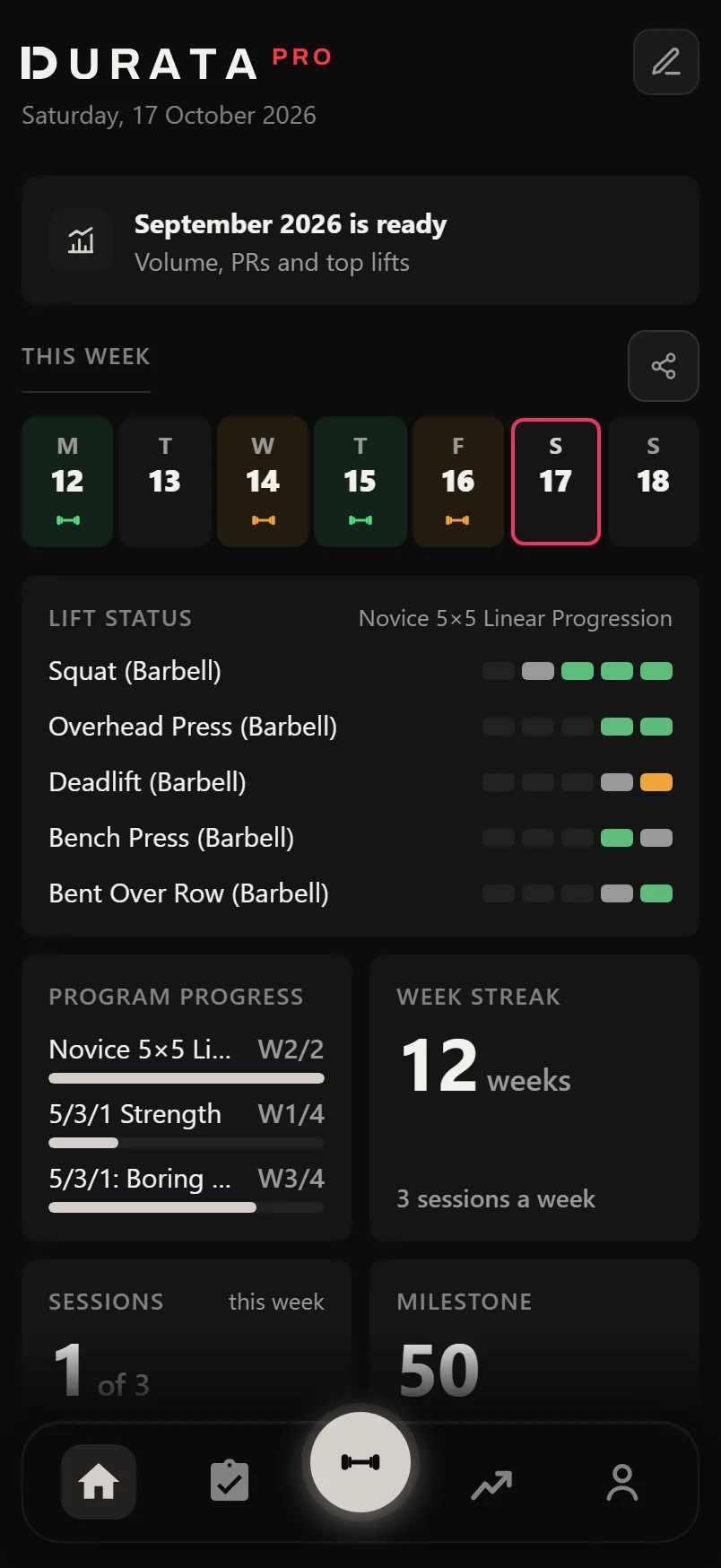
Customize Home: edit the board in place
Press and hold any widget to start editing, or tap the pencil at the top right of Home. Widgets keep showing your real numbers while you edit.
Each widget gets a − badge to remove it and a corner handle, showing its size letter, that steps through its sizes. Press and hold a widget to lift it, then drop it anywhere; the rest move round it. If you started editing with a long press, keep your finger down and the same widget lifts straight away.
The bar at the bottom has Cancel, Add Widget and Done. Add Widget lists everything not on your board, each with a line saying what it does. Widgets still waiting for their data are dimmed and say what they need, like "Appears after about a month of training". Adding One Lift asks for the exercise and the measure; adding Goal asks which goal. A widget you removed comes back as you had it. Restore Default Layout is at the foot of the list, and Undo is offered straight after.
Done saves the board to your account, so it is the same on your other devices. Cancel leaves without saving.
- Press and hold a widget, or tap the pencil at the top right of Home.
- Remove a widget with its − badge, or step through its sizes with the corner handle.
- Press and hold a widget to lift it, then drop it where you want it.
- Tap Add Widget to add one. Dimmed ones say what they are waiting for.
- Tap Done to save, or Cancel to leave without saving.
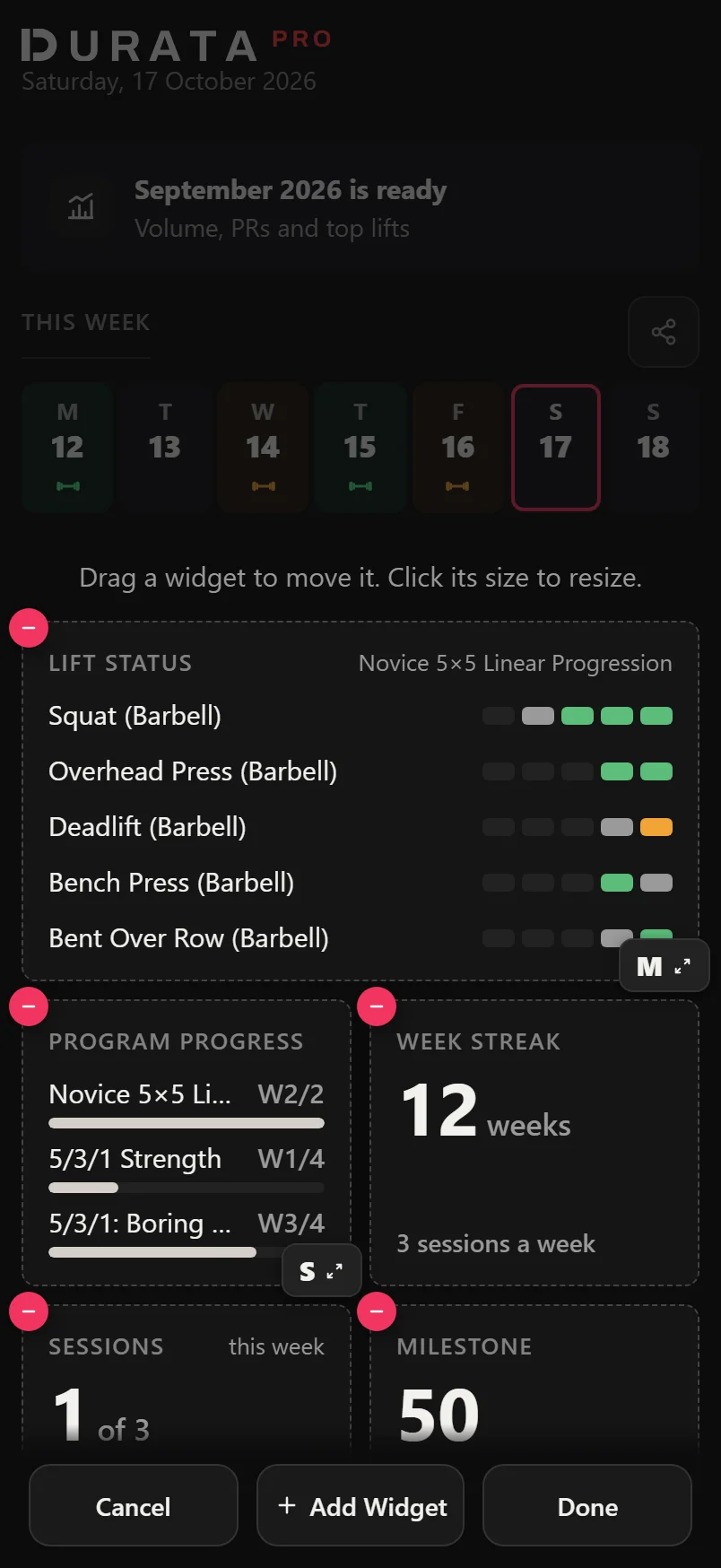
What each widget shows
This week. Sessions counts this week's sessions done against planned. Week Volume totals the week's working weight. Sets by Muscle shows your top muscles by sets as bars, with a body at the bigger sizes. PRs This Week shows one record type per tile: e1RM, weight or volume, picked when you add it. Cardio shows the week's cardio.
Your plan. Up Next is today's planned session: tap it to preview it, with Start Workout in the preview. If it is already under way, the tap takes you back to your workout. Under it, each running plan has a row with where you are ("Week 4 of 12", "· repeats" on a plan that runs again) that opens the planner. On a rest day it shows the next session. Come back to a plan after a break and Up Next leads with Welcome Back: Ease Back In lowers your working weights, and Carry On leaves them; after either, the row says what changed and offers Undo until your next session.
Program Progress shows the week you are on and how many of the sessions due so far you have logged. A session is only due once its day is over. Week Plan draws the plan's weeks as rows of seven days, each training day in its main muscle's colour, the week you are on marked and a deload week in its own colour. Tap a row to open the planner on that week. A plan that runs in order instead of on set days lists that week's sessions in order, with what you have done ticked and the next one marked. Add a Week Plan per plan if you run more than one.
Lift Status shows how your plan's lifts are progressing, newest first. The small size lists four lifts with their latest result: ▲ and the new weight in green, ▼ in amber for a step down, "held" (red after a miss), or "on track". The bigger sizes show each lift's last five results as coloured segments: green up, grey held, red a miss, amber a step down. Tap a lift to see why its weight is what it is; tap the rest of the tile for the planner. Only lifts with a progression rule in a running plan appear.
Last Workout shows your most recent session's volume (or its time, for a cardio session) and the change from the last time you did it. At the bigger size it adds sets, minutes and the top set. Tap it to open the session.
The long view. Streak counts training days, with up to 3 rest days allowed; tap it for the rules. Week Streak counts weeks in a row you hit your planned sessions. Milestone counts down to your next round number of sessions. Month Calendar shows your last two weeks (M) or the whole month (L): a day you trained is a green disc, today is ringed, and it counts the sessions. On This Day appears now and then, on a day worth looking back on: a session a year or more ago on lifts that have clearly gone up since, or a lifetime milestone. It shows the set then and the set now, with a share button.
You. Bodyweight, Sleep, Training Load and Recovery (Pro), Photo Pair (your newest progress photo beside one from a few months before, dated), Gyms (once you train at two), and Goal: one goal in one tile, with its forecast date, how far is left, and its trend at the bigger size. A habit goal shows its run of weeks.
Food and water. Nutrition shows the week's average calories, macros and water, with a 30-day chart and your weight line at the biggest size. Water shows today's water from your health app, with your 7-day average. Today's Fuel shows what you have eaten today against today's target, once you have set nutrition targets. Fuel vs Training compares your average calories on training days and rest days. Protein per kg divides your recent protein by your latest weight.
One Lift charts one exercise on one measure: e1RM, top set or session volume. Add as many as you like.
Add three One Lift widgets for bench, squat and deadlift.
Show on Home, in a goal's Edit Goal sheet, puts that goal on Home, up to three goals. Add Widget's Goal has no limit.
While editing, a quick tap on a PRs This Week or Week Plan tile changes its record type or plan.
Water only shows when your health app has reported water in the last week, and its average only counts days that reported some.
Common questions
Why isn't the widget I want on my board?
Look in Add Widget. If it is dimmed, its data has not arrived yet, and it says what it needs. Once it has its data, you can add it.
Do my changes sync to my other devices?
Yes. Done saves the board to your account. Restore Default Layout, at the foot of Add Widget, puts the default board back, with Undo straight after.
Are my Photo Pair photos shown to anyone?
No. Progress photos stay on your phone and the widget only shows them on your own Home. Adding the widget is how you choose to see them there.
Can I set a calorie or protein target on these widgets?
Targets are set on the Nutrition screen. Once you have one, Today's Fuel reads today's food against it. Water has no target in Durata.
Can I have the same widget twice?
One Lift, Goal, PRs This Week and Week Plan, yes: each tile has its own exercise, goal, record type or plan. The rest are one per board.
Is this the same as the widgets on my phone's home screen?
No. Your phone's own widgets (Up Next, This Week, Goal, Streak and more) sit on its home or lock screen, outside Durata. They read the same numbers, but changing one does not change the other.
Put it into practice
Durata is free to use — 50 proven programs, automatic progression, rest timers and PR tracking, all on your phone.