


Logging workouts
The logger is where you'll spend most of your time in Durata, so it's built around one idea: between sets you have ten seconds and one thumb. Changing a set type, starting the rest timer and checking what you did last time are all one tap from the set row.
This page walks through a workout from the first set to the finish screen. The rest timer, the calculators and the other tools have their own guide, Workout Tools.
Last reviewed 2026-10-26 · matches app v1.1.1.105
Starting a workout
Workouts start from the Workout tab, the round button in the middle of the tab bar: today's session, anything to catch up on, and the week ahead. The Workout Tab guide covers that screen. This guide picks up once a workout is running.
Sessions arrive filled in with their planned sets and your previous weights, and the workout is saved on your phone as you go.
The exercise carousel
Across the top of a live workout sits a carousel with one cell per exercise. Tap a cell to jump to that exercise, or press and drag to reorder the session on the fly. The exercise you're on wears a red ring, a finished one dims under a green tick, and the + cell at the end adds a new one. Exercises in a superset share one coloured underline.
The + opens the same exercise picker you get from the Exercises screen, with nothing cut down for mid-workout use: search, the body-part filter, favourites, the + for a custom exercise you invent on the spot, and the List / Grid switch under the search box. Grid shows each exercise as a card with its photo, which helps when you're adding something you don't train often. Recently Used sits at the top, drawn from your last few sessions. Tap as many as you want, each one ticks and the button at the bottom counts them, then add them in one go.
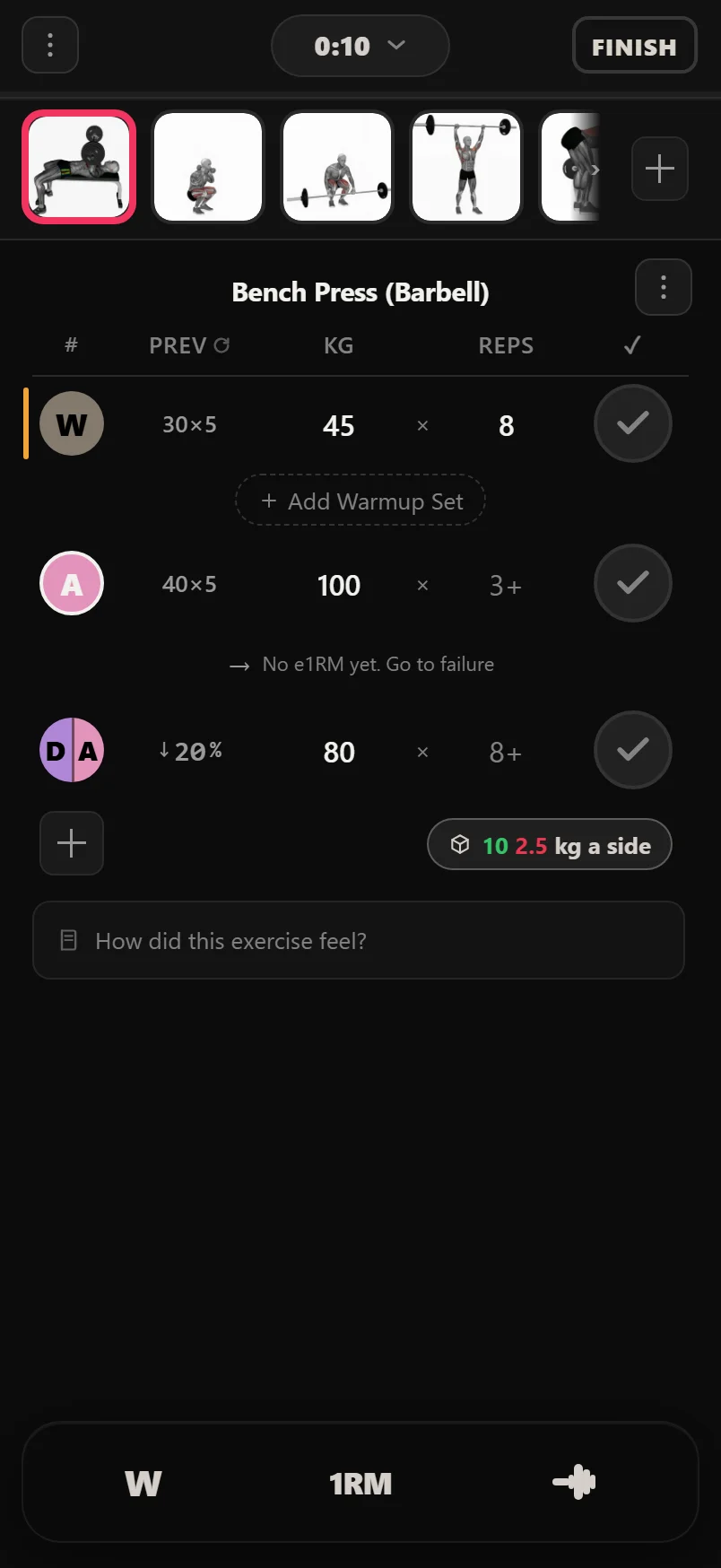
Long-press an exercise name to play its how-to video instantly; a normal tap opens its detail page.
Tap the tick column header to complete every remaining set of an exercise at once.
The session sheet
The line above the bottom bar shows the session's volume and your estimated 1RM on the current lift. Tap it, or STATS in the tool tray, and the session sheet opens with the whole workout on one screen.
It leads with the day and start time (tap to change it), the workout name with a pencil to rename it, and the volume so far with its change on the last session of the same name. Four tiles follow: Sets, PRs, Time, and Left, an estimate of how long the sets still to do will take. Under them sit the Session Fatigue card and every exercise in the workout, each with its sets as chips: solid when done, outlined for the set you're on, dashed for the ones to come, amber with a trophy for a record. Tap a chip to go to that set, or the rest of the row to go to that lift. Hold a row for half a second and drag it to reorder the session.
At the bottom, Muscles shows the split of push, pull and legs so far, front and back bodies side by side, and the sets and volume for each muscle with its change on last time. Only completed sets count, so the bodies fill as you tick sets off. The foot of the sheet has Add Exercise, and Undo while there's something to undo: it walks back the adds and reorders you made in the sheet, one at a time.
The set types
Tap a set's number badge to open the set sheet. It builds a set from three layers. Set is Warmup or Working. Load sets how the weight is worked out. Layers stack extras on top. Apply to, pinned above Done, chooses whether the change goes on this set or every set of the exercise.
Load is Fixed on any set. A working set can also take a percentage of your training max (% TM) or your estimated 1RM (% 1RM); a warmup can instead take a percentage of the exercise's working weight (% Work) or of your training max. Dial the percentage on the stepper beside it, in 2.5% steps. Layers then stack on a working set: AMRAP, Dropset, Backoff, Rest Pause (which covers Myo Reps and Cluster sets too), Partials and Unilateral. A set carrying more than one shows each layer as its own dot on the badge. A warmup takes Unilateral only.
The sheet only offers what fits the exercise. An assisted lift keeps Fixed load and drops Dropset and Backoff, since their maths would run backwards on an assistance number. A reps-only lift has no Load. Timed and distance lifts have no Load and no layers, and cardio has a sheet of its own.
AMRAP (as many reps as possible) rides on top of any working set and gets a live target: the reps at your entered weight that would beat your estimated 1RM. Quickest route of all: type a + or * after the reps, 8+, and the set flips to AMRAP without opening the sheet.
Dropset and Backoff both take a percentage off an earlier set, but not the same one. A Dropset comes off the set directly above it. A Backoff's From row picks its anchor: Top Set, the default, comes off the exercise's first working set however many sets sit between, so a run of Backoff sets all shed weight from that one anchor instead of compounding off each other; Set Before comes off the set directly above it instead, and the row's weight moves to match whichever you pick.
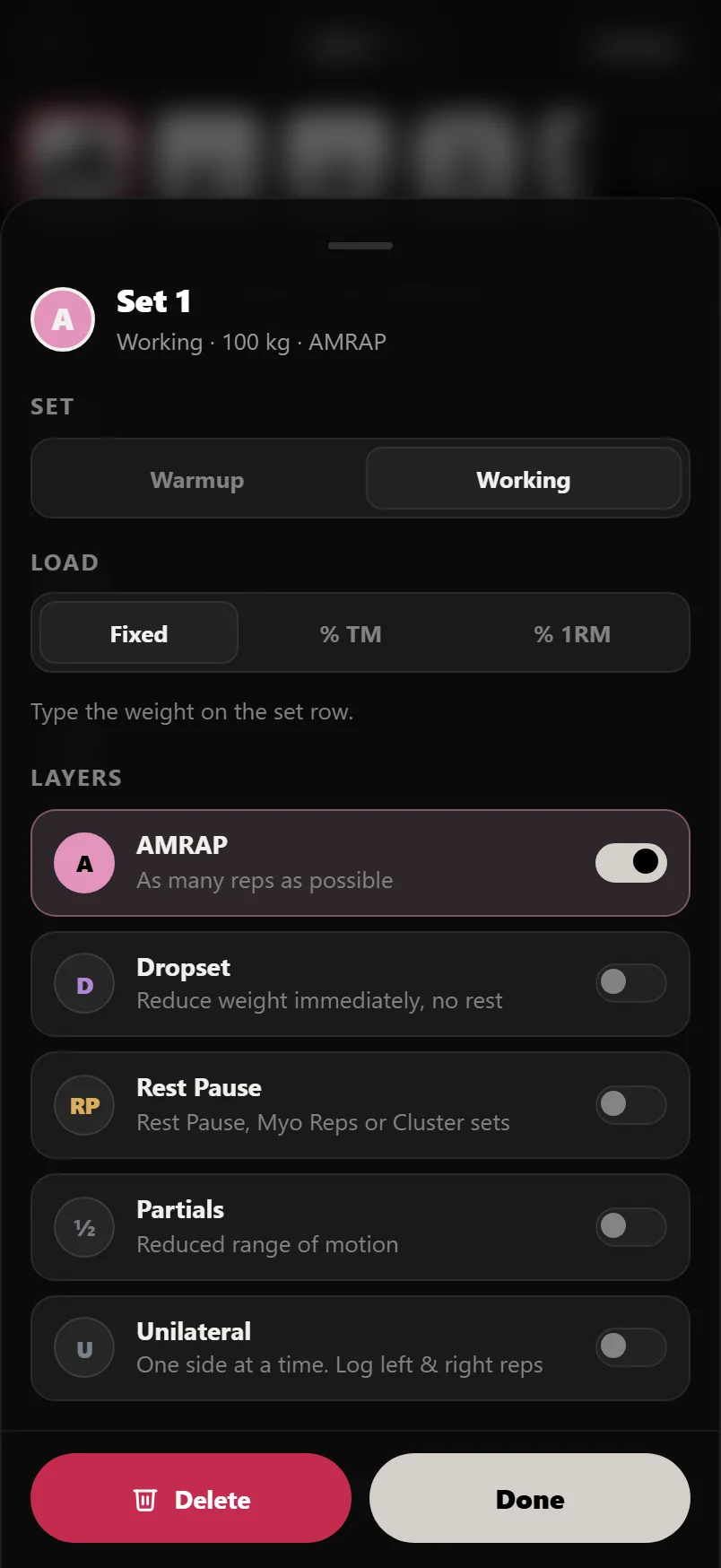
Rest Pause, Myo Reps and Cluster sets
Turn on the Rest Pause layer and a Style row appears under it, on the first set of the group only: Rest Pause, Myo Reps or Cluster, a line on what each one is, and Pause, the seconds between minisets. Every row of the group wears its letters on the badge: RP, MYO or CL.
Each miniset is a row of its own, straight under the set that starts the group, and a line in the Rest Pause colour joins their badges. + Add Miniset under the group's last row adds another, copying the row above. Every miniset keeps the first set's weight, and ticking that set fills the open minisets with it. If the weight changes, that's a Dropset.
The rest between minisets is the group's pause: what the plan set for it, else your Rest Pause default under Settings > Rest Timer > Rest by Set Type, else 15 seconds (Cluster defaults to 20), and the rest buttons move it in 5-second steps. The last row takes the set's normal rest, never the pause. A tip under the row you're on says where you are: "Miniset 1 of 2 · rest 15 s".
Minisets count toward the session's reps and volume, but never as a set number, a record or an estimated 1RM, the same as any Rest Pause set. Delete the first set of the group and Durata asks before it takes the minisets with it.
Reading the exercise card
Each exercise's card leads with its name, centred, with the ⋮ menu on the right. If the lift carries a progression rule, one line under the name says what earns the next step, "Hit 5 Reps for ▲2.5 kg Next Time" on a linear lift, "12 Reps on Every Set for ▲2.5 kg" on double progression. The ▲ figure is the jump your weight really takes, rounded to your weight step, so a 2 kg rule at 30 kg on 2.5 kg steps reads ▲2.5 kg, the same as the why screen. It covers linear and double progression, GZCLP-style stage ladders and 5/3/1-style training-max cycles.
Once the rule has made a call, the line turns the colour of what happened. Green with ▲ means the weight went up ("▲2.5 kg Today"). Red means a missed session was counted ("Held at 80 kg, 2 Misses From a Deload"). Grey means it held or is waiting. Amber with ▼ means a step down, such as a deload or a new cycle. These are the same colours Lift Status uses on Home and on each exercise's page. The weight itself is in the set rows, so the line doesn't repeat it.
Tap the line and the why screen opens. Its headline is the line you tapped; under it, one sentence explains the call in your own numbers, then rows show today's target, what earns the next step and what a miss or a deload does, then your last session set by set. Change Rule opens the lift's progression in its plan, and a change made mid-workout takes effect straight away, on this session's chip and at the finish screen. A rule built into a program you're running can't be changed, and the screen says so; on a free account, changing any rule is a Pro feature, and the screen shows that lock instead of opening the Pro screen mid-workout.
On percentage-based sets, the reference the maths runs off sits in the column header where the previous-session column normally is: "TM 107.5" when a training max is set, "1RM 84" when it's riding your estimated 1RM instead.
Beside the + Set button sits Setup. It reads back how the lift is loaded, "20×2 5 kg a side · Bench 30°", so the bar you have to build is on the card before you open anything. On a dumbbell lift it reads "2 × 30 kg", on a pin-stack machine "Pin 7".
Tap it and one sheet holds everything about how you do this lift. What you've set up comes first: the plate breakdown for today's working weight, your bar and rack settings, bench angle, how the machine is loaded. Anything you haven't set folds into an Add row underneath (Add kit, Add a note, Add rack settings). What you save is per exercise, so it comes back next session. If you used a bench angle or a piece of kit last session, the sheet offers it back; one tap accepts it and it becomes your saved default.
On a lift that uses a bench, the Bench card draws the bench at the angle you set. It steps from a 15° decline through flat and up to 85°, and reads in words: Flat, 30°, Decline 15°. Under it sits Seat pad, for the notch the front pad is set to.
The ⋮ menu holds Replace, Reorder, Rest Times, Superset and Remove. Replace swaps the lift without touching the rest of the session. It opens the picker filtered to the muscle you're swapping away from and led by a Recommended shortlist of the closest lifts, so a busy bench offers you the dumbbell and machine presses first. Your sets come with you, unticked. Anything already in the session is marked In workout, and you can still pick it.
Under the last set sits the session note, a full-width field for how the exercise went. Tap anywhere on it to write; if you left a note on this lift recently, it appears as a suggestion you can keep with one tap on Save. Notes only commit when you save them. Longer instructions live on the two pinned notes above the sets: your own note about the lift, shown everywhere it appears, and the plan's note from the routine.
Auto-fill and coaching hints
Every weight and rep field shows what you did last session as a faint placeholder. Ticking off a set you haven't typed into logs those values, so a blank tick means "same as last time" and repeat sessions take one tap per set.
When a routine or program prescribes the reps, the prescription wins: a fixed rep count is pre-filled, and a rep range like 8-12 stays visible as the placeholder. Ticking a range set you haven't typed into logs the top of the range. On a unilateral lift a range reads "8–12 each side" under the set you're on.
Under the set you're on, Durata shows one short tip when it has something your row doesn't already say, such as the reps that would beat your estimated 1RM. It reads like a data line, and anything that would repeat the previous-session column stays silent. Logged rows never carry a tip. Turn off Progression Hints in Settings > Workout Defaults if you'd rather lift in silence.
On a program, the program wins. Where it fixed the reps, a 5/3/1 straight set or a 10x10 volume block, the tip stays quiet rather than talking you into an extra rep the plan never asked for. Where the program leaves the top open it speaks up, and it scores you against the program's own target: an AMRAP set gets the reps that would beat your estimated 1RM, and a rep range gets the number that earns the next weight increase.
If you keep lifting heavier than a program lift's target for a few sessions in a row, Durata shows a short prompt on that exercise: your working weight was probably set too low. Tap Adjust to open Working Weights and correct it, rather than waiting for the small automatic increases to catch up.
Numeric inputs select their contents on focus, so you type over old values instead of deleting them.
Both a comma and a period work as the decimal point, so 100,5 and 100.5 log the same weight.
The effort badge stays live after you tick a set. Rate it, or fix a rating you got wrong, without unticking the set and restarting your rest.
The header and bottom bars slide away while you type, so the keyboard never buries the row you're editing.
Ticked a set with no weight? Its weight box stays red until you type one. It never stops you, and blank is fine on bodyweight lifts, % sets and cardio.
A set will not tick without reps. Weight on its own carries no volume, no estimated 1RM, and the progression engine skips it, so the reps field flashes and the tick waits.
When you set a record
Beat one of your records and the moment plays the instant you tick the set. If your rest runs full screen, the record takes the screen for a few seconds: the lift, the new best in amber, what it was and what you gained, and how long the old record stood. Then its countdown flies into the rest ring and the rest carries on. With the header rest bar, or no rest on that set, a splash rises from the bottom of the screen instead and goes after five seconds. Tap it, drag it down, or tap above it to put it away sooner.
Each moment plays one of thirteen animations, and the bigger ones are saved for big records. The set's badge keeps a trophy; tap it to see the record again as the bottom splash. A trophy in the corner of the full-screen rest, on the rest straight after the record set only, replays the celebration you first saw.
Edit the weight or reps on a set you've already ticked and its record is judged again, both ways: no longer a record and the trophy goes quietly, newly a record and it gets its moment, the same as ticking it fresh.
Settings > Rest Timer > Celebrations sets how records show: Auto, Always the Bottom Splash, Always Full Screen, or Off, which keeps the trophy on the row and still counts the record. PR Moment picks Surprise Me or one favourite animation. Cardio records never interrupt a workout; they show on the finish screen.
Supersets
Open an exercise's ⋮ menu and choose Superset to link it with other exercises in the session. Linked exercises share a colour: their carousel cells sit over one underline in the group's colour, an SS tag sits next to the exercise name, and when you finish a set the partner exercise shows as up next.
By default Durata also jumps to the partner exercise when the rest timer ends. Auto-Advance in Settings > Rest Timer sets how far that goes: Off leaves you where you are, Supersets rotates the group, Last Set moves you on once an exercise has no sets left, and Both does the two together.
Session fatigue
A thin line between the volume strip and the bottom bar fills with colour as the session goes on: green when you're fresh, then lime, yellow, orange, red and purple as fatigue builds. The numbers behind it are on the Session Fatigue card in the session sheet: the level in words, its bar, and a row for each signal. Turn the line off in Settings > Workout Defaults > Fatigue Bar.
It stays idle until you've done two working sets. Warmups don't count and cardio is left out. Signals it has no data for are dropped rather than guessed at: log no effort ratings and there's no RPE row, and a workout name you've never trained before has no baseline, so it runs on set count instead.
Green early on is normal. Green fifteen sets in usually means you left something in the tank. Yellow and orange through the back half is a decent session. Red or purple means several signals agree at once, which is worth knowing before you start another exercise.
Check the card before you read much into the colour. If rep drop-off is driving it you're running out; if it's rest drift you may have spent ten minutes on your phone. Either way it never stops a set or changes a weight, and the reading is saved with the workout, so History shows it later.
The four signals, each measured against your last workout with the same name:
- RPE Drift. Are you rating sets harder than last time?
- Rest Drift. Are your rests running longer than the ones those sets were meant to have?
- Rep Drop-off. Across every exercise of three sets or more, how far did the last set fall below the first? An exercise that held or improved counts as no drop, so one fading lift doesn't speak for the whole session.
- Volume Pace. Have you lifted as much as you normally have by this point in the session?
The card names the level as well as colouring it: Feeling Fresh, Settling In, Good Effort, Fatigue Building, High Fatigue and Near Limit.
Rename a session part-way through and the fatigue reading loses its baseline. It runs on set count until you've logged that name again.
Pausing, discarding and finishing
The FINISH button carries a thin ring that fills as you tick sets off, clockwise from the top, so you can see how far through the session you are. It counts every set in the workout. Add a set mid-exercise and the ring holds where it is rather than sliding backwards.
The three-dot menu in the header holds three things. Minimise leaves the workout screen without ending anything: your session stays where it is, the clock keeps running, and a LIVE banner at the top of Home hands it back whenever you want it. Pause Workout stops the clock without losing anything, and Discard Workout throws the session away after a confirm.
FINISH opens Session Complete. One figure leads, your session's volume (a cardio session's total time), and it plays out in one of eighteen celebrations that fit the session, from a chalkboard tally to a printed receipt, before a line under it says what changed: records set, or Beat Last Time. Tap the figure to play it again. Under it sit Sets, PRs, Time and Reps, and the Lifetime card, a counter of everything you've lifted in Durata that turns over once as the celebration ends.
Then the detail: any new personal records (tap one to open that lift's chart), new cardio records, the Exercises card with each lift's "Next time" line in the same words and colours as the logger's progression line, Share This Session, and Workout Notes. If you changed a routine session mid-workout, a chip near the top asks whether to keep the changes; Save Workout opens a sheet where you pick which ones stick. At the foot, Save Workout saves and takes you to Home, Discard throws the session away, and Save as Standalone files the session loose in your Library as a reusable session.
The share reel always leads with a Photo card that invites you to add your workout photo, from your camera or your library. Behind it sit a Session card, an Achievement card built around your biggest lift, an Ink statement, a Muscle Map, plus a Receipt, a PR certificate or a lift trend when the session earns them. Each card can be Square or Story and light or dark. See the share-cards guide for the full set.
Settings > Rest Timer > Celebrations > Finish Celebration picks Surprise Me, one favourite, or Off. Off, or a device set to reduced motion, shows the settled screen at once.
A finished session's ⋮ menu in History has Play Celebration, which replays Session Complete for that workout.
On Android the back button asks first, then does the same as Minimise. On an iPhone there is no back button, so Minimise is the way out.
Leaving mid-rest doesn't interrupt the countdown: it moves to the small timer that floats above whatever screen you go to, and tapping it takes you back to the set.
The switch on the keep-changes chip is a shortcut: flick it off and Save Workout saves without asking, leaving the routine as it was.
Common questions
How do I log a Rest Pause or Myo Reps set?
Turn on the Rest Pause layer in the set sheet and pick the Style. Each miniset then has its own row under the first set, with + Add Miniset for more. Every miniset keeps the first set's weight and rests for the group's pause.
Can I stop the record animations?
Yes. Settings > Rest Timer > Celebrations > PR Celebration has Off, which keeps the trophy on the set and still counts the record. Always the Bottom Splash keeps it small.
Can I turn off the coaching tips?
Yes. Turn off Progression Hints in Settings > Workout Defaults. On a program you shouldn't need to: where the program fixes the reps, the tip already stays quiet.
What does checking off a set I haven't filled in do?
It logs last session's values for that set. The faint placeholder numbers are what you did last time, and ticking the set means "same again".
How do I log an assisted pull-up or dip?
Log the assistance as a positive number. On assisted pull-ups, chin-ups, chest dips and triceps dips the weight column is labelled ASSIST, and 30 there means 30 kg taken off your body weight. Volume counts what you actually lifted, so less assistance is a stronger set.
Why is my dip volume so much bigger than weight x reps?
Dips, pull-ups, chin-ups and push-ups count your body weight in volume, so a +10 kg dip at 85 kg body weight is a 95 kg set. Weight and e1RM records still use the added weight, which is the number lifters quote, and your program's prescriptions are always in added weight too.
What does the fatigue bar measure?
Four things, all against your last workout with the same name: your effort ratings, how long your rests are running, whether reps are falling off inside an exercise, and whether your volume is behind its usual pace. It uses whichever of those it has data for, plus how many sets you've done. The Session Fatigue card in the session sheet shows which one is driving the colour.
Put it into practice
Durata is free to use — 50 proven programs, automatic progression, rest timers and PR tracking, all on your phone.