


Building a session
A session is one workout: the exercises, and every set of each one, written down before you start. You build and change sessions in the session editor. It looks like the workout screen, so once you know one you know the other.
This guide goes through the editor from top to bottom: adding exercises, sets and reps, the set sheet that sets each set's type and load, Minisets and supersets, rest and tempo, and what changes when the session sits in a plan.
Last reviewed 2026-10-20 · matches app v1.1.1.105
Opening the editor
To make a new session, open Training, tap + in the header and choose Session. Give it a name, such as "Push Day A". If you have plans, the sheet also asks which plan it goes in. Leave it on No Plan for a session of its own, or pick a plan to add it there.
To change a session you already have, tap it in your Library and choose Edit. In the planner, tap a session and choose Edit Session.
You can also start from a workout you have already done. Open it in Progress, History, tap ⋮ and choose Save as New Session, and it becomes a session you can run again.
The tick at the top right saves. The cross at the top left closes, and if you have changed anything it asks before throwing the changes away.
Exercises, sets and reps
Add exercises from the full library of 451. Search by name, or browse by muscle and equipment. Each one comes with its how-to video and form notes. Put them in the order you will do them: the big lifts first, the smaller ones after.
Each exercise has its own rows of sets. Type the weight and the reps for each set, and tap + under the last row for another. A new set copies the one above it, so a 5 × 5 is one row typed and four taps.
Tap the REPS heading to switch that exercise to rep ranges. It then reads RANGE, and each set takes a bottom and a top number, such as 8 to 12. On a one-side-at-a-time lift like a lunge, the reps are for each side, and the row says so.
Timed holds such as planks and dead hangs take a time instead of weight and reps. Cardio takes time and distance.
The ⋮ beside an exercise's name has Replace, Reorder, Rest Times, Superset, a note, and Remove.
The set sheet: Set, Load and Layers
Tap a set's number badge to open the set sheet. It is the same sheet the workout screen uses, and it describes a set in three parts.
Set is Warmup or Working. A warmup is a light set before the real work. It doesn't count towards your records or your volume.
Load is where the weight comes from. Fixed means the number you type on the row. % TM is a percentage of your training max, and % 1RM is a percentage of your estimated one-rep max, so the weight works itself out from your numbers. A warmup offers Fixed, % Work (a percentage of that lift's working weight) and % TM. A new warmup takes its percentage from your warmup profile, which you can change in Settings, Warmup Profiles. The sheet shows what the percentage comes to, such as "of TM 130 = 110 kg".
Layers add something to a working set. AMRAP is as many reps as possible. Dropset cuts the weight straight after the set, with no rest. Backoff is a lighter set taken off an earlier working set. Rest Pause covers Rest Pause, Myo Reps and Cluster sets (see Minisets, below). Partials is a shorter range of motion. Unilateral is one side at a time, with left and right reps logged apart.
Dropset and Backoff take a percentage off. A Dropset starts at 20% lighter than the set before it, and a Backoff at 10% lighter than your last working set. Change the number with − and +.
At the foot, Apply to chooses This set, every set of the same kind, or All. In the session editor, a strip across the top steps through every set of the exercise, and copies, adds or deletes a set, so you can set up a whole exercise without closing the sheet. Done closes it.
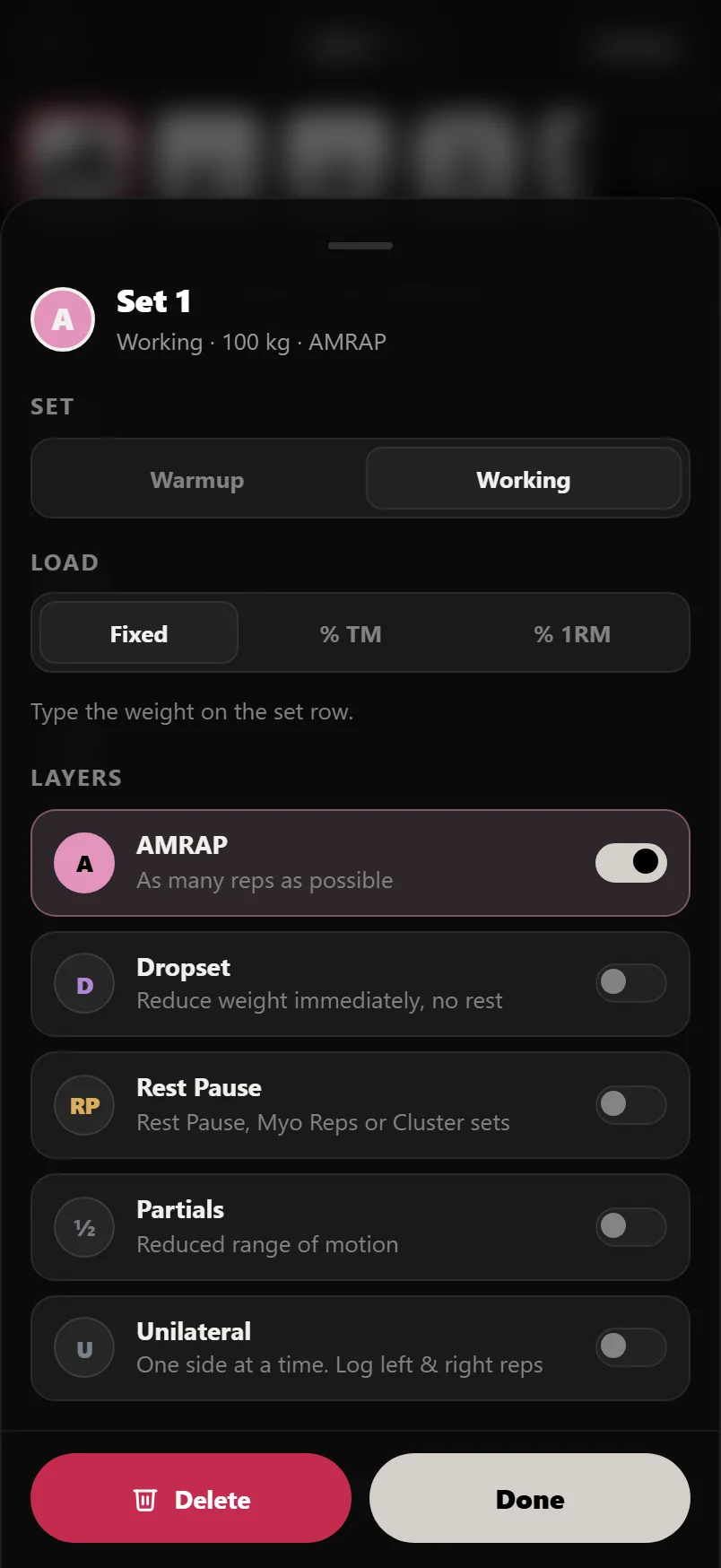
The sheet only offers what makes sense for the exercise. An assisted machine, where the number is the help it gives you, has no % loads, Dropset or Backoff. Reps-only lifts like pull-ups have no Load part. Timed holds have no layers.
Minisets: Rest Pause, Myo Reps and Cluster
Turn on the Rest Pause layer and the sheet asks for a style: Rest Pause, Myo Reps or Cluster. Each is one hard set followed by short Minisets with a short pause between them. Under the style is the Pause, in seconds between Minisets. It starts at 15 seconds, or 20 for Cluster.
Back on the session, tap + Add Miniset under the set to add one. A Miniset copies the weight of the first set and the reps of the one before it. A line joins the group so you can see where it starts and ends, and deleting the first set takes its Minisets with it.
Supersets
A superset is two or more exercises done back to back, resting only after the last one. Open the ⋮ on one of them, choose Superset and tick the exercises to pair it with. They are given a letter, A, B and so on, and the workout screen moves between them for you.
To take an exercise out of a superset, open Superset again and untick it. Removing one half of a pair leaves the other as a normal exercise.
Rest and tempo
Each set has its own rest. Tap the REST cell on a row to set it, and Apply to All Sets gives the whole exercise the same rest. Next Lift moves the sheet on to the next exercise, so you can set the rests for the whole session in one go. A blank rest uses your default from Settings.
Tempo is how fast each rep goes, written as four numbers such as 3010: three seconds down, no pause, one second up, no pause at the top. Pull down the tray under the header and tap Tempo to set it for the exercise on screen. Next Lift steps through the rest. A lift with no tempo of its own uses your default in Settings. Timed holds and cardio have none.
Rest Times on an exercise's ⋮ opens the same rest sheet.
On its own, or in a plan
A session on its own is a workout you run whenever you like. It has no days, no weeks and no progression rules. Those come from a plan.
When the session is in a plan, each lift gets a progression chip under its name, and the plan moves the weights up for you. A dashed chip is a rule Durata suggests from the sets you typed: a range like 8 to 12 suggests Reps, then Weight, and fixed reps like 3 × 5 suggest Add Weight Every Session. Tap it to turn it on. Setting a rule is part of Pro. Build Your Own Program covers the rules in full.
To put sessions you already have into a plan, use Plan From My Sessions on +, or Add Session, then From My Sessions, in a plan you have. The plan gets copies, so the originals stay as they are.
Editing the sessions of a program you started from Discover is part of Pro. Moving its days and swapping a lift are free.
How many sessions you can build
A free account builds four sessions of its own. The New Session sheet shows how many you have used. Sessions you import, and programs you start from Discover, never count, and deleting a session frees its place. Pro takes the limit off.
Copies count too. A session placed on three days of a plan counts three times.
Common questions
How do I make a new workout in Durata?
Open Training, tap + and choose Session. Name it, add your exercises, type the weight and reps for each set, and tap the tick to save. It sits in your Library, ready to run.
How do I add warmup sets?
Tap a set's number badge and set it to Warmup. Its load can be a fixed weight, a percentage of the working weight, or a percentage of your training max. A new warmup takes its percentage from your warmup profile in Settings.
Can a set use a percentage of my training max?
Yes. In the set sheet, choose % TM under Load and set the percentage. The weight works itself out from your training max, and the sheet shows what it comes to. % 1RM does the same from your estimated one-rep max.
How do I set up a Dropset or Rest Pause set?
Open the set sheet and turn on the Dropset or Rest Pause layer. A Dropset takes a percentage off the set before it. Rest Pause asks for a style (Rest Pause, Myo Reps or Cluster) and a pause, and you add Minisets with + Add Miniset under the set.
How do I make a superset?
Open the ⋮ beside one of the exercises, choose Superset, and tick the exercises to pair it with. They share a letter and the workout screen takes you from one to the next.
Why is there no progression chip on my session?
Progression rules belong to plans. A session on its own has none. Put the session in a plan, and each lift that can take a rule shows a chip under its name.
How many sessions can I build for free?
Four of your own. Imported sessions and programs started from Discover don't count, and deleting a session frees its place. Pro takes the limit off.
Put it into practice
Durata is free to use — 50 proven programs, automatic progression, rest timers and PR tracking, all on your phone.