


Build your own program
Durata ships 50 ready-made programs, but you're never limited to them. You can build a plan of your own, with your split, your exercises and your sets and reps, and give each lift a progression rule so the app works out the next weight for you, the same way it does for a built-in program.
This guide walks through it end to end: setting the plan up, filling in its sessions, and turning on progression, plus the quicker route that builds a plan from sessions you've already saved.
Last reviewed 2026-10-26 · matches app v1.1.1.105
Starting a new plan
Open Training, tap + in the header and choose Plan. That opens Create a Plan. If you have saved sessions, New also offers Plan From My Sessions, which builds the plan from those sessions instead (see below).
Create a Plan asks for a name and the shape of the plan before you add any exercises. Nothing here is permanent: every setting can be changed later from the planner, so don't overthink the first pass.
Setting it up
Give the plan a name you'll recognise, for example "My Push / Pull / Legs". Under it is a Plan Settings card, with the same rows and words the planner uses once the plan is running.
Goal is Strength, Hypertrophy, Powerbuilding, Fat Loss or Powerlifting. Experience is Beginner, Intermediate or Advanced. Both are labels that help you place the plan later. Train on Set Days decides how it is scheduled. Leave it on and pick your Training Days for week 1, and the plan gets one session for each. Turn it off and the plan runs in order instead: numbered sessions with no fixed weekdays, moving on to the next one each time you log, which suits training that doesn't land on the same days every week. You then choose how many Sessions it has.
Repeats decides what happens at the end. On, a one-week plan "Runs the same week again and again" and a longer one "Runs N weeks, then starts again from week 1". Off, it "Runs once, then the plan is complete", which suits a fixed block like a peaking or fat loss phase. Weeks in the Block sets how many weeks a cycle has.
Tap Create Plan and the plan opens in the planner, with an empty session on each training day you picked, or each numbered session if it runs in order.
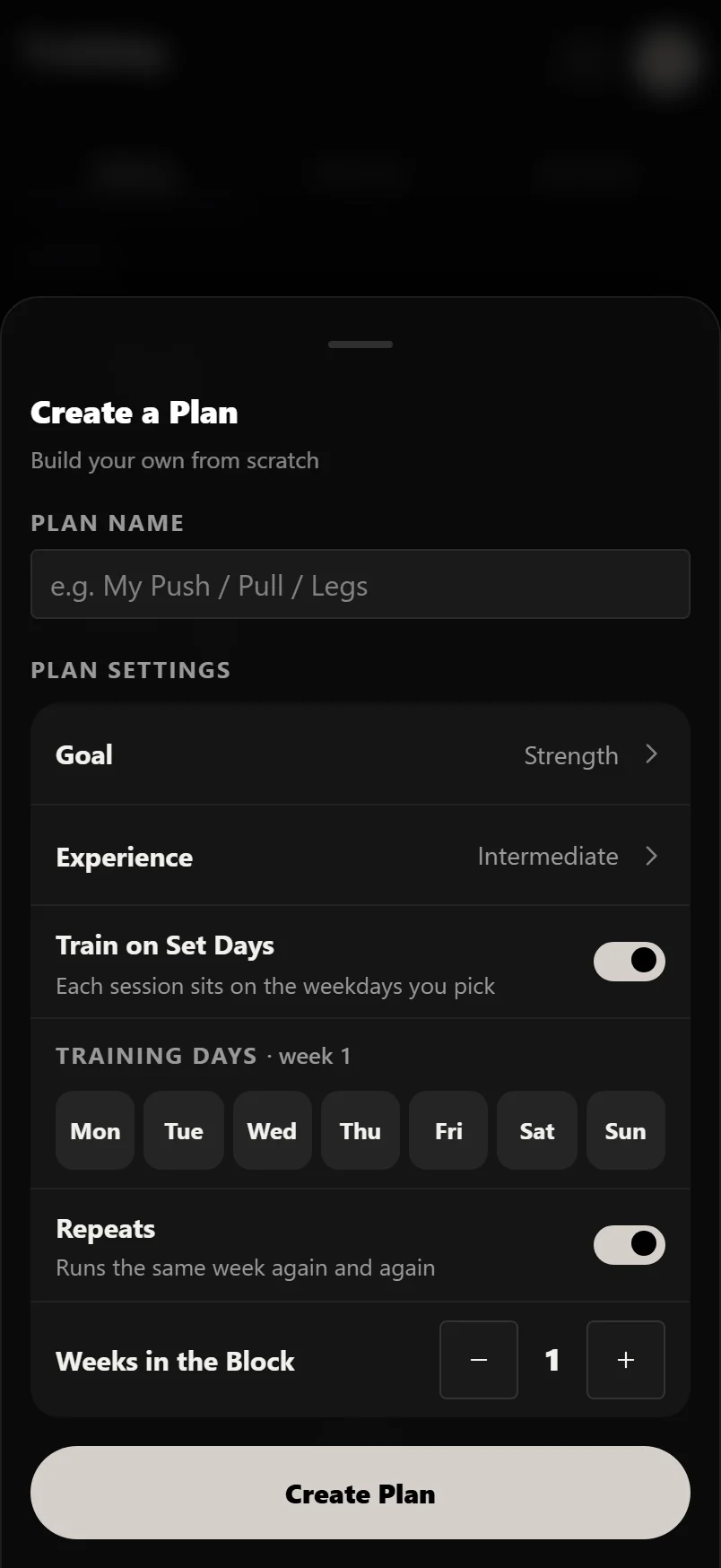
Training Days are only the week 1 schedule, and you can move sessions around afterwards. Start with the split you know you'll keep (see How to choose a program) rather than the most ambitious one.
Train on Set Days isn't a one-time choice. Flip it later in the planner's Plan Settings once you've seen which one fits how you train.
Plan From My Sessions
If your training already lives in a handful of saved sessions, you don't need to rebuild them. Choose Plan From My Sessions and one sheet does the whole job: name the plan, tap the sessions to include, and pick each one's training day, or several days if a session should repeat across the week (a cardio session on Wednesday and Friday, say). Below that is the same Plan Settings card as Create a Plan. Then tap Create Plan.
The sheet says what it is about to do: it copies your sessions into the plan, and the originals stay in your Library, so editing the plan later never changes the session you started from. Longer blocks start as copies of week 1; change each week in the planner.
Sessions Durata has just rebuilt from an import are the exception: those move into the plan rather than being copied. They were rebuilt from your own history moments earlier and exist nowhere else, so copying them would give you two of everything. The sheet counts which sessions move and which are copied before you commit.
The same sheet adds sessions to a plan you already have: in the planner, tap Add Session and choose From My Sessions. Its button reads Add to Plan there. It is the one way to put a standalone session in a plan.
Imported your history from another app? After the import rebuilds your sessions, Durata offers to group them into a weekly plan with the training days worked out from when you actually trained. That route ends on Create & Start, which asks for a start date, so you come out of an import with a plan already running.
On a free account, every copy of a session you built counts toward your four free sessions, so a session placed on three days counts three times, and again for each week of the block. Imported sessions that move into the plan don't count.
Adding exercises
Tap a session in the planner and choose Edit to open the session editor. Add exercises from the full library: search by name, and every exercise brings its how-to video and form notes. For each one, set the number of sets and the target reps, as you would during a workout. Order them how you'll perform them: compounds first, accessories after.
As you build, the planner's Sets per Muscle shows how many hard sets each muscle gets in the week, so a push-heavy week with no pulling shows up straight away. Add, remove and reorder freely; nothing is logged yet.
Tap a set's type badge to open the set sheet. A strip across the top steps through every set on that exercise, copies one, or adds and removes sets, without closing it.
Turning on automatic progression
Progression is what turns a list of exercises into a program. Each lift on a plan can have a rule, and Durata then works out the next target every session. Add Weight Every Session is linear progression, the classic beginner driver. Reps, then Weight is double progression: add reps within a range first, then add weight and drop back to the bottom of the range, which suits accessories and muscle-building work. % of a Training Max runs the lift off a percentage of a training max, the model behind percentage-based strength programs. I'll Pick the Weight leaves it to you.
The rule is a chip under the lift's name in the session editor. Durata reads the sets you've entered and suggests a rule to match: a rep range like 8-12 suggests Reps, then Weight, and fixed reps like 3×5 suggest Add Weight Every Session. A suggestion shows as a dashed chip; tap it to turn it on. A solid chip is a rule that is running. A plain Add Progression chip means nothing in the sets suggests one; tap it to open the picker and choose. If you later retype the reps so the rule no longer fits, the chip offers the switch, such as "Switch to Reps, then Weight?".
Tap a running rule's chip to change it. The picker offers increments that suit the lift's equipment (for example 1.25, 2.5 or 5 kg on a barbell), says in one sentence what will happen, and has Back off if I stall, where you choose how many misses in a row bring the weight down and by how much.
Setting a rule is part of Pro. A rule that is already running keeps running on a free account.
Once the rules are on, running your plan feels the same as running a built-in one: the weights are already filled in from last time and the rule, you lift, and the next session's targets update by themselves.
Match the rule to the lift: Add Weight Every Session on your main compounds while you can still add weight each session, Reps, then Weight on accessories. See the progressive overload guide for why.
Lifts no rule can move, like cardio, timed holds and reps-only bodyweight lifts, show no chip.
Running and editing it
When the plan is ready, start it from its program page: About This Program in the planner, or its row in the Library. Start Plan is at the foot. It becomes your active plan, schedules its sessions and shows on Home and the Workout tab like any program from Discover. From there you train: open each day's session, log your sets, and Durata moves the weights on for next time by the rules you set.
Nothing is locked in. In the planner, hold and drag a session to move it to another day, use Add Session and Copy Week, and change weeks, the current week, deloads and the rest from Plan Settings. Tap a session and choose Edit to change its exercises, sets, reps or rules. Your logged history is kept whatever you change, so build a rough first version, run it for a few weeks, and refine it.
Common questions
How do I create a custom plan in Durata?
Open Training, tap + and choose Plan. Name it, set your goal and training days in the Plan Settings card, and tap Create Plan. It opens in the planner with an empty session on each day. Tap a session, choose Edit, add exercises and turn on a progression rule for each lift. Then start it from its program page and it runs like any program from Discover.
Can I set automatic progression on my own plan?
Yes. In the session editor, each lift on a plan has a chip under its name. Durata suggests a rule from the lift's own sets as a dashed chip; tap it to turn it on, or tap Add Progression to choose Add Weight Every Session, Reps, then Weight, or % of a Training Max. Setting a rule is part of Pro.
Can I edit my plan after I've started it?
Any time. Tap the plan in your Library to open the planner. Move sessions by holding and dragging them, add sessions, copy a week across the block, and change weeks and the rest from Plan Settings. Tap a session and choose Edit to change what is in it. Your logged history is kept.
What's the difference between a session and a plan?
A session is one workout. A plan is a set of sessions across a week or a block, with days, weeks, repeats and progression rules. Create a Plan makes a plan with one empty session for each training day you choose.
Do I have to build from scratch, or can I copy a built-in program?
Either. Build from scratch, or start a program from Discover and change it: moving days and swapping a lift are free, and Pro can edit its sessions and add sessions or weeks. Either way the plan in your Library is yours.
Can I turn my saved sessions into a plan?
Yes. Tap +, choose Plan From My Sessions, name the plan, tick the sessions to include, give each one or more training days and set the plan's settings. The plan is built from copies, so your original sessions stay as they were in your Library.
Can I add a saved session to a plan I already have?
Yes. In the planner, tap Add Session and choose From My Sessions, then pick each session's day or days and tap Add to Plan. The session is copied in, so the original stays standalone in your Library.
Can the same session run on more than one day a week?
Yes. The day pickers take more than one day, so tap every day the session should run. That helps for cardio or conditioning you repeat across the week.
Does my plan need to run on fixed weekdays?
No. Turn off Train on Set Days when you set it up (or later, in the planner's Plan Settings) and it runs in order instead: numbered sessions in the order you run them, moving to the next one each time you log a workout, with no weekdays attached.
Put it into practice
Durata is free to use — 50 proven programs, automatic progression, rest timers and PR tracking, all on your phone.