


The planner
Once a plan has started, tapping it in your Library opens the planner. It is the plan's home from then on: what this week holds, which sessions are done, and every setting the plan has.
A plan you have not started opens its program page instead, where Start Plan is. Create a Plan is the one exception: a plan you have just built opens in the planner straight away, so you can add its sessions.
Last reviewed 2026-10-20 · matches app v1.1.1.105
This week at a glance
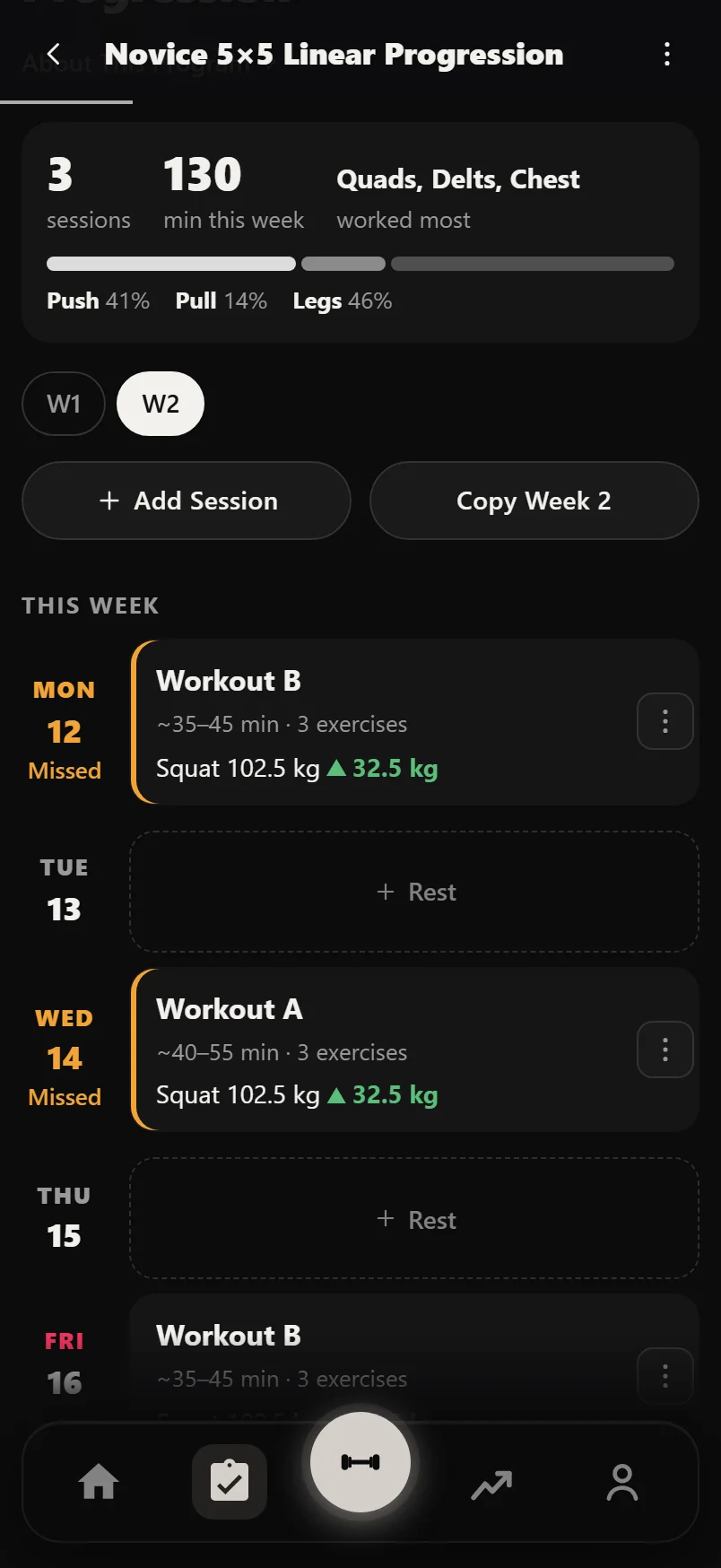
The top of the planner is the plan's cover, its status ("Week 2 of 4", "Paused" or "Running" for a plan that runs in order) and its name. About This Program under the name opens the plan's program page, the long read on how it works.
Under that, one card sums up the week: how many sessions, roughly how many minutes, the muscles worked most, and a push, pull and legs bar. Tap the muscles worked most and the planner scrolls down to Sets per Muscle and opens it.
On a plan longer than one week, a row of week chips sits under the card, W1 to the last week. The week you are on has a dotted outline, and a deload week reads "(D)". Tap a chip to look at that week. When the week you are looking at is not the one you are on, a line says so, with a Make Week N Current button if you want to move to it.
The day list
Each day of the week is a row: the day and date on the left, its session card on the right. Today is marked. A session you have logged gets a green tick. A session from this week that you missed turns its day amber with "Missed" under the date, the same rule the Workout tab uses for Catch Up. A day with nothing on it shows a dashed "+ Rest" button you can tap to add a session there.
A session card shows its name, roughly how long it takes, and its first lift's weight this week with the change from last time as a triangle. Tap a card to see the session in full, with Edit, Close and Start Workout at the foot. Tap a ticked card and the planner opens that workout in History instead, and Back brings you to the same place in the planner.
A workout ticks its session on its own day. If you train a session late, it ticks the most recent earlier day that session was planned and not yet done. One workout gives one tick.
A plan set to run in order, with no fixed weekdays, shows its sessions as a numbered list in place of the days. The next one is marked Next. Hold and drag a row to change the order, or use Move Up and Move Down on its ⋮ menu.
Moving and adding sessions
Hold a session card until it lifts, then drag it onto another day. If that day already has a session, Durata asks whether to Swap the two or Add to This Day. You can also use Move to Another Day on the card's ⋮ menu, which opens a day picker. The same menu has Preview Session, Edit Session, Swap an Exercise, Rename and Remove from Plan.
On a plan longer than one week, every move asks one more question: This Week Only, or Every Week. This Week Only changes the week you are looking at. Every Week makes the same move in every week that has that session.
Add Session, under the week chips, adds a session to the week you are viewing. It asks Start From Scratch or From My Sessions, which copies sessions you have already saved into the plan. A session with no day yet sits under "Not on a day yet", below the days, with a Set Day button beside it.
Copy Week N takes the week you are viewing across the rest of the block. It has three ways to copy: Day layout puts each week's own sessions on the same days as this week, Fill empty days only does the same but leaves anything already on a day where it is, and Sessions and layout replaces the other weeks with copies of this one. A week with nothing in it always gets a full copy.
On a program from Discover, adding, removing or editing a session, copying a week and marking a deload are part of Pro. Moving a session to another day and swapping a lift are free.
Marking a deload week
Press and hold a week chip for about half a second to mark that week a deload. The chip buzzes and shows "(D)". Hold it again to take the mark off. Deload Weeks in Plan Settings does the same from a list, one row per week.
A deload mark is a label. It does not change any weights: you still set the lighter week up yourself. What it does is tell the rest of the app that the lighter numbers that week were planned, so they are not shown as a drop in your progress.
Sets per Muscle
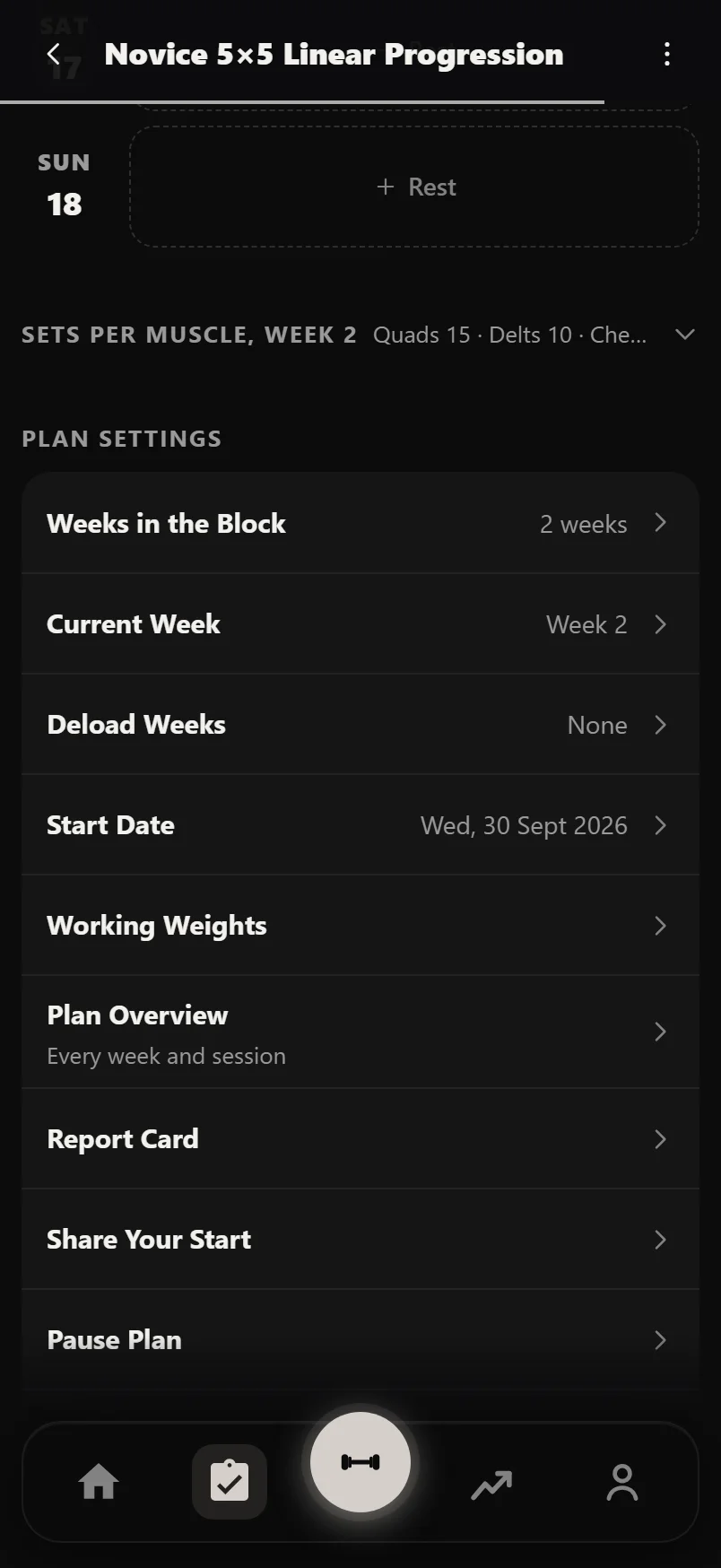
Below the days is one closed row, Sets per Muscle, with the top three muscles and their set counts beside it. Tap it to open the full card: a bar for each muscle the week trains, the top six first, with Show All for the rest. Muscles the week does not train at all sit behind Show All as dimmed "0 sets" rows.
Tap a muscle to see which sessions train it, with the lifts and the sets each one adds. Tap a session there to open it. Tap a "0 sets" muscle to add it to a session this week.
The counts are hard sets: warmups do not count, and dropsets and partials count as half a set.
Plan Settings
Every setting the plan has is one row in the Plan Settings card at the foot of the planner. Which rows you see depends on the plan. Train on Set Days and Repeats are switches on plans you built. Weeks in the Block adds a week or deletes the one you are viewing. Current Week and Deload Weeks show on plans longer than a week. Start Date, Training Maxes and Working Weights are next, then Plan Overview, which shows every week and session in one sheet.
Once a plan has started you also get Report Card, Share Your Start, Pause Plan (or Resume Plan) and End Plan, which marks the plan complete and keeps it in your history. Plans you built have Rename Plan and Change Cover too.
The ⋮ at the top of the planner holds only Archive and Delete. Deleting a plan keeps every workout you logged.
Progression rules are not set here. Each lift's rule is the chip under its name in the session editor: open a session from the planner and tap Edit.
Common questions
Why does my plan open a different screen once I start it?
A plan you have not started opens its program page, which explains the plan and has Start Plan at the foot. Once it has started, the plan opens the planner, which shows this week's sessions and the plan's settings. About This Program, under the plan's name in the planner, opens the program page again whenever you want it.
How do I move a session to another day?
Hold the session card until it lifts and drag it onto the day you want, or use Move to Another Day on the card's ⋮ menu. If the day already has a session, Durata asks whether to swap them or add both to that day. On a plan longer than a week it also asks whether the move is for this week only or every week.
How do I mark a deload week?
Press and hold the week's chip at the top of the planner until it buzzes and shows (D), or use Deload Weeks in Plan Settings. Hold the chip again to clear it. The mark does not change any weights; it stops that week's lighter numbers reading as a drop in your progress.
What does a green tick on a session mean?
You logged that session. Tap a ticked card to open that workout in History. A workout ticks its session on its own day; if you trained it late, it ticks the most recent earlier day the session was planned and not yet done.
Where are the plan's settings?
In the Plan Settings card at the foot of the planner: weeks, current week, deload weeks, start date, training maxes, working weights, Plan Overview, Report Card, pause and End Plan, plus Rename Plan and Change Cover on plans you built. The ⋮ at the top only has Archive and Delete.
Where do I change a lift's progression rule?
In the session editor. Open the session from the planner, tap Edit, and the chip under the lift's name shows its rule. Tap it to change the rule. On a program from Discover the program's own rules are read-only.
Put it into practice
Durata is free to use — 50 proven programs, automatic progression, rest timers and PR tracking, all on your phone.