


Plans and sessions
A program decides your exercises, sets, reps and weights in advance, so every session builds on the last. Durata ships 50 proven programs with the progression built in. Pick one, set your starting numbers once, and the app works out every workout from then on.
Prefer to train your own way? You can build any session or plan yourself, with the same progression rules. This guide is the overview. The planner, and Discover with its program pages, each have a guide of their own.
Last reviewed 2026-10-26 · matches app v1.1.1.105
Program, plan, session, run
Four words do most of the work in Durata, and they mean different things.
A program is one we wrote: 5/3/1, GZCLP, PHUL. It lives in Discover and is the same for everyone. A plan is your copy of one. Starting a program copies its whole structure, progression rules included, into your Library, and from then on the copy is yours: change a lift, move a day or add a week, and the original stays as it was. It also means a fix we ship to a program reaches people who start it next, not people already running it.
A session is one workout: Upper A, Push Day, Legs. A session can stand alone in your Library or belong to a plan. A run is one pass through a plan from start to finish. Run the same plan twice and that is two runs, each with its own report, and both are kept.
Anything you build yourself is a plan too, with the same weeks, progression rules and repeats.
The Training tab
The Training tab has three tabs across the top: Library, Discover and Exercises. Library is everything of your own. Discover is the program catalogue. Exercises is the full exercise library. Swipe left or right anywhere on the screen to move between them.
Library is one list of rows under four headings: Active (the plan you are running), Plans (plans you have built, paused or finished), Saved (programs you bookmarked in Discover and have not started) and Sessions (sessions that belong to no plan). Archived plans and sessions sit behind one Archived row at the foot of the list, where each one offers Restore or Delete.
A plan row shows its cover, its status and how many days a week it runs: "Week 1 of 4 · 4 days", "Never started · 2 days", "Completed 8 Oct". A running or finished plan has a thin progress bar under it. A plan that runs in order, with no fixed weekdays, says where it is up to, such as "Paused at Pull · 3 sessions in turn". A session row shows its name, its exercise count, roughly how long it takes and when you last did it.
Tapping a plan depends on its state. A plan that has started or is paused opens the planner. A plan you have not started, or have finished, opens its program page. A session opens its preview.
The header has search and the + button. Before you save any sessions of your own, three starter sessions sit under Starter Sessions at the bottom: Full Body, Upper and Lower. Tap one to preview it, and Use This Session makes it yours. With nothing in your Library at all, it says "Your library is empty" with Browse Discover and Create Your Own.
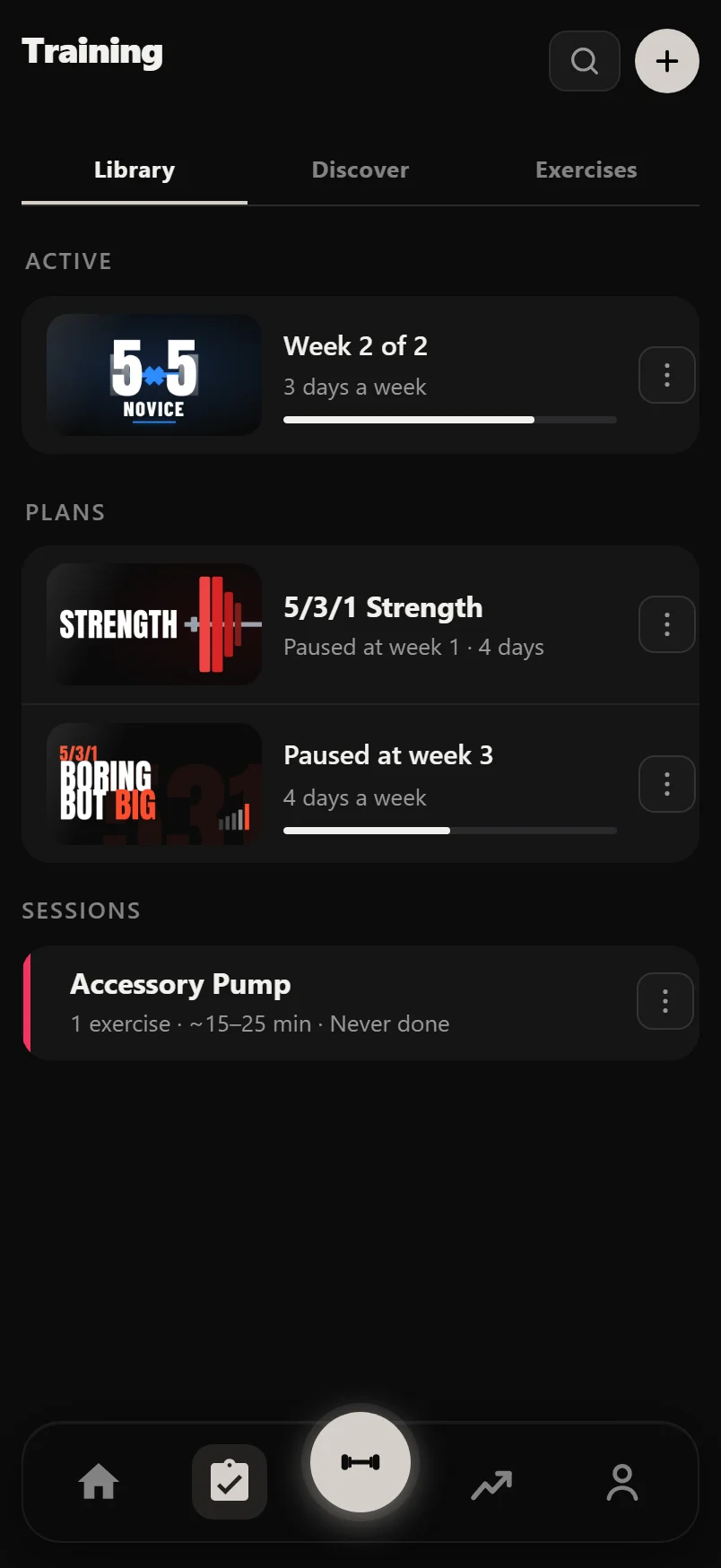
A plan row's ⋮ menu has Rename, Change Cover (plans you built), Archive and Delete. A session's ⋮ menu has Duplicate, Share as Text, Archive and Delete.
Hold a row until it lifts, then drag it to put your Library in your own order. Plans and sessions use the same gesture. Until you drag one, plans are listed by status and sessions by when you last did them.
Making something new
The + button opens New, a short list: Session (one workout you can run any day), Plan (a week of sessions that repeats and progresses), Plan From My Sessions (only once you have saved sessions: turns them into a plan) and Import a Session (Pro: reads one workout from a photo, a PDF or pasted text, with a guide of its own).
Building a plan from scratch is covered step by step in Build your own program.
Discover in short
Discover holds 50 programs on five shelves you swipe sideways: Strength, Hypertrophy, Powerbuilding, Fat Loss and Powerlifting. Tap a cover for a quick look with Start Program and View Program. View Program opens the program page: your week, the whole block, what it trains, where the weights would take you, and how its progression works. Search and Filter are icons in the header.
Discover and program pages has the full tour.
Running a plan: the planner
Once a plan has started, it opens on the planner. The top sums up this week: sessions, minutes, the muscles worked most. Below that are the week chips, Add Session and Copy Week, then each day of the week beside its session, today marked and done sessions ticked. Hold and drag a session onto another day to move it. Under the days are Sets per Muscle and a Plan Settings card that holds every setting the plan has.
The planner has a guide of its own.
The session preview
Tap a session anywhere in Training and a preview rises. The top gives the plan and week, the session's name, roughly how long it takes, how many exercises and sets it holds, how many lifts go up from last time, a push, pull and legs bar, and body maps beside the sets per muscle.
Each lift is then one line, such as "3 × 10 at 27.5 kg", with a triangle for its change from last time and what you did last time under it ("First time" if you never have). Tap a lift to see its set rows. A lift with equipment to set up has a Setup button, the same sheet the workout uses, so you can settle the bench angle or the plates the night before.
Opened from the Library or a plan, the foot is Edit first, then Close and Start Workout. Opened from Home or the Workout tab, Start Workout comes first. A program from Discover that you have not started shows Close only.
How progression works
You never work out the weights yourself. When a program uses training maxes, the app asks for them once at the start, suggesting values from your logged history at 90% of your best estimated one-rep max. From then on, every session's targets are worked out for you.
There are four main models. Linear progression adds a fixed amount, typically +2.5 kg upper body and +5 kg lower, every time you hit your reps, and drops the weight around 10% after repeated misses so you never stay stuck. Training max programs like 5/3/1, nSuns and Texas Method work off a percentage of your training max and only raise it when you beat the AMRAP set's target, some per cycle and some per week. Double progression holds the weight until you reach the top of the rep range on every set, then adds. Stage programs like GZCLP don't cut the weight at all: miss your reps and you drop to the next rep scheme on the same bar, so 5×3 becomes 6×2, then 10×1. Only when you run out of stages does that lift start a fresh cycle.
Deloads always move the bar. On a light accessory, 10% can be less than the smallest plate you own, so when the percentage wouldn't change the weight at all, Durata drops it by one full step of your Weight Rounding instead. It won't go below the empty bar on a barbell lift, and it never rounds a lift up.
Progression judges the weight you actually lifted as well as your reps. Log a session noticeably lighter than prescribed and it counts as a miss. Go heavier than prescribed on a working day (within reason) and the app takes your weight as the new working weight. Light days, Backoff sets and deload weeks are judged against their own prescribed weights, so a planned light day never counts against you.
Some linear programs carry a double jump rule: beat the AMRAP set by enough (Greyskull style) and you earn a double-size increase that session.
Skipped the starting weights step? Progression takes your working weight from the first session you log.
Need to correct a working weight later? Working Weights in the planner's Plan Settings changes any lift's weight at any time, the same way Training Maxes works for percentage programs. Clear All there empties every box, and a lift you empty goes back to not set.
Setting a lift's rule
On a plan, each lift's rule is a chip under its name in the session editor. A solid chip is the rule that is running, said in plain words: "+2.5 kg a Session", "Reps, then +2.5 kg", "TM +2.5 kg a Cycle". A dashed chip is a suggestion Durata has read from the lift's own sets: a rep range like 8-12 suggests Reps, then Weight, and fixed reps like 3×5 suggest Add Weight Every Session. Tap a dashed chip to turn it on. A plain Add Progression chip means nothing in the sets suggests a rule; tap it to pick one.
Retype the reps so the rule no longer fits (a 3×5 lift changed to 3×8-10, say) and the chip offers the switch, such as "Switch to Reps, then Weight?". Lifts a rule can't move, like cardio, timed holds and reps-only bodyweight lifts, get no chip.
A program from Discover runs as its author wrote it. Its own rules show locked and open read-only, and its lifts get no suggestions. A lift you add to one can follow one of the program's own rules from the picker, so it moves the same way as the rest of the plan.
Writing or changing a rule is part of Pro. On a free account, a rule that is already running keeps running. To read a program's rules before you start it, see How it works on its program page. During a workout, the line under each lift says what the rule decided and why.
The Report Card
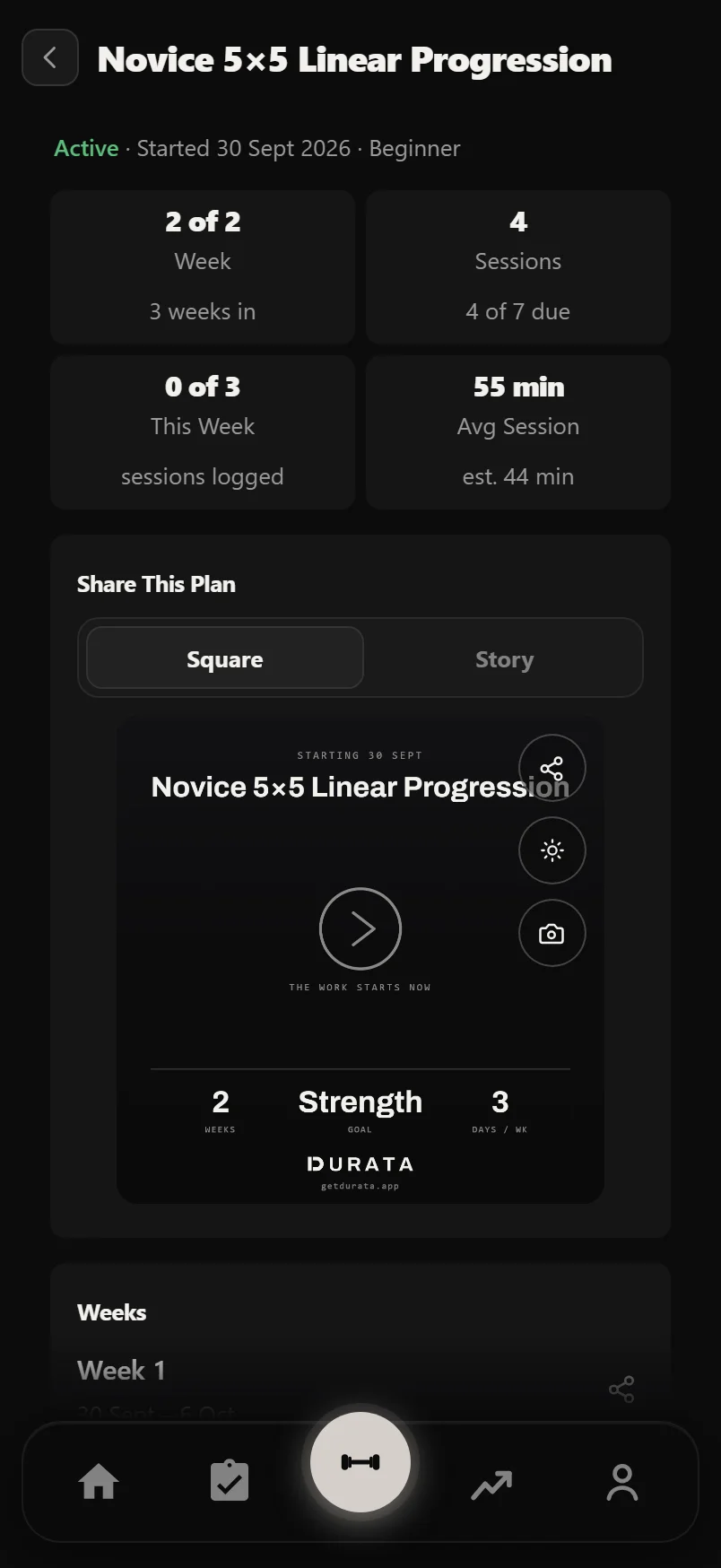
Report Card, in the planner's Plan Settings, is the run so far: the week you're on, how many of the sessions due so far you've logged (as a percentage with the fraction under it, so 100% on day one means one of one), this week's sessions against the plan, total volume and completed sets, current training maxes, and a Training Max Progression chart showing each lift climb over the run. A session only falls due once its day is over, so a morning look never reads as a miss before you've trained. A Sessions Logged by Week chart draws every week's plan as a bar, logged sessions filled in, missed ones greyed, and the running week's remaining days dashed. A short written summary leads the report, and every key lift's trend chart marks each session as an advance, a hold or a reset. The report stays available from History after a plan ends.
Further down, PRs During This Run lists every personal record you set inside the run, and Working Weights, First to Last, shows each progressed lift's opening and closing weight side by side. Finish the program and a What's Next card suggests the next step on its track, when the catalogue has one.
Swapping exercises
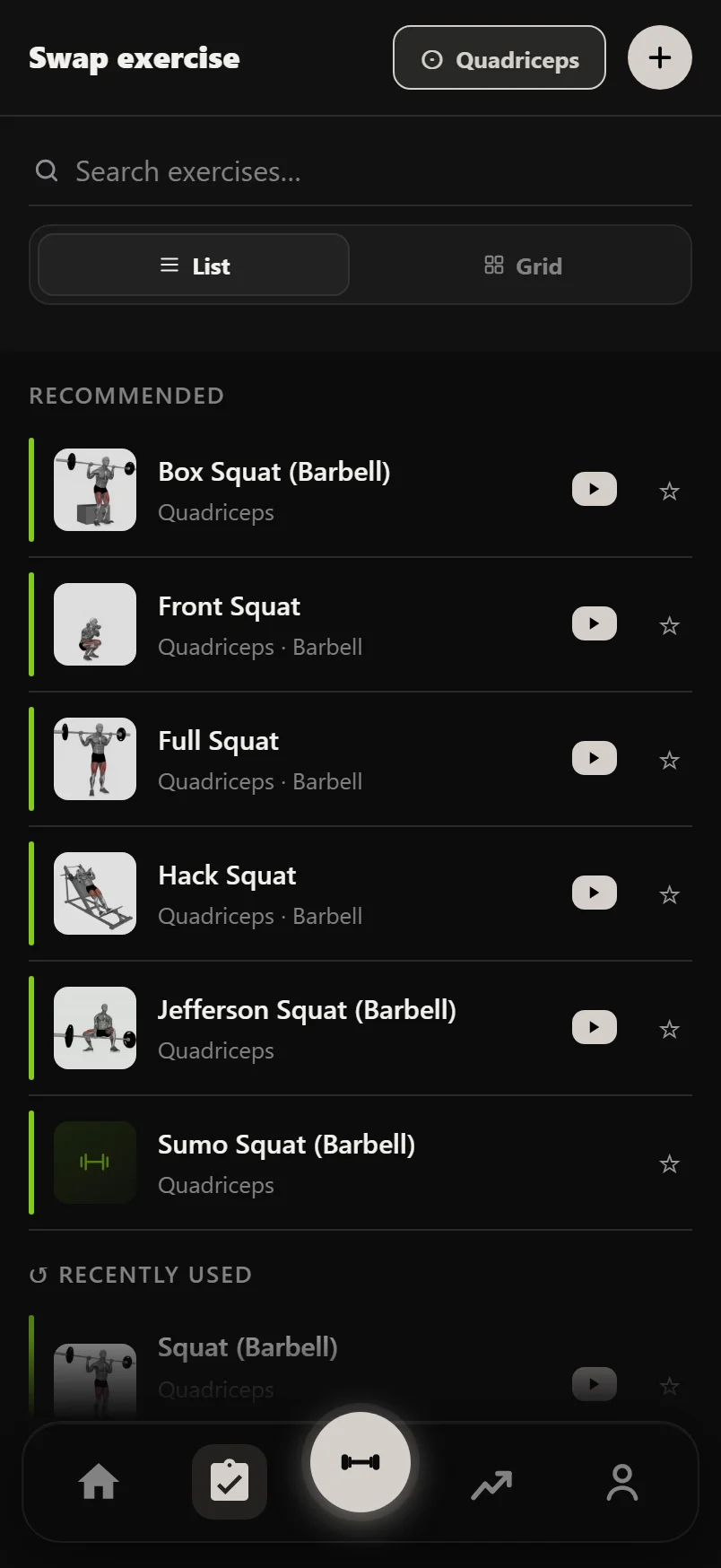
Squat rack taken, or no cable row at your gym? Swap an Exercise on a session's ⋮ menu in the planner, or the swap button beside each lift in Plan Overview, opens the exercise picker with a Recommended section on top. It ranks alternatives by how closely they match the original's muscles, movement and equipment, so the substitute does the same job. Replace in the session editor uses the same picker.
Plans repeat their lifts, so after you pick the replacement Durata asks how far the swap should reach: This Session Only, or All Weeks of This Plan. Replace in the session editor asks the same thing as Apply to All Weeks?. Either way, the old lift's progression and working weight carry over to the new one, so the plan keeps working out your weights.
Start, pause, end, archive
Starting a program asks for training maxes (if it uses them), starting weights and a start date. Starting a program covers each step.
Been away from a running plan for two weeks or more? Resuming it offers Ease Back In instead of putting you straight back at full weight. Durata picks how much lighter (None, 5, 10, 15 or 20%) from the length of the gap and shows every training max and working weight before and after, so nothing changes without you seeing the number first. On a training max plan it also asks where to pick up: carry on this week, restart it, or go back to Week 1.
When a fixed-length plan finishes its final week, it completes itself: the run is filed under Progress, History, and the plan stays in your Library as "Completed" with the date. Its program page then offers Start Again.
There are three ways to stop a plan, and each says what it does. End Plan (Plan Settings) is for a run still going: it marks the plan complete and keeps it in your history. Archive moves it out of your list and pauses it; restore it from the Archived row any time. Delete removes the plan for good, though your logged workouts are always kept. Archiving a plan in progress asks first.
Building your own sessions
New, then Session, builds one workout. The session editor works like the workout screen: add exercises, then set each one up in the set sheet (Warmup or Working, plus layers: AMRAP, Dropset, Backoff, Rest Pause, Partials and Unilateral) with reps, rest and weight. Sets can use a percentage of your training max instead of a fixed weight, and cardio sets get a Steady or HIIT tag. Timed holds such as dead hangs, wall sits and side planks swap the weight and reps for a single mm:ss time.
You don't have to start from a blank page: open any past workout in Progress, History and choose Save as Session to turn a workout you did into a template.
A free account builds up to four sessions of its own, and the New Session sheet shows how many you have used. Sessions you import, and anything you start from Discover, never count, and deleting a session frees its slot. Pro takes the limit off.
A standalone session has no days, weeks or progression rules: those are what a plan gives a session. To put sessions in a plan, use Plan From My Sessions on New, or Add Session, then From My Sessions, on a plan you already have. The originals stay in your Library.
In the reps field, type a range like "8-12" for a rep range, or add a star, as in "5*", to mark the set as AMRAP.
Swipe a set row left to delete it, the same gesture as during a workout. Tapping the set's type badge opens the set sheet.
Common questions
What is the difference between a program and a plan?
A program is one we wrote, it lives in Discover, and it is the same for everyone. A plan is your copy of it. Starting a program copies its structure and its progression rules into your Library, and the copy is yours to change. The original is untouched, and so is everyone else's copy. Anything you build from scratch is a plan too.
What counts as a session, and what counts as a run?
A session is one workout, like Upper A or Push Day. A run is one pass through a plan from beginning to end. A session can stand alone in your Library or belong to a plan; a plan you run twice gives you two runs, each with its own report, and both are kept in Progress, History.
What is a standalone session?
A session that does not belong to a plan. You can start it any time and it is logged like any other workout. What it does not get is what a plan gives a session: assigned days, a place in an order, weeks, and progression rules that raise the weight for you. To put one in a plan, use Add Session, then From My Sessions, on the plan, and it keeps its history.
Where do I edit a plan?
Once it has started, in the planner: tap the plan in your Library. Move sessions by holding and dragging them, use Add Session and Copy Week, and change everything else from the Plan Settings card. To change what is inside a session, tap it and choose Edit. A plan you have just built with Create a Plan opens in the planner straight away too.
Do I have to work out my own weights?
No. Set your training maxes once when you start a program (Durata suggests them from your logged history) and every session's target weights are worked out from the program's progression rules.
What happens when I miss my reps?
It depends on the rule. Linear programs hold the weight and deload only after repeated misses. Training max programs hold your training max until you beat the AMRAP target. Stage programs like GZCLP never cut the weight: you drop to the next rep scheme on the same bar, and only after the last stage does that lift restart its cycle. Lifting well under the prescribed weight counts as a miss too.
Can I change an exercise in a built-in program?
Yes. Use Swap an Exercise on the session's ⋮ menu in the planner, or the swap button in Plan Overview. The picker recommends alternatives that match the original's muscles, movement and equipment, and Durata asks whether to swap it in this session only or in every week of the plan. Its progression and working weight follow the new exercise either way.
If I delete a plan, do I lose my workout history?
No. Deleting a plan removes the plan and its sessions, but every workout you logged stays in your history and charts.
Can I organise my sessions into folders like Strong or Hevy?
In Durata a folder is a plan. Group the sessions you would have put in a folder into a plan and they live together under one row in your Library, with weeks, repeats and progression there if you ever want them. Importing from Hevy recreates your Hevy folders as plans by name.
Durata used to call these routines. What changed?
The names, not your data. What was a routine is now a session, and a folder of routines is now a plan, which can carry weeks, repeats and progression rules the way a plan from Discover does. The same sessions are in the same places.
Put it into practice
Durata is free to use — 50 proven programs, automatic progression, rest timers and PR tracking, all on your phone.