


Discover and program pages
Discover is the second tab on the Training screen. It holds 50 ready-made programs, from 5x5 and 5/3/1 to body part splits, home dumbbell plans and fat loss blocks, each with its progression already written in.
This guide covers finding a program and reading its page. Starting one, with training maxes and a start date, has its own guide.
Last reviewed 2026-10-20 · matches app v1.1.1.105
The shelves
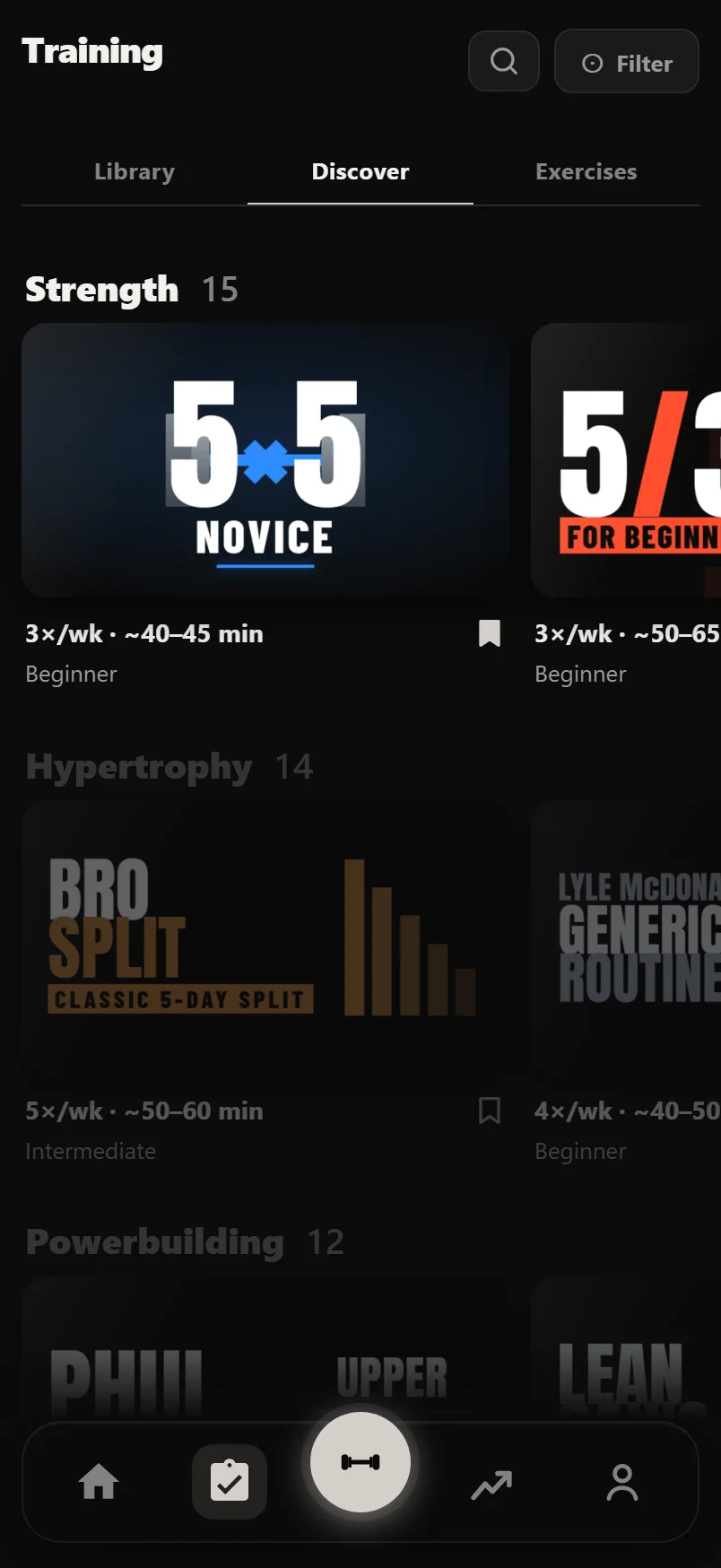
Discover is a stack of five shelves: Strength, Hypertrophy, Powerbuilding, Fat Loss and Powerlifting. Each shelf is a row of program covers you swipe sideways, with the number of programs beside its name. A program's shelf comes from what it actually prescribes, not from its name.
The shelf nearest the middle of the screen is lit, with its name in white, and the rest are dimmed. As you scroll, the lit shelf follows. Tapping a cover on a dimmed shelf brings that shelf to the middle.
Under each cover are the days a week, the time a session takes, the level and a bookmark. Tap the bookmark to save the program to your Library without opening it. A filled bookmark means it is saved, and saved programs sit under Saved in your Library until you start one.
Each shelf opens with a pinned program that suits most people, then runs from Beginner to Advanced. Once a program has been started enough times, the ones people start most move up within their level.
Search and filter
The search icon in the header opens a search field under the tabs. It matches program names and the names people commonly use for them, so "stronglifts" or "madcow" find the right program even where its listed name is different. Cancel closes it.
Filter, beside the search icon, narrows the shelves by Level, Days / Week, Goal and Equipment (Full gym, Barbell + rack, Barbell + DBs, Dumbbells, Bodyweight or Kettlebells, worked out from what each program's exercises need). Sort by changes the order inside each shelf: Recommended, Highest rated, Days per week, Shortest session, Cycle length or A to Z.
Highest rated uses a weighted average, so one five-star vote does not outrank a program with many ratings at 4.6. You can only rate a program you have started, so every star comes from someone who ran it.
The quick look
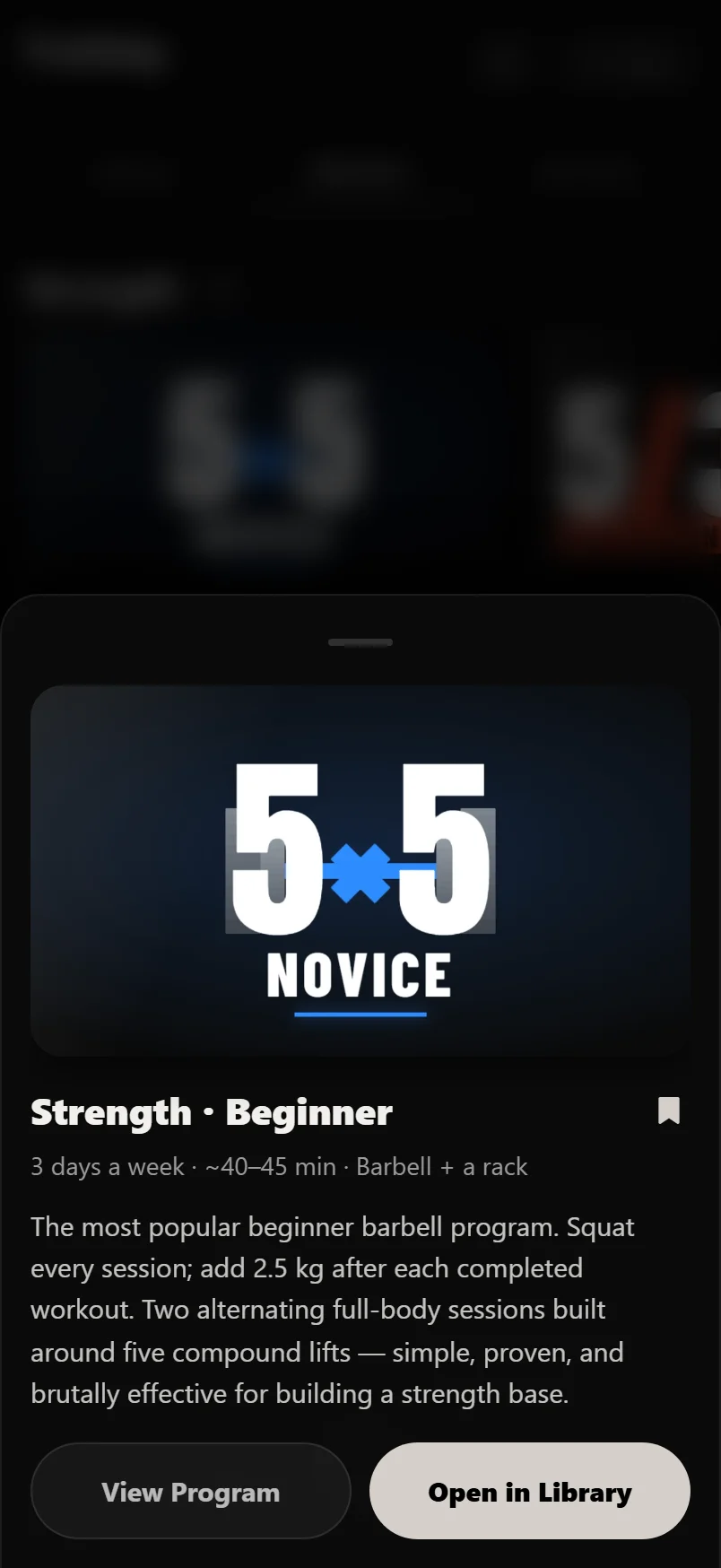
Tap any cover and a drawer rises with the cover in it: the shelf and level with the bookmark beside them, then the days a week, the session time, the equipment and the rating, then a short description.
At the foot are Start Program and View Program. Start Program starts it straight away (see Starting a program). View Program opens the full program page. If you already run the program, Start Program becomes Open in Library; if you finished it, Start Again.
The program page
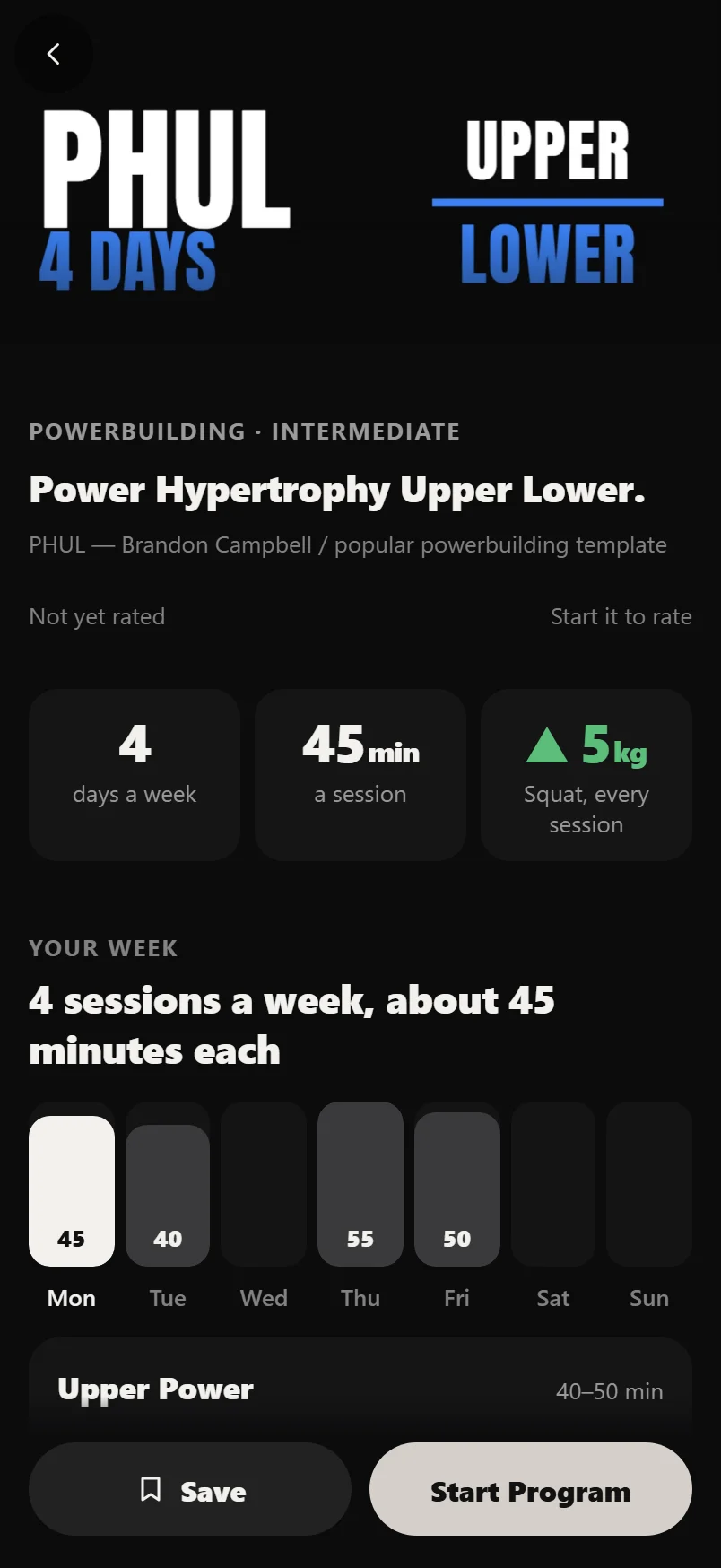
The program page is one page you scroll, top to bottom. It opens with the cover, the shelf and level, a one-line pitch, who wrote the program and its rating, then three numbers: days a week, minutes a session, and one headline figure such as the weight the main lift adds each session.
Your week is a Monday to Sunday strip, one bar per training day, taller for longer days. Tap a day to see its sessions with every lift's sets and reps, and real weights where Durata can work them out from your history. A program longer than a week has a button for each week above the strip.
The whole block gives the start and finish dates and a calendar of every week, with deload weeks marked and a bar for the sets in each week. A program that repeats says how long its cycle is.
What it builds shows front and back body maps shaded by how much each muscle is worked, hard sets a week for each muscle (before you start; a running plan keeps them in the planner's Sets per Muscle), and a ring that splits the work into heavy (1 to 5 reps), moderate (6 to 12) and light (13 and up) sets.
How it works explains the program's progression rules in plain words: what earns the next increase, what a miss does, and which lifts each rule covers. Not quite right, at the end, lists similar programs from the same shelf, and the program's next step on its track where it has one.
Where it takes you
Halfway down the page, Where it takes you charts the program's main lifts forward, worked out by the same progression code that will set your weights if you start it. A lift that adds weight every session is charted over four weeks. Beginner programs with no end date, such as GZCLP or 5/3/1 for Beginners, are charted over six weeks. Intermediate and fixed-length programs are charted over twelve weeks, and a rep range climbs its reps before the weight goes up.
Drag across the chart to read any week. It assumes every session goes to plan, so read it as the program's shape rather than a promise.
Under the chart is each lift's starting weight or training max, taken from your own logged history. The minus and plus buttons move the chart so you can see a different start. They change nothing: the real starting weights are set when you start the program. A lift you have never logged has no starting figure, so the chart leaves it out rather than guessing.
The buttons at the foot
The foot of the page stays in place as you scroll, and its buttons follow the program's state. A program you have not saved shows Save and Start Program. Once it is in your Library, Save becomes Saved and the main button becomes Open in Library.
Your own plans use the same page. A plan not started shows Start Plan, a paused one Resume, and a finished one Start Again. A running plan shows Start Today's Workout, or Start and the name of the next session.
A program from Discover that you have not started is read-only. Its sessions open with Close only, with no Edit or Start Workout, until you start the program.
Common questions
How many programs are in Discover?
50, on five shelves: Strength, Hypertrophy, Powerbuilding, Fat Loss and Powerlifting. Each has its sets, reps and progression written in, so once you start one the app works out your weights every session.
How do I save a program without starting it?
Tap the bookmark under its cover in Discover, or Save at the foot of its program page. It goes under Saved in your Library. Open it from there whenever you are ready and tap Start Plan.
Can I see what weights a program would give me before I start?
Yes. Where it takes you, halfway down the program page, lists each main lift's starting weight or training max from your logged history and charts where it would go if every session goes to plan. The minus and plus buttons try a different start without saving anything. A lift you have never logged has no figure.
Can I change a program from Discover before I start it?
No. Until you start it, its sessions are read-only, with Close only. Starting it copies the program into your Library as your own plan. After that you can move days and swap lifts for free, and Pro can edit its sessions, add sessions and copy weeks.
Why is one shelf brighter than the others?
The shelf nearest the middle of the screen is lit so you can see which row you are browsing. It changes as you scroll, and tapping a cover on a dimmed shelf brings that shelf to the middle.
Put it into practice
Durata is free to use — 50 proven programs, automatic progression, rest timers and PR tracking, all on your phone.