


Hidden features and shortcuts
Durata keeps its screens deliberately clean, which means a lot of its best tricks don't announce themselves. Most of them are gestures, a long-press here and a swipe there, plus a handful of automatic behaviours that quietly save you taps every session.
This page collects all of them in one place. None of these are required to use the app, but each one shaves seconds off something you do constantly, and that adds up over a training week.
Last reviewed 2026-10-26 · matches app v1.1.1.105
In the logger
The logger hides a tool tray behind the workout header. Tap the session timer pill and it opens with four tools: TIMER for intervals and HIIT, TEMPO, STATS, which opens the session sheet, and SETTINGS. Only the pill opens and closes it, so ticking a set leaves it as it was. While a header rest is counting down, the tray's buttons become −15s, Skip and +15s, so you can trim or skip the rest without opening the full-screen timer.
The TEMPO button does two jobs: a tap starts or stops the metronome, and holding it for about half a second opens the tempo editor for the lift you're on. A lift with its own tempo shows its code on the button. Until you've opened the editor once, a tap briefly flips the label to "Hold to edit" so the long-press doesn't stay hidden.
The line above the bottom bar, with the session's volume and your e1RM, is a button too: tap it for the session sheet, with every lift, its sets and the muscles worked so far.
Long-press an exercise name to play its how-to video right there in the workout. A plain tap opens the exercise's How To tab instead (falling back to Overview only if it has no video, instructions or note), so either way you land on the tab you were actually asking about. 499+ exercises have videos.
To reorder exercises mid-workout, press and hold an exercise in the carousel until it lifts, then drag it into place.
Used a bench angle or a piece of kit on an exercise last session? Open Setup on that exercise and last time's choices are waiting as suggestions. One tap accepts one, and it becomes your saved default from then on.
The Setup button beside + Set is a read-out as well as a button: it shows the plate breakdown for the set you are about to do, counting repeated plates ("20 kg ×4 a side" rather than four 20s in a row), so most of the time you never need to open it.
Notes open their editor from anywhere on them: tap any part of a pinned note on a logger card, in the session editor, or on the exercise's How To tab (it reads Add a note when empty). A link inside a note still opens the link.
The session note under an exercise's last set offers last time's note: if you left one on that lift in a recent session, it reappears as a suggestion. Open it and tap Save to keep the same cue for today without retyping it.
The progression line under an exercise's name is a button: tap it and the why screen explains today's weight in your own numbers, with what earns the next step and your last session set by set. The same screen opens from Lift Status on Home and on each exercise's page.
Set a record and the set's badge keeps a trophy. Tap it to play the record's moment again.
Edit a ticked set's weight or reps and its record is judged again: the trophy goes quietly if it no longer is one, or you get the record's moment if it now is.
Faster set entry
You rarely need to type at all. Every set row shows last session's numbers as faded placeholders, and ticking off a set with empty inputs adopts those ghosted values automatically, so checking the box means "same as last time". You can also tap the previous-session column on any row to copy last time's weight and reps into the inputs before you edit them.
When you do type, every numeric field selects its contents the moment you focus it, so you overwrite the old value instantly instead of backspacing first.
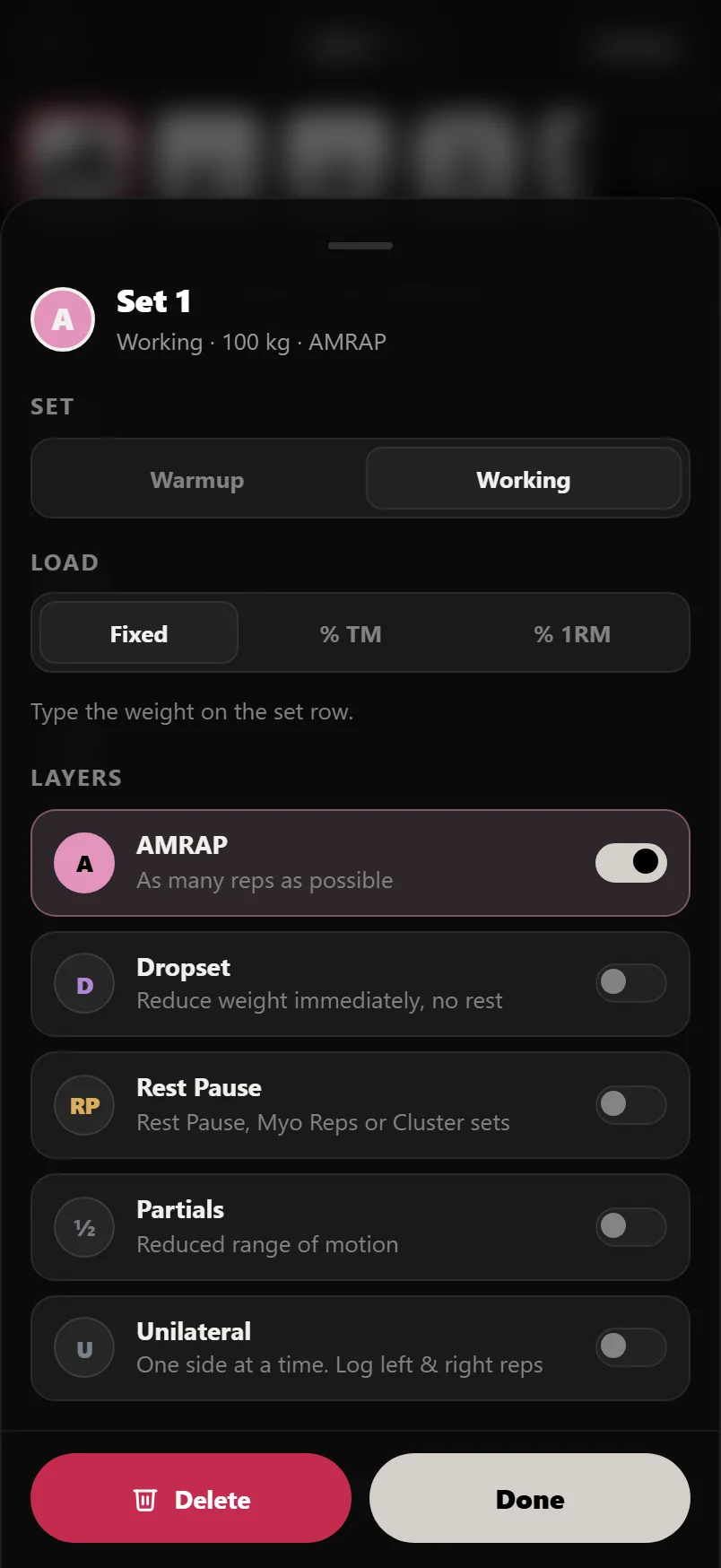
Tap a set's number badge to change its type, from Warmup to Dropset. The set sheet only shows the options that fit that exercise.
Swipe a set row left to delete it. A short swipe rests the row open on a red Delete button; a long swipe all the way across deletes in one motion. Durata asks you to confirm the very first full swipe, then trusts you from there.
Tap the tick column header (the ✓ above the checkboxes) to complete every remaining set of the exercise in one go.
Type a + or * after your reps, like 8+, and the set flips to AMRAP on the spot. No need to open the set sheet.
On a Rest Pause group, + Add Miniset under the last row adds another miniset at the same weight.
Rest timer tricks
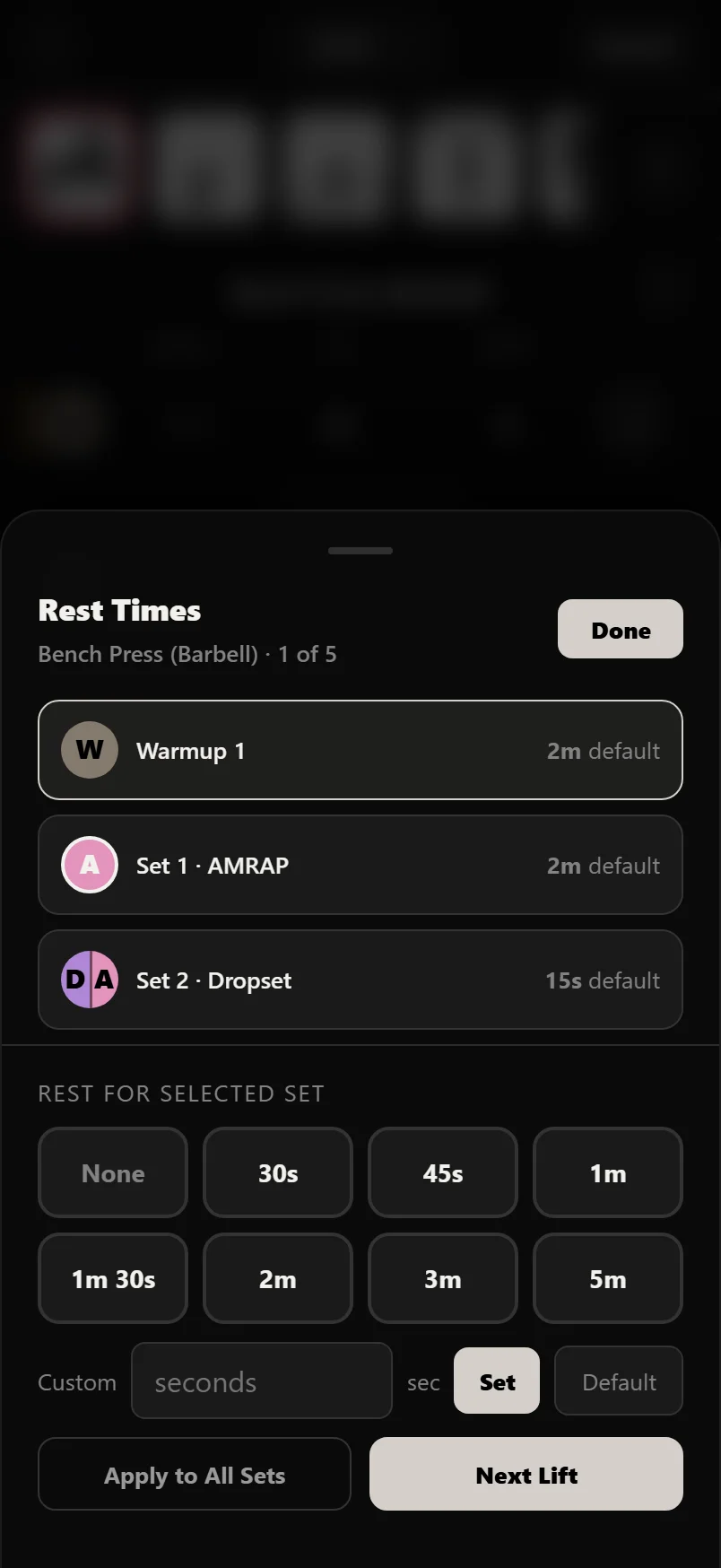
Open an exercise's ⋮ menu and tap Rest Times: every set of the lift with its rest, one-tap presets, Custom for anything else, and None, which skips the timer for that set, handy for supersets and circuits.
Set the right rest once, then tap Apply to All Sets so every set of that exercise uses it. Next Lift moves the sheet on to the next exercise, so you can set the whole session's rests without closing it. The session editor's REST cells open the same sheet.
Prefer one setting for every exercise? Settings > Rest Timer > Rest by Set Type gives Warmups, Dropsets, Backoffs and every other set type their own default, used whenever a set doesn't already carry a rest of its own.
Resting before a new exercise? The countdown carries a pill with the coming lift's setup already worked out. Tapping it opens Setup over the top and the rest keeps counting down underneath.
The countdown doesn't have to take over the screen: in Settings > Rest Timer you can swap the full-screen view for a floating mini-timer, or a slim bar in the workout header that counts down without covering a set row. The phone's Back button puts the full-screen view away too.
Around the app
The dashboard responds to gestures too. Every day cell in the This Week strip is tappable: a trained day opens that session, a planned day previews it, an empty 'today' starts a workout.
In Progress, swipe left or right anywhere on the panel to move between the Review, History, Strength and Workload tabs. On an exercise's detail page, the same sideways swipe cycles Overview, How To, History and Charts.
Press and hold any widget on Home to edit the board in place: keep holding and move to drag that widget, or let go and use the − badge, the size handle and Add Widget. The pencil at the top right opens the same editor. While editing, tapping above the board (the header or the This Week strip) cancels, and a quick tap on a PRs This Week or Week Plan tile changes its record type or plan.
Tap the Recovery widget for the full breakdown on Progress, Workload.
Any finished workout can become a reusable session: tap Save as Standalone on the Session Complete screen, or open a past session in History and use Save as New Session from its ⋮ menu.
Every chart card with an expand button opens full screen, with more of your history than the card shows. Turn the phone sideways for a wider view.
Expanding an exercise's Estimated 1RM chart opens the Strength story instead: the e1RM line over the bar weight, each session coloured by what your plan's rule decided, records starred, and your plans as chapters under the axis. Drag across it to read any session, and Open Session takes you to it in History.
In the planner, tap a session's card to preview it, or use its ⋮ menu to move it, edit it, swap an exercise or remove it.
Press and hold a session card in the planner and it lifts: drop it on another day. A short swipe still scrolls the week.
Home's Week Plan widget is tappable: tap a week's row and the planner opens on that week.
Scroll down a tab page on a phone and its big title becomes a slim bar. Tap the bar to jump back to the top.
Small but mighty
A few behaviours you never trigger deliberately, but benefit from constantly. When you sign in, the 6-digit email code submits itself the moment you enter the last digit, with no Verify tap needed. While you're typing in a set, the fixed bottom bar hides so the keyboard never buries your inputs, then returns when you're done.
On Android, the hardware back button is drawer-aware: each press closes the topmost sheet or drawer, one at a time, instead of throwing you out of the screen. If a screen is slow to react and you tap back several times in a row, only the first tap counts: the rest are ignored rather than stacking up and closing the app behind you. And if you press back during a live workout, Durata asks first. Your session stays active either way, so you can wander off to check a chart and resume exactly where you left off. Apple devices have no hardware back button, so sheets and drawers there close via their own Done, X or backdrop-tap controls. On the web dashboard, the Escape key does the same job: each press closes the topmost sheet, just like clicking outside it.
Adding several exercises in one go is a continuous type-tap-type: when you tap an exercise in the picker, what you searched for stays in the box but comes back selected, so the next name you type replaces it. No backspacing between adds, and the keyboard stays up with the Add button riding above it.
The List / Grid switch under the picker's search box is one setting for the whole app. Flip it while browsing Exercises and the picker you get mid-workout is already in grid too, and it syncs, so your other devices open the way this one did.
Tap the version number at the foot of Settings to read the release notes for every update.
The good moments feel like it: PRs, milestones and finishing a workout each land with a short celebratory haptic on your phone.
Common questions
Will I lose my workout if I press back or leave the logger?
No. Your session stays active in the background. Back during a live workout shows a quick confirm, and even if you leave, you resume exactly where you left off.
How do I watch an exercise video without leaving my workout?
Long-press the exercise name in the logger and the how-to video plays in place. A normal tap opens the exercise's How To tab instead.
Can I reorder exercises after a workout has started?
Yes. Press and hold an exercise in the logger carousel until it lifts, then drag it to its new position. The dashboard's Customize Home mode works the same way: hold a widget until it lifts, then drag.
What's the fastest way to log a set identical to last week's?
Just tick it off. Checking an empty set adopts the faded previous-session values shown in the inputs, so a repeat set is literally one tap.
Put it into practice
Durata is free to use — 50 proven programs, automatic progression, rest timers and PR tracking, all on your phone.