


Switching from Strong
Years of training in Strong don't have to stay there. Strong exports your workouts as a CSV file, and Durata reads it as it is: every workout, with its exercises, weights and reps, on the dates you did them. It is free, and you can run it as often as you like without anything being added twice.
Once the file is in, your records, charts and history work straight away. Durata also spots the workouts you kept repeating and offers them back as sessions you can start with one tap.
Last reviewed 2026-10-20 · matches app v1.1.1.105
Getting your file out of Strong
In the Strong app, open the Profile tab, tap the settings icon at the top left, scroll down and choose Export Strong Data. Strong makes a CSV file of every workout you have logged. Save it somewhere your phone can reach, such as your Files app or Google Drive, or send it to yourself.
Strong's file has your workout history only. Strong doesn't put your routines in it, which is why Durata rebuilds them from your history (below).
Export with Strong set to English. Durata recognises a Strong file by its column names, such as Workout Name and Exercise Name, and a file exported in another language has them translated.
Importing it into Durata
In Durata, go to Settings, Data & Export, Import. On a new account, Import is also offered when you first sign up. Choose CSV File ("An export from Hevy, Strong or Durata") and pick the file.
Durata spots that it is a Strong file by itself. If the file says which unit the weights are in, that is used. If it doesn't, Durata asks: Which Unit Is This File In? Pick the unit you logged in, kg or lbs.
If you haven't logged anything in Durata yet, it takes your unit from the file, so your weights land as the numbers you actually lifted rather than a conversion. It tells you it has done this, and you can change it in Settings, Preferences. Once you have training of your own in Durata, imports convert into your unit instead.
What comes across
Each workout keeps its name, date and length. Each set keeps its weight and reps, and distance and time for cardio and timed exercises. RPE comes across if you logged it, and so do your workout notes and exercise notes.
Exercise names are matched to Durata's 451 exercises even when Strong words them differently. Anything that can't be matched comes in as a custom exercise with Strong's name, rather than being dropped, and the import lists the ones it made.
Imported workouts count everywhere your lifting does: records, estimated 1RM trends, muscle charts and the Previous column when you log. They don't count towards streaks and badges, which only count workouts logged in Durata.
After the import
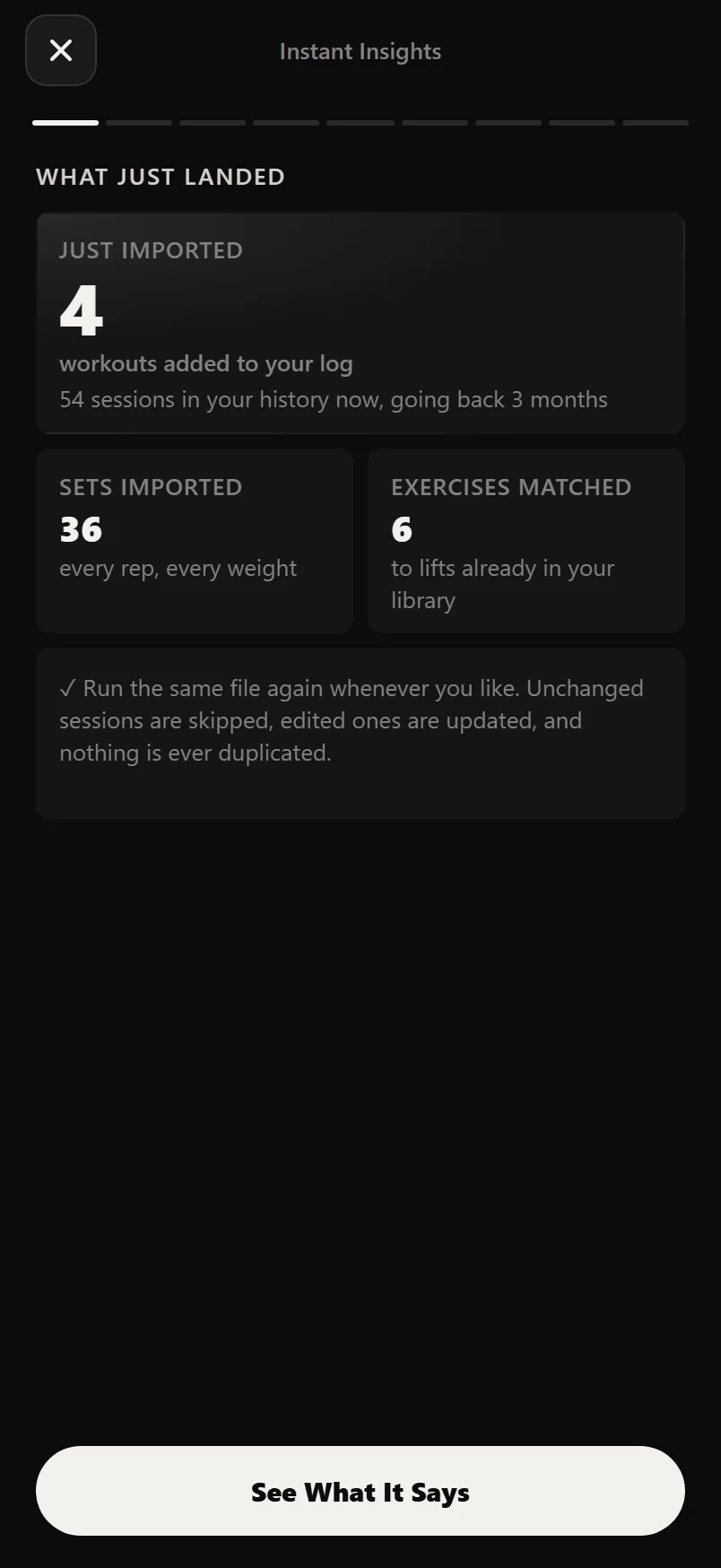
When the import adds workouts, a short reel plays through your history. Its first screen, What just landed, counts the workouts added, the sets imported and the exercises matched, and says which unit the weights were read in. Any rows the file couldn't state clearly are listed there with the reason, so you can fix them in the file and import it again.
The last screen is about what to do next. Under You repeated these workouts, Durata lists the workouts you did more than once, each with how many exercises it has and how often you did it. Untick any you don't want and tap Create, which says how many it will make, such as Create 3 Sessions. Each one is made from your latest weights.
With more than one, Group Into a Weekly Plan then puts them in a plan, with the training days worked out from when you actually trained. The last button, Create & Start, asks for a start date, so you can finish the import with a plan already running.
No repeated workouts in the file? Open any imported workout in Progress, History, tap ⋮ and choose Save as New Session to turn it into a session.
Importing again
You can import a newer Strong file whenever you like. Workouts already in Durata are skipped, ones you changed in Strong are updated, and nothing is added twice. A file with nothing new says Already Up to Date. That makes it safe to keep using Strong for a while and bring the new workouts across later.
Your imported sessions come with no progression rules. To have Durata move the weights up for you, put them in a plan and set a rule on each lift (see Build Your Own Program).
Common questions
How do I move my Strong workouts to Durata?
Export your data from Strong as a CSV file. In Durata, go to Settings, Data & Export, Import, choose CSV File and pick the file. Durata works out that it is a Strong file and brings every workout across.
Is importing from Strong free?
Yes. The CSV import is free, and imported sessions don't count towards the four sessions a free account can build.
Will my routines come across from Strong?
Strong's export has your workouts but not your routines. Durata rebuilds them from what you repeated: at the end of the import it lists those workouts and makes them into sessions, and can group them into a weekly plan.
My Strong weights are in pounds. Will they convert?
If you haven't logged in Durata yet, it switches to the file's unit so the numbers stay as you lifted them. If you already train in Durata in kg, the import converts them. If the file doesn't say its unit, Durata asks.
What if I import the same file twice?
Nothing is added twice. Workouts already in Durata are skipped and edited ones are updated, so you can import a newer export at any time.
What happens to exercises Durata doesn't know?
They come in as custom exercises with the name Strong gave them. The import lists the ones it made, and nothing is dropped.
Put it into practice
Durata is free to use — 50 proven programs, automatic progression, rest timers and PR tracking, all on your phone.