


Import a Session From a Photo
You can bring one workout into Durata from a photo, a page of a PDF, or text you paste in. Take a picture of a whiteboard or a page in a book, or paste the message your coach sent. Durata reads it and shows you every exercise it found.
One import is one session. A week or a training book comes in a session at a time, so each one is small enough to check. Nothing is added until you tap Start Now or Save for Later. Importing is part of Pro and needs you to be signed in, because the reading happens on our server, not on your phone.
Last reviewed 2026-10-26 · matches app v1.1.1.105
Starting an import
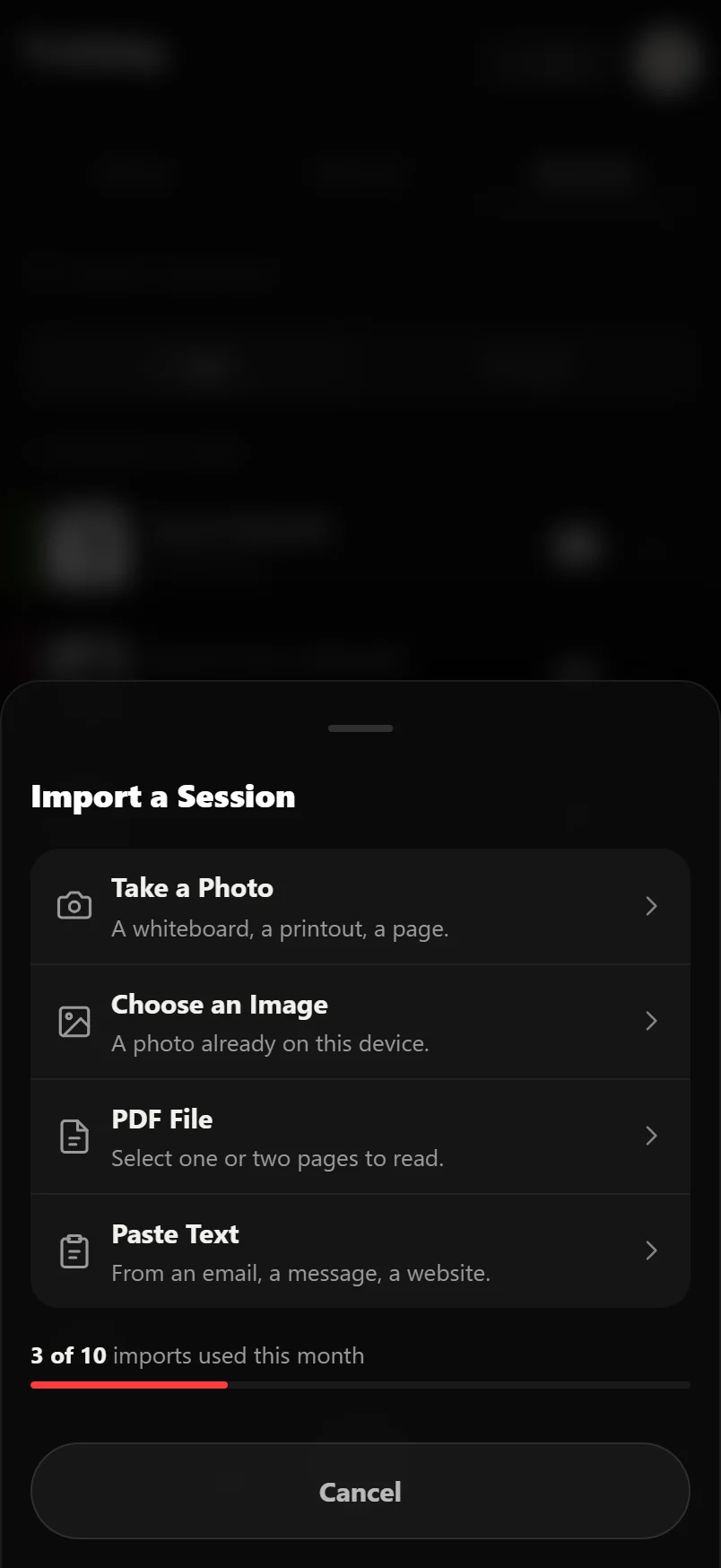
On the Training tab, tap + and choose Import a Session. It offers four ways in: Take a Photo, Choose an Image, PDF File and Paste Text.
Under the four is how many of this month's imports you have used, so you know where you stand before you start.
Photos: one or two, read as one session
Take a Photo keeps the camera open between shots. Take one, check it, then take a second if you need it. Choose an Image does the same with a picture or screenshot already on your phone.
Two photos is the most, and the two are read as one session. That covers a workout written across two pages of a notebook, or a whiteboard you had to take in halves.
Photos, PDFs and pasted text all ask the same question: Weights in this source are in kg, lb or Not Stated. It starts on the unit you train in. Change it if the source uses the other one.
Get the whole session in the picture and keep the page flat. Numbers cut off at the edge come back as boxes you fill in yourself.
If a photo will not open on your phone, Durata tells you before anything is sent. Take it again or choose another.
PDF File: pick one or two pages
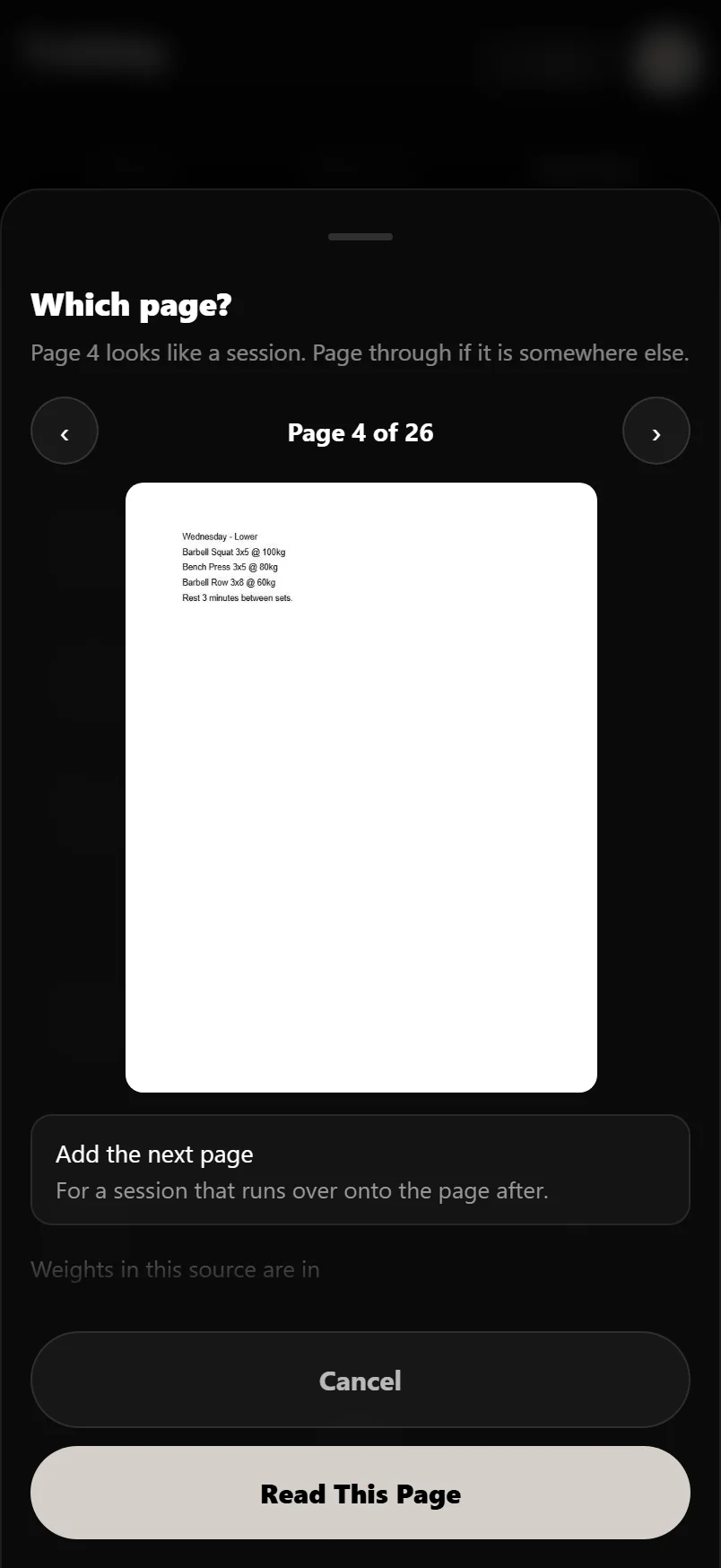
A book can run to hundreds of pages with your session on one of them, so Durata asks which page to read before it sends anything. It searches the document's text first and opens on the page that looks most like a session, and says why.
You see that page as a picture, with arrows to move through the document. If the session runs onto the next page, tap Add the next page and both are read together. Two pages is the most, and only the pages you pick leave your phone.
A scanned PDF has no text to search, so the chooser says so and starts at the first page for you to pick by eye.
A PDF over 100 MB is turned away before it opens. Save the page with the session as its own file and import that.
A password-protected PDF cannot be opened. Remove the password and try again.
Paste Text
Paste Text takes anything written down: an email from a coach, a forum post, a chat message, a web page, or a session you type yourself. It ends on the same review sheet as a photo.
If the session exists as text somewhere, paste it. Nothing has to be read off a picture first, so it is usually the most accurate way in.
While it reads
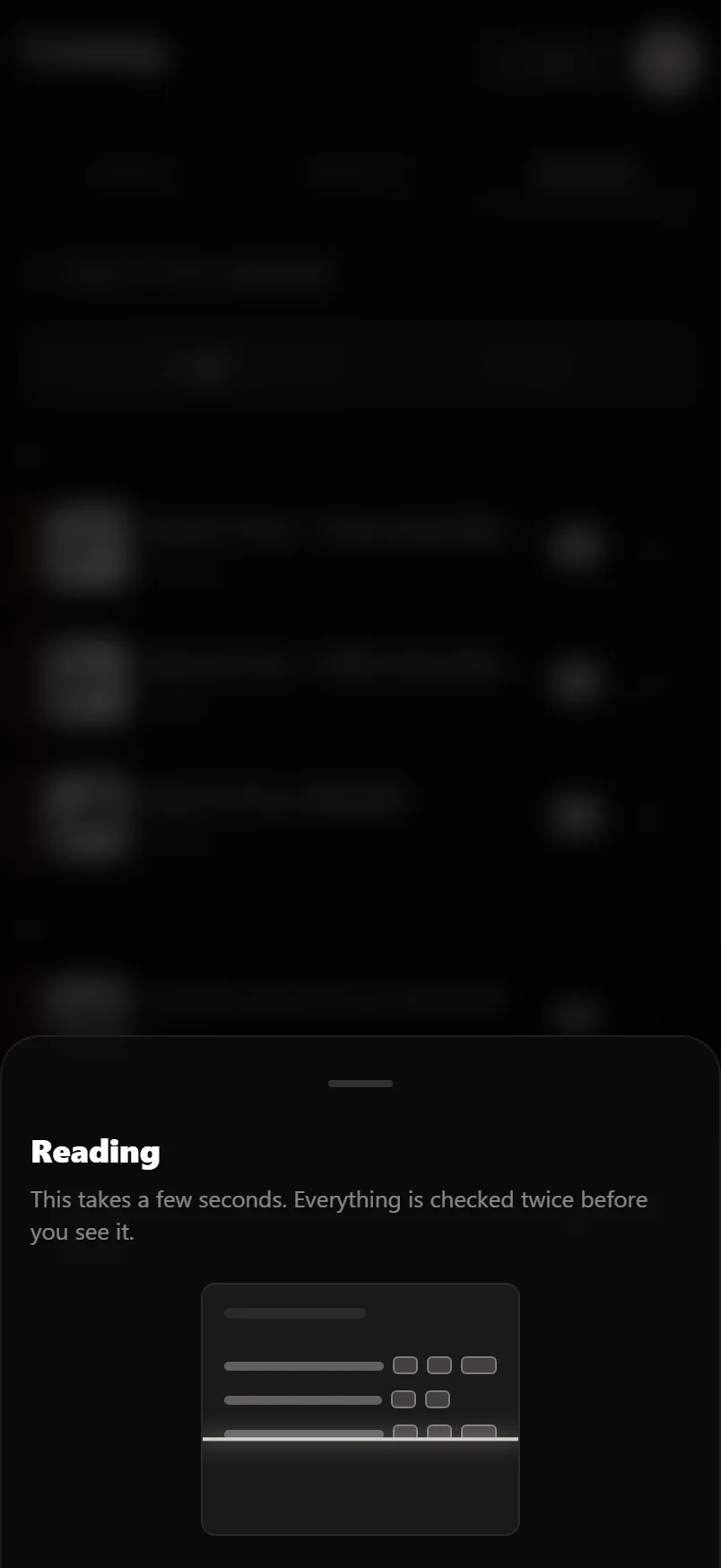
Reading takes a few seconds, longer for a document page than for pasted text. The screen shows a page being swept, and it cannot be closed, because closing it would not stop the read. Everything is read twice before you see it.
If it is still going after about twelve seconds, a line says so.
The review sheet: check it, then save
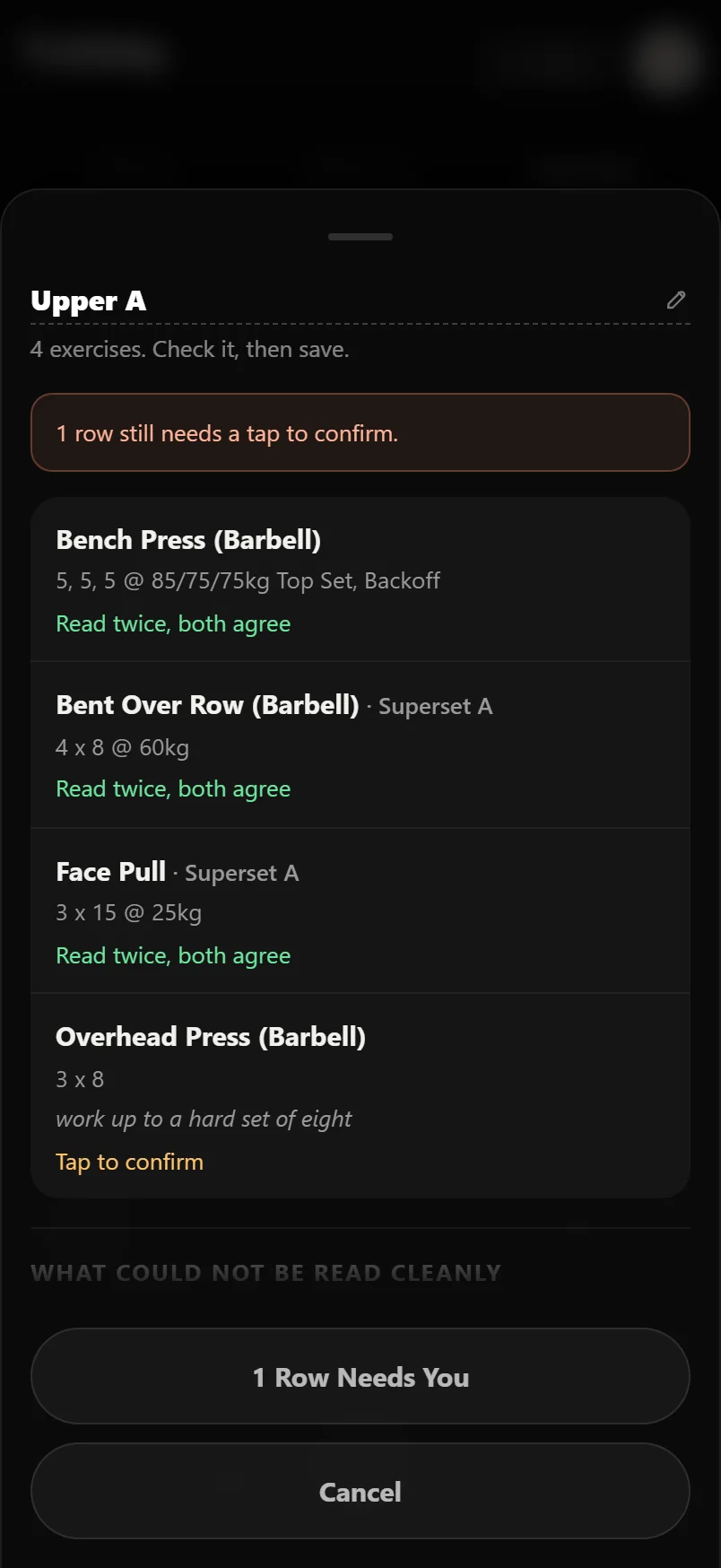
The name at the top is the name the session is saved under, and you can tap it and type. A read takes the name from the source, which is often a date or "Day 1", so this is where you make it one you will recognise. Clearing it puts the read's name back.
Each row shows the exercise and its sets, with a coloured line under it saying where it stands. Green, "Read twice, both agree", means the source said it and both reads match. Amber asks for a tap: "Tap to confirm", or "Which exercise is this?" when nothing in the library matched the name. Red means it could not be read, and you must fix or remove it before saving.
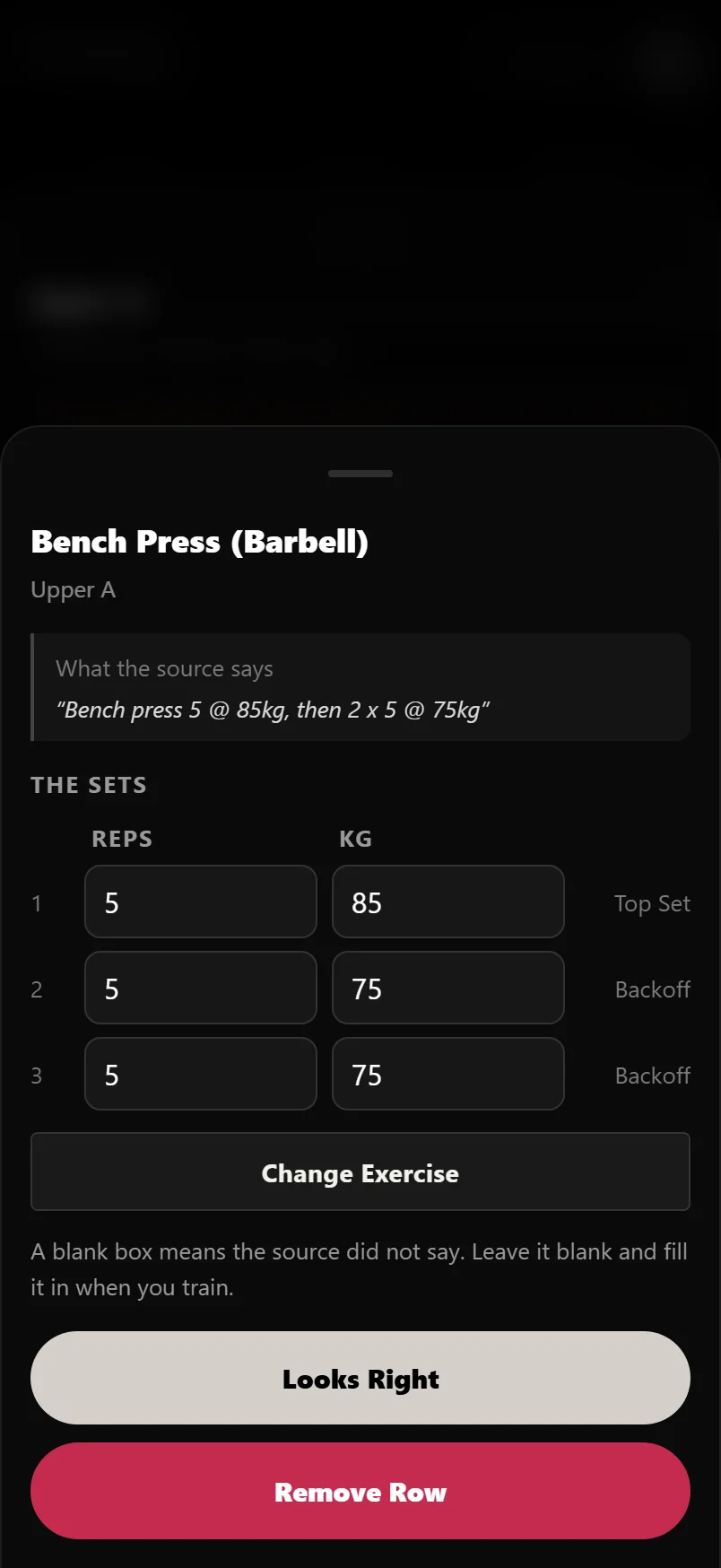
Tap a row to open it. The line from your source is quoted at the top, and the sets are boxes under Reps and the weight unit, ready to change. A blank box means the source did not say, so fill it in when you train. Looks Right confirms the row (Keep It on a red row), Change Exercise picks a different exercise, and Remove Row takes it out. A row you have changed by hand counts as checked, but it stays amber, because green only ever means the source said so.
Prescriptions are kept as written. A percentage stays a percentage, so 3x8 at 85% saves as three sets at 85%, and the weight is worked out from your own best lift. A rep range stays a range. RPE and reps in reserve are kept as they were given, never turned into each other. A timed hold stays a time.
Set types come through too. A top set with two Backoff sets under it stays that way, a Dropset stays a Dropset, 4x8+ makes the last set AMRAP, and two lifts marked as a pair arrive as a superset.
A sentence about one set, like a Backoff at 85% written under a table, is kept on that set as a tip you see again while you train. The numbers in the table are never changed by it.
A box at the top lists anything still stopping the save. Until it is clear, the main button counts the rows left, like "1 Row Needs You", and tapping it takes you to the top. Below the rows, What could not be read cleanly lists anything the read dropped, such as a column cut off at the edge of a page.
When the source holds a whole week
Paste a whole week and you get its first session. What could not be read cleanly says so and tells you to import the others separately. The same goes for a page with two sessions on it, or a photo of a four-week table.
Nothing is dropped without telling you, and nothing comes in that you did not check.
Start Now or Save for Later
Start Now opens the session in the logger so you can train it there and then. Save for Later adds it to your sessions in Training and opens it, so you land on the session you just checked.
An imported session has no progression rule. Weights going up week to week belongs to a plan. If you want that, save the session and use it in a plan of your own.
The monthly allowance
Each read costs us money, so Pro includes 10 imports a month. There is no daily limit. The import sheet shows how many you have used before you pick a source, the review sheet shows it again after each read, and it resets on the 1st.
A read that finds nothing usable is handed back: the sheet says "That one didn't count." That happens up to three times a month. After that they count, because by then the problem is usually the source.
If the source had no session in it, a No session in there sheet says what was there instead, with Try Another Source.
Common questions
Do I need Pro to import a session?
Yes, and you need to be signed in, because the reading happens on our server. Pro includes 10 imports a month. Importing your history from Hevy or Strong is free.
Can I import a whole program?
No. One import is one session, so a block or a book comes in a session at a time, each checked before it is saved.
Does it send my whole book?
No. Durata asks which page to read before anything is sent. Only that page leaves your phone, plus the next one if you tap Add the next page.
Does it understand percentages and RPE?
Yes, and it keeps them as written. 3x8 at 85% saves as three sets at 85%, so the weight follows your best lift. RPE and reps in reserve are each kept as given, and never added when the source did not say.
Does it read Backoff sets, Dropsets and supersets?
Yes. They come in as those set types on the right sets, two lifts marked as a pair arrive as a superset, and 4x8+ makes the last set AMRAP.
Can it read handwriting on a whiteboard?
Often, yes. Where it is not sure, the row comes back amber or red with the line from your photo quoted, so you fix it on the sheet rather than in the gym.
What if it gets a number wrong?
Tap the row and type the right one. A row you change counts as checked, but stays amber, because green only means the source said so.
Can I rename the session?
Yes. The name at the top of the review sheet is a field you can type in. You can rename it later in the session editor too.
What if there is nothing on the page?
You get a No session in there sheet saying what was there instead, with Try Another Source. Up to three of those a month do not count against your imports.
Will an imported session progress week to week?
No. It has no progression rule. Use it in a plan of your own if you want the weights to go up by themselves.
Put it into practice
Durata is free to use — 50 proven programs, automatic progression, rest timers and PR tracking, all on your phone.