


Switching from Hevy
Your training history is yours, and switching apps should not cost you it. Durata imports what Hevy holds: every workout with its weights, reps, set types and notes, and your routines. They become normal Durata data, so your records, charts and sessions work straight away.
There are two ways in. With Hevy Pro, an API key brings everything across. Without it, Hevy's free CSV export brings your full workout history. You can run either as often as you like and nothing is added twice. If you are not leaving Hevy completely, Durata can also send your finished workouts back.
Last reviewed 2026-11-02 · matches app v1.1.1.105
Two ways in: API key or CSV file
The API key (Hevy Pro) brings your full workout history and your routines, folders included, straight from Hevy. Exercises are matched by Hevy's own ids, which is the most reliable match there is.
The CSV file works for every Hevy account, free ones too. Export your workouts from the Hevy app and import the file into Durata. Routines are not in Hevy's CSV, but Durata can rebuild them from your history (see below).
Either way, exercise names are matched to Durata's 564 exercises even when the wording differs, and anything it cannot match comes in as a custom exercise rather than being dropped. Workouts keep their dates, so your charts and records read as they happened.
Coming from Strong or Loadline instead? The same import takes their files, and works out which app made the file by itself.
Connecting with an API key (Hevy Pro)
Get the key from Hevy's website: sign in at hevy.com, go to Settings, then Developer, and make an API key. Copy it.
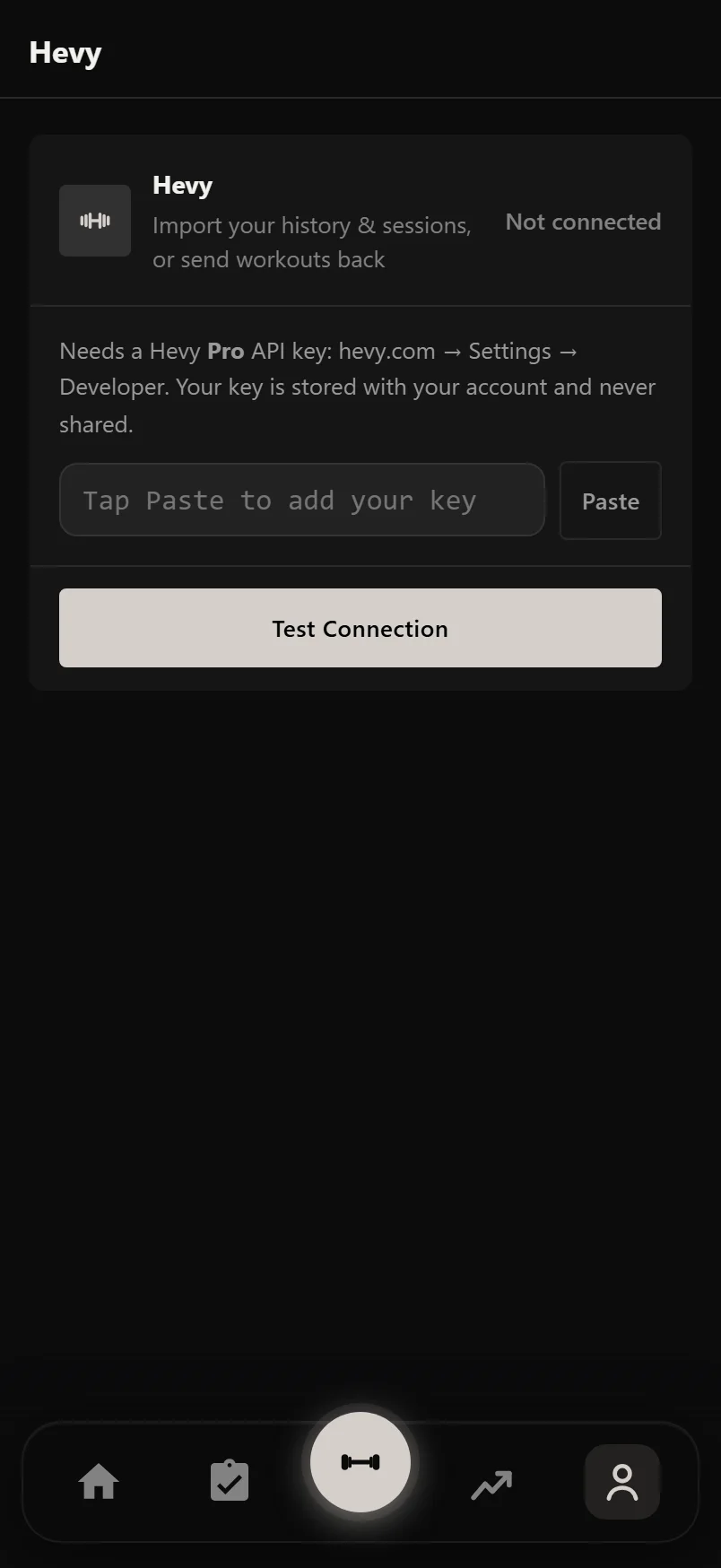
In Durata the Hevy card is in Settings, under Integrations, then Hevy. The same card opens from Import on a new account and from Settings, Data & Export, Import. Tap Paste Your API Key and the key comes straight from your clipboard, so there is nothing to type.
Test Connection checks the key with Hevy and shows how many of your exercises matched before anything is imported. A key Hevy turns down is never saved, and a key that already worked stays as it was.
Inside an import, the card is one button, Bring Everything Over: it connects, brings your history across and fetches your routines in one go.
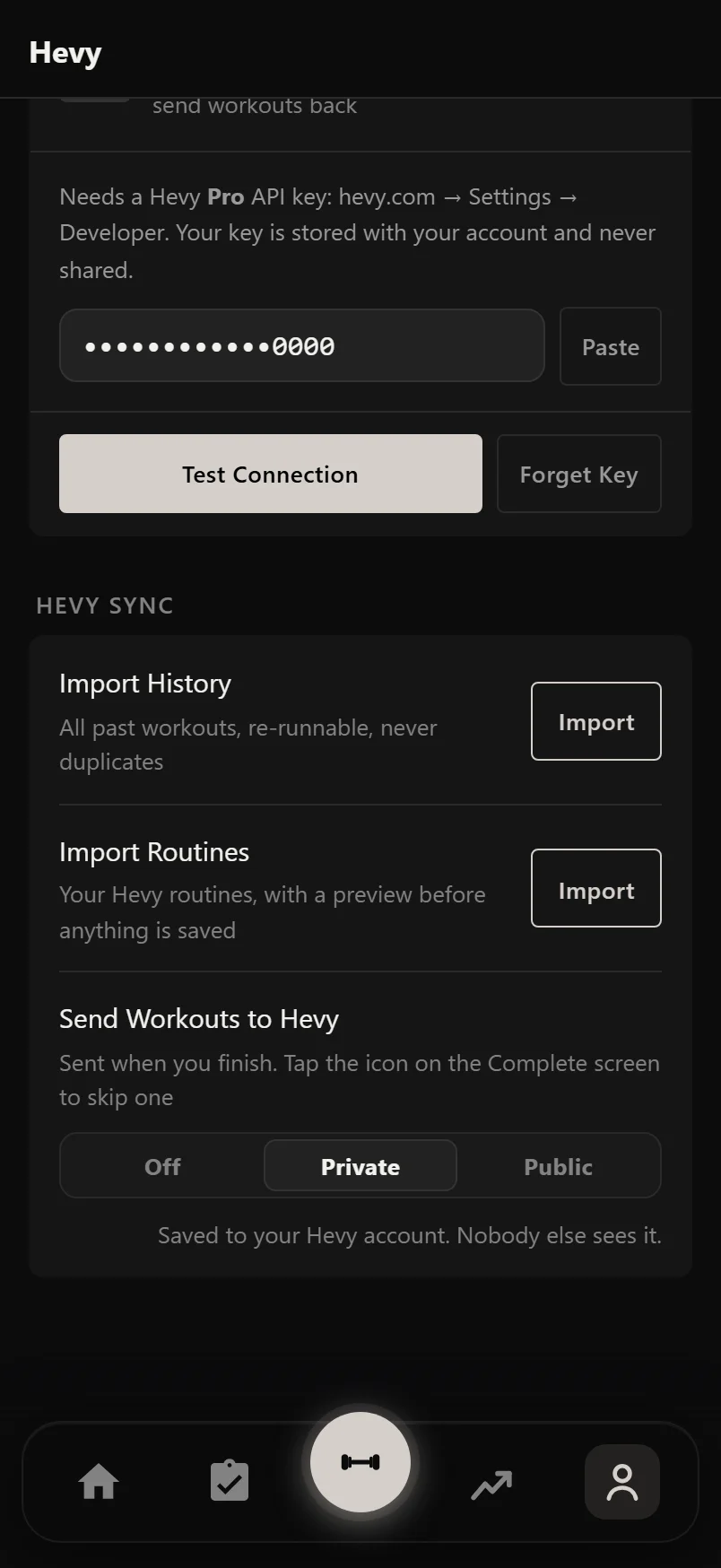
Once a key is saved, only its last four characters show. The Hevy Sync tools appear under the card: Import History, Import Routines and Send Workouts to Hevy. Forget Key removes the key at any time.
Importing your workout history
Import History brings every past workout across, oldest first, with a progress bar. A long history takes a couple of minutes. You can stop it and run it again later: each session is recognised, so nothing is added twice, and sessions you edited in Hevy are updated.
Each workout comes with its sets, weights, reps, set types and notes. If you have not logged anything in Durata yet, it takes your unit from your Hevy log, so your weights land as the numbers you actually lifted. Once you have training of your own, only Settings changes your unit, and imports convert into it.
Imported workouts count everywhere your lifting does: records, e1RM trends, muscle charts and the Previous column in the logger. They do not count towards streaks and badges, which only count workouts logged in Durata.
Importing your routines and folders
Import Routines fetches your Hevy routines and folders and shows them to you before anything is saved. Exercises, sets, rest times, supersets and notes all come across.
Each Hevy folder becomes a plan with the same name, holding the same sessions in the same order. Hevy has no weekdays, so the plan runs its sessions in order, the next one after the last you log. If you would rather train on set days, turn on Train on Set Days in the plan's Plan Settings.
Routines that were not in a folder come across as single sessions you tick in the preview. When the import finishes, Pick Where to Start offers each new plan a Start, and Group Into a Weekly Plan turns the single sessions into a plan there and then. A plan you already have running is left alone.
Routines arrive with no progression rules. To have Durata move the weights up for you, open a session in the plan and set a rule on its progression chip (see Build Your Own Program).
The CSV route (no Hevy Pro needed)
In the Hevy app, go to Profile, then Settings, then Export & Import Data, then Export Data. Hevy gives you a CSV file of your workouts. In Durata, go to Settings, Data & Export, Import, and choose the file. Durata spots that it is a Hevy file and which unit it is in.
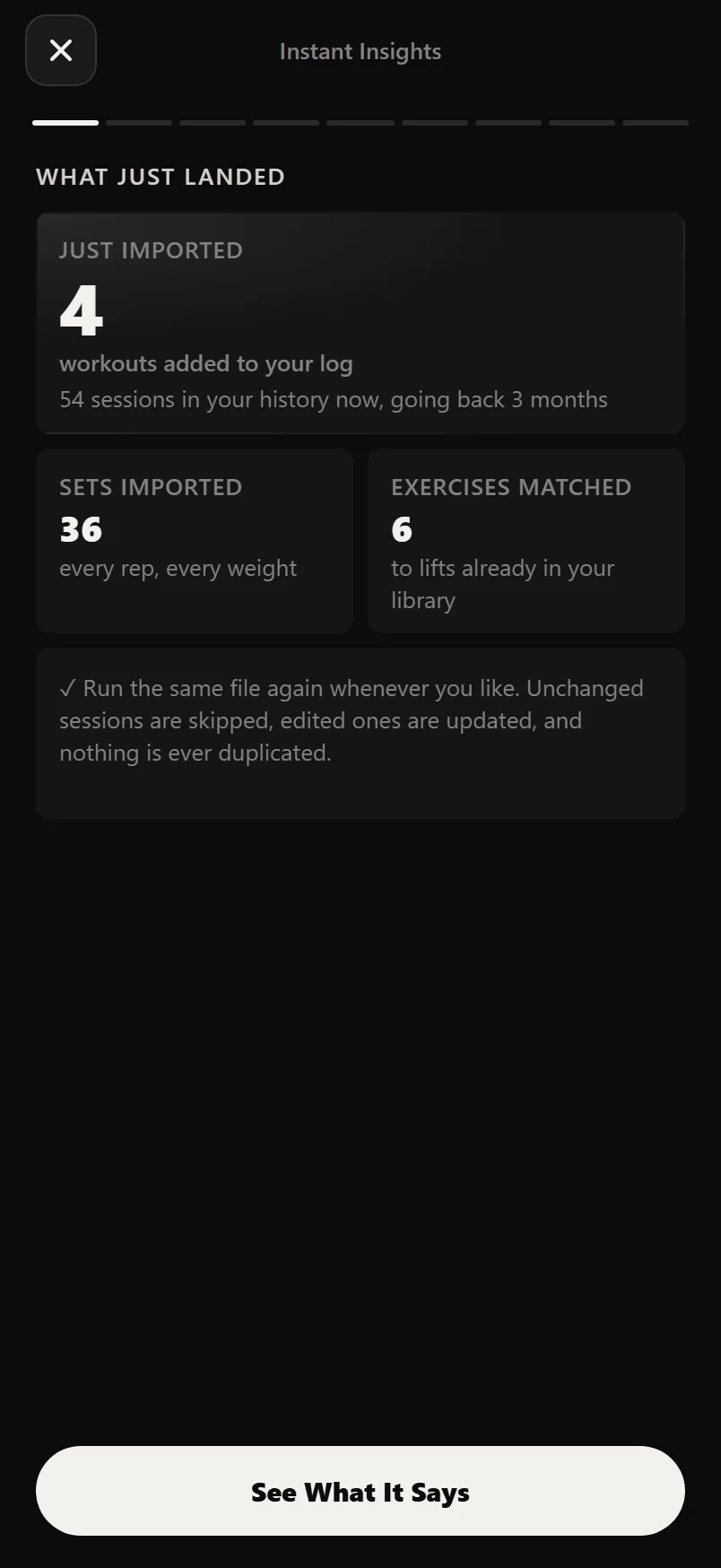
When the import adds workouts, it opens the Instant Insights reel (below). Its first screen, What just landed, counts the workouts added, sets imported and exercises matched. Any rows the file could not state cleanly are listed there too, with the reason. Fix them in the file and import it again: nothing is added twice.
Your routines are dealt with on the reel's last screen. With no API key saved, Rebuild Your Sessions offers the workouts you repeated, each ready to become a session built from your latest performance. Group Into a Weekly Plan then makes them a plan. The sessions move into the plan rather than being copied, and the last button, Create & Start, asks for a start date, so you finish the import with a plan running.
If an API key is saved, that screen sends you to Import Routines instead, because your real routines beat any rebuild. Strong and Loadline files always get the rebuild.
Import the CSV now even if you plan to connect a key later. Running an import again never adds anything twice.
Instant Insights: your history, played back
When an import adds workouts, Durata opens a full-screen reel built from your history. It works the same whichever app the file came from. Importing a file you have already loaded adds nothing, so the reel stays shut and a short note says why.
After What just landed it runs through your lifetime totals, your record book, the e1RM line of your most-logged lift across all your history, your fastest-growing lifts, where your volume went by muscle, how you actually train (streaks, favourite day, typical session), and the milestones you have passed and the next one in reach.
The last screen holds the import's next steps: rebuild your sessions, group them into a plan, bring your Hevy routines across, or browse programs. Done closes the reel.
Numbers count up as each screen arrives. With Reduce Motion on in your phone's settings, every figure is there from the start.
You can play the reel again at any time with Play Your Story on the You tab. A replay starts with what has changed since you last watched, and ends on a set of cards you can share instead of the import's next steps.
Sending workouts back to Hevy
Maybe your coach reads Hevy, or your friends follow you there. Send Workouts to Hevy has three settings: Off (the default, nothing is sent), Private (each finished workout is saved to your Hevy account where only you see it) and Public (it goes to your Hevy followers' feed). Public is never on unless you pick it in Settings, and a line under the setting says what your choice does.
With sending on, each workout you finish in Durata goes to Hevy with its sets, weights, reps, notes and supersets. Set types Hevy does not have are turned into the nearest one: an AMRAP set becomes a Hevy failure set. To skip one workout, tap the Hevy icon on the Complete screen.
If you edit a workout after it was sent, its badge in History reads "Hevy · edited". Resend to Hevy, in the workout's ⋮ menu, sends the new version. Hevy cannot update a workout, so it arrives as a new copy and you can delete the old one in Hevy. Workouts that came from Hevy are never sent back, so nothing goes round in a loop.
Common questions
Do I need Hevy Pro to switch?
No. The API key needs Hevy Pro, but the CSV file works for every account and brings your full workout history. The key also brings your routines and folders.
Will importing twice duplicate my workouts?
No. Each session is recognised, so running an import again skips sessions you already have and updates ones you edited.
What happens to exercises Durata does not recognise?
They come in as custom exercises rather than being dropped, and the import tells you which ones.
Do imported workouts count towards my streaks and records?
They count towards records, e1RM trends and charts. They do not count towards streaks and badges, which only count workouts logged in Durata.
Can I keep using Hevy alongside Durata?
Yes. Set Send Workouts to Hevy to Private or Public and each workout you finish in Durata goes to your Hevy account. If you edit one later, Resend to Hevy sends the new version as a new copy.
Is my Hevy API key safe?
It is stored with your Durata account, used only to talk to Hevy's official API, and Forget Key removes it at any time. You can also cancel the key on Hevy's side.
What is the Instant Insights reel?
A full-screen run through your own numbers that opens when an import brings workouts in: what just landed, your totals, records, trends, muscles, habits and milestones, ending on the import's next steps. Play it again any time with Play Your Story on the You tab.
Put it into practice
Durata is free to use — 50 proven programs, automatic progression, rest timers and PR tracking, all on your phone.