


Settings, sync and your data
Settings is where Durata adapts to you: your units, your plates, your rest times, your data. It's a menu of small focused screens, and every change saves automatically as you make it.
It's also home to what matters long-term: importing your history from another app, exporting it back out, and keeping everything synced to your account. Your data is yours: lossless export is built in, and the app works offline and syncs when you're back online.
Last reviewed 2026-10-26 · matches app v1.1.1.105
Account, units and workout defaults
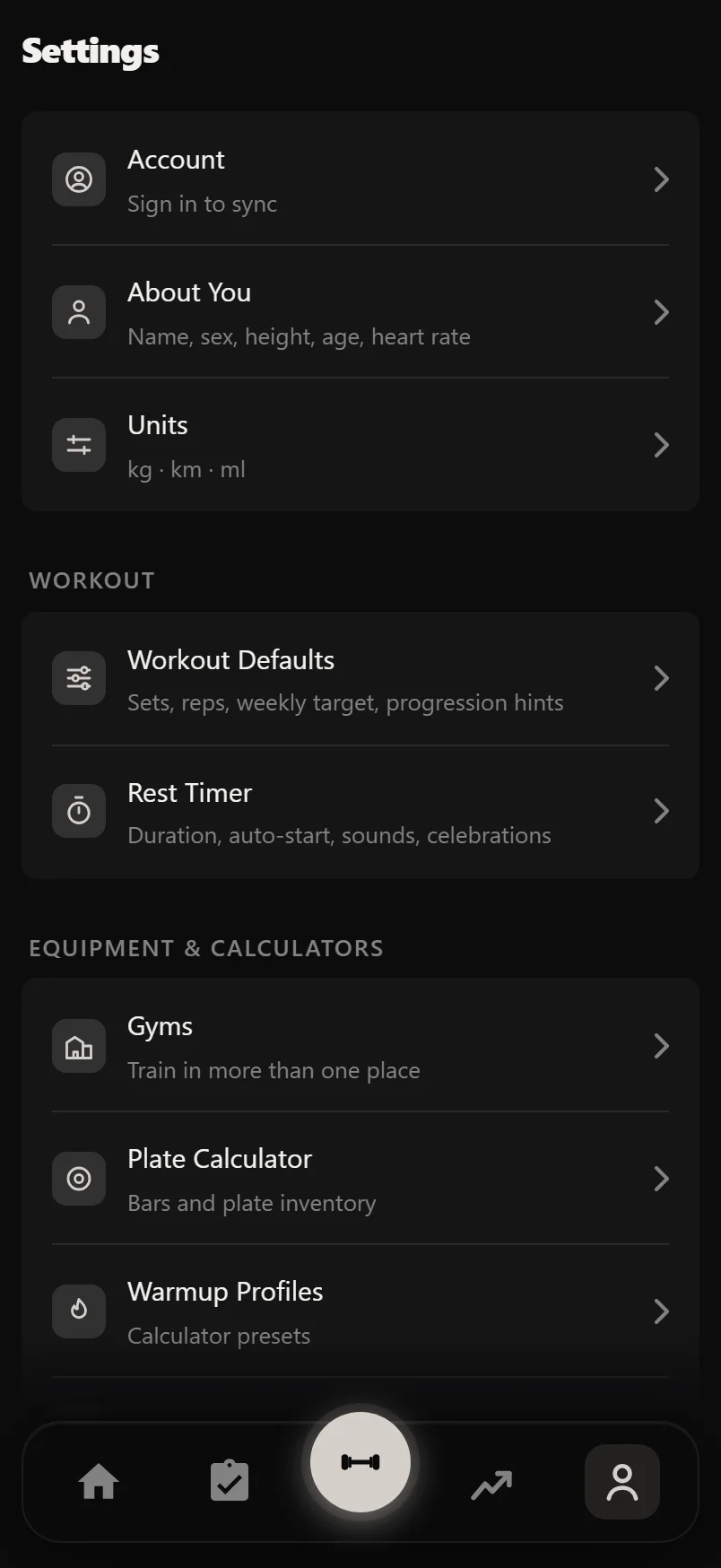
Settings is the gear at the top right of the You tab. Tapping the profile card at the top of You opens About You directly. Three rows sit together at the top of Settings: Account, About You and Units, under the Pro card if you are not on Pro. Account is the email you sync with, the sync controls, and the buttons that reset your workouts or delete the account outright.
Units is its own row, and it says what it is set to before you open it: kg or lbs for weight, km or miles for cardio. Once you have weights logged, switching the weight unit asks what to do with them, and tells you exactly how much it would touch: so many sets across so many workouts, plus any routine targets, program working weights, training maxes and lift goals. Convert My Numbers rewrites every one of them into the new unit (sets to two decimals, targets and training maxes snapped to your plate step) and keeps a full backup of everything as it was under Data & Export. Keep Numbers As They Are changes nothing but the label, for the lifter who moved gyms and now loads the plates the new unit describes. Cancel leaves the unit alone. Body weight is the same measurement either way, so it always converts. You cannot switch while a workout is in progress: finish or discard it first.
About You starts with your display name, which is shown at the top of the You tab instead of one derived from your email address, and then the body facts: sex, height and age, which feed calorie and body-metric estimates. Age sets your max heart rate (220 minus age); override it or add a resting heart rate for the Karvonen formula, with a live preview of all five HR zones.
Workout Defaults controls the logger: default sets and reps, weight rounding (every suggested weight snaps to this step, and the choices follow your unit: 0.25 kg up to 5 kg, or 0.5 lb up to 10 lb, defaulting to 2.5 kg or 5 lb), switches for progression hints, the fatigue bar, and whether warmups count in your volume. Previous Values decides what the logger's PREV column shows while you train: Any Session, your last time doing that exercise anywhere, or This Session, only sessions logged from the routine you're currently running. Your weekly session target lives here too, and feeds your Consistency Score. Effort tracking is where you choose RPE, RIR or off, with an optional default pre-filled on every set.
Every numeric field selects its contents when you tap it, so you can type the new value without deleting first.
Convert remembers each original value. Switch back and every number you did not edit in between returns exactly as it was, not rounded twice.
Personal records are rebuilt from the converted sets, so they follow your numbers into the new unit without any re-logging.
Rest timer, sounds and reminders
Rest Timer sets whether the timer starts automatically on set completion, the default duration (30 seconds to 5 minutes, overridable per set), and how it appears: a thin header bar, a floating mini timer, or a full-screen countdown.
Auto-Advance decides where the logger puts you when a rest ends. Off keeps you on the exercise you just logged. Supersets rotates you to the next partner in the group. Last Set moves you on once the exercise itself has nothing left. Both does the two together, preferring a live superset partner before it moves on.
Pick a Rest Complete Sound (bell, whistle or horn) and a Celebration Sound for a new record: each option plays when you tap it, and the sheet stays open so you can compare. Vibrate on Rest End has its own switch, and Sound Check helps if a sound does not play. Rest alerts fire even with the screen locked.
Celebrations, on the same screen, has three rows: PR Celebration, PR Moment and Finish Celebration. Each can play a different one every time (Surprise Me), always the same one, or be off. The Records and Celebrations guide covers them.
Workout reminders live under Workout Defaults: turn them on and Durata notifies you on each of the next 7 days that has a planned session, at your chosen time.
Warmups, plates and equipment
Warmup Profiles holds the calculator's three presets: Quick, Standard and Heavy. Each is fully editable (name, percentage, reps and rest per ramp set), and you pick which one opens by default, which is Standard out of the box. Leave a ramp set's rest blank and it isn't zero. It uses your Warmup default under Rest Timer, Rest by Set Type, so changing that one setting re-times every rung that hasn't been given its own number.
Plate Calculator describes your actual gym in your own unit: bars and plates follow your kg or lbs setting, with proper defaults for each (20 kg bar and metric plates, or a 45 lb bar and 45/35/25 lb plates), down to microplates. Each plate card wears its standard bumper-plate colour, matching the calculator in the logger. Your kg and lbs setups are stored separately, so switching units never mangles either. Add custom bars, and if you enable a microplate finer than your weight-rounding step an inline note tells you to lower the rounding so suggestions can actually use it.
The dumbbell rack is on the same screen: describe the ladder yours runs in (from, to, step) and tap off any size you don't have, and suggested dumbbell weights land on a bell you can actually pick up. With more than one gym, this whole screen edits the gym you're at. A bar at the top names whose iron it is, anything you don't change at a second gym reads through from your main one, and a second gym can clear its rack to say it hasn't got one. See the Gyms guide for how inheritance works.
Rep Tempo shows your default four-phase cadence (e.g. 3010, three seconds down and one second up) and opens the same tempo sheet you'd use to set a lift's tempo in the logger: four dials, one per phase, with Play to hear it and Save to keep it.
Equipment Tags has a switch for each tag: off hides it when you log. You can add your own tags there too.
Swipe a warmup set row to the left to delete it.
Cleared a ramp set's rest by mistake? Tap it and pick Default at the top of the sheet to go back to inheriting, rather than typing the number back in by hand.
Importing from another app
Data & Export > Import opens one sheet for the whole move: a CSV file, or a Hevy API key. It is the same sheet the first-run hero shows a brand-new account, so there is one import flow in the app rather than a full one for new users and a bare file picker for everyone else. CSV files from Durata itself, Strong, Hevy and Loadline all work. The format is detected automatically, and so is the weight unit whenever the file states one. Only a Strong file that doesn't say stops to ask: a sheet titled Which Unit Is This File In? offers your own unit first. On an account with no training on it yet, that detected unit is adopted rather than noted: kg is a default nobody chose, and an import is often the first thing a new account ever does, so the file in front of Durata is the best evidence it has. Because the decision is made before a single row is written, your weights arrive exactly as you logged them instead of being converted. Distances follow the same evidence, from the same headers. Once anything is logged, or a routine of yours already prescribes a weight, the unit is yours, and only Settings changes it.
Coming from Hevy with a Pro account? You can skip the file. A Hevy API key, pasted either here in Settings → Integrations → Hevy or on the Hevy option inside the import sheet itself, pulls your full history and your actual routines, with their real names, folders, rest times and set targets, straight from Hevy's servers, and can send finished Durata workouts back the other way. The Switching from Hevy guide covers the whole move; the CSV path here works for everyone, Pro or not.
Import is safe to repeat: every session is fingerprinted, so re-importing the same file adds nothing twice. Unchanged sessions are skipped, edited ones updated. Exercise names are matched to Durata's library even when the wording differs between apps ("Cable Lateral Raise" finds "Lateral Raise (Cable)"), per-exercise notes come across with them, and anything unrecognised is carried in as a custom exercise. The import then opens the Instant Insights reel, and its first screen is what was added, updated, matched and created, plus any rows the file could not state cleanly, listed one by one behind a tap so you can fix them and re-import. A re-run that changes nothing skips the reel and gets a short sheet saying so instead.
The reel's last screen offers to rebuild your training. Under Rebuild Your Sessions it lists the workouts you performed at least twice in the imported history, each ticked and ready to become a routine built from your most recent performance, so the weights are your latest, not your oldest. Recent staples rank ahead of years-old history, and re-importing never re-offers a routine you already have. Create two or more and a Group Into a Weekly Plan button hands them straight to the plan builder, pre-ticked, with training days inferred from when you actually trained. Those sessions move into the plan rather than being copied into it, because they were rebuilt from this import moments ago and a copy would only give you two of each. The final button reads Create & Start, asking for a start date so the import ends with a plan that is actually running. The one exception: a Hevy file imported while a Hevy API key is stored skips the guesswork and points you at Import Routines instead, which fetches your actual Hevy routines. See the Switching from Hevy guide. Everything on that screen closes the reel and hands you straight to what you picked, so the import ends where you chose to take it rather than dropping you back on Settings.
Skipped the offer, or want a one-off session back? Open any imported workout in Progress → History and use Save as New Session. The manual route still works any time.
Export and backup
Export to CSV writes every logged set, cardio, HIIT and all set types included, with weights, reps, RPE/RIR, distances and durations, in a lossless format that re-imports cleanly. Turn on auto-export and a fresh CSV lands in a folder you choose after every workout.
Backup produces one JSON file of everything: workouts, custom exercises, routines, programs, goals, body metrics, cardio, nutrition, sleep and settings. Restore reads it back in, with a clear warning first, because it overwrites matching records locally, in the cloud and on your other signed-in devices.
On iOS the app also keeps its own safety net: once a day it writes a full backup into Files > On My iPad/iPhone > Durata automatically, alternating between two files so a good copy is always retained. Restore accepts these files too.
Your account and cloud sync
Your account is just your email address: enter it, type the 6-digit code that arrives, and you're signed in. There is no password. Accounts are created in the mobile app; once one exists, the same email code logs you in elsewhere.
Durata works offline and syncs when you're back online. Everything works with no connection, and changes queue up and sync automatically once it returns. That includes opening the app: with no signal, even after the sign-in has aged past the point where the server would normally re-confirm it, the app opens straight onto your data instead of asking you to sign in again, and the account row reads Offline until the connection returns and the session is confirmed. The account card shows when you last synced and whether anything is pending, with a Sync Now button if you're impatient. When something is pending because the server turned it away rather than because you are offline, the card says which, and names the record it stopped on along with what the server said, so a stuck queue tells you what to do about it instead of retrying forever in silence. Restore From Cloud sits on the same card: it pulls your whole account down from the server again from the beginning, keeping whatever is only on the device. That is different from the Restore under Data & Export, which reads a backup file back in. Use Restore From Cloud when it is this device you do not trust, and Restore when it is a particular backup you want back.
Your settings and progress markers follow your account alongside your workouts: dashboard layout, units, onboarding state and accepted terms all sync, so a new phone picks up where the old one left off.
Reset Workout Data sits between signing out and deleting everything: it deletes your training and health records, meaning workouts, body metrics, cardio, nutrition and sleep, and keeps everything you built. Your exercise library, your sessions and your plans all survive, and the plans are returned to un-started rather than deleted, so the run markers and past-run entries on your calendar go with the history they described instead of outliving it. Your working weights are kept, the same way they carry forward when you restart a plan deliberately.
Signing out affects only the device you do it on: your other phones, tablets and browsers stay signed in. It uploads pending changes first, and warns you if any couldn't be synced rather than silently dropping them. Delete Account & All Data does what it says: a two-step confirmation, then your cloud data, account and local data are permanently erased.
Apple Health and Health Connect
The Integrations screen connects Durata to your platform's health store, Health Connect on Android and Apple Health on iOS, read-only by design. It reads workouts, weight, body fat, steps, heart rate and resting heart rate, sleep, nutrition and water from your other apps and devices and folds them into your dashboard. Durata never writes to your health record, so it can't pollute it.
Syncing happens on its own, whenever you open the app or return to it, at most once every ten minutes so it never sits reading your health store in the background. There is no schedule to set. Weigh yourself after you have already opened the app and the reading arrives the next time you come back to it, rather than waiting for tomorrow. Durata also re-checks the last couple of days on every pass, because the app that owns a reading often hands it to your health store well after the moment it was taken, and a scale that syncs late should not cost you the entry. Sync Now on the same screen is still there for when you want it: it ignores the ten-minute spacing and re-reads your whole history rather than the recent days.
Integrations is also home to the Hevy connection: its row shows whether a key is connected, and opens onto the same Hevy screen the import sheet mounts behind its Hevy option, so there is one key field in the app wherever you reach it. Paste a Hevy Pro API key and you can import your full workout history and your actual routines, and optionally send every finished Durata workout back to Hevy (Off, Private or Public, so you choose in plain terms who sees it). The whole flow has its own guide: Switching from Hevy.
Appearance and the Wear OS companion
Display offers six muted accent colours, and the whole interface re-tints to your pick, plus Bright Mode and a toggle to keep the screen awake during an active workout.
Bright Mode is for reading the app in bad light: a busy gym under strip lighting, or outdoors. It is not a light theme, and Durata stays dark. It deepens the background to pure black and lifts the text, which roughly doubles the contrast on the small grey lines like set counts and your last-time numbers. Those are the first thing to wash out when glare hits the screen. It works alongside your accent colour, so picking one never resets the other.
If you have a Wear OS watch, the companion pairs with the phone app: your session appears on the watch, you log sets from the wrist, and the rest timer runs on both, with +/-15 second nudges and skips syncing in both directions. The watch can also stream heart rate into your session, shown in the workout header and on the rest screen, and the Watch screen has toggles for sounds and haptics.
Bright Mode and your accent colour are stored separately and both sync to your account, so a new phone comes back looking exactly like the old one.
Help and feedback
Help & Feedback, at the foot of Settings, has one Get in Touch card. Email Us asks whether you want to send feedback or report a bug, and opens an email with the right subject. Discord, Reddit, YouTube, TikTok, Instagram, X and the WhatsApp Channel open straight there.
Durata Pro
Durata Pro is the paid tier. Logging, every program in Discover with its progression, exercise swaps, history, PRs, cloud sync, backup and export, the review reports, the descriptive charts, cardio, nutrition and body tracking, the rest timer and the plate calculator are all free, with no limit on workouts. Pro covers eight things: Import a Session from a photo, PDF or text (10 imports a month), progression rules on plans you build, the web app on a computer, more than four sessions of your own, Setup Next, a second gym, the analytics that give a verdict (Load & Recovery, strength levels, Muscle Balance, Compare Exercises, an exercise's Insights, Sleep & Performance, Fuel & Training), and the photo Time Lapse. A locked card keeps its title and blurs its verdict behind one Unlock with Pro pill, and a locked button carries a small PRO mark; nothing in the logger is marked at all.
Pro is sold through the App Store on Apple and Google Play on Android, monthly, yearly or as a one-off, with Restore Purchase to re-link an existing purchase on a new device.
Tap the version number at the bottom of Settings to read the full release notes for every build, filtered to your platform, so an Apple device never shows Android-only changes (or vice versa).
The web dashboard
Durata also runs in a desktop browser. Sign in at getdurata.app on a computer and your whole account is there, live-synced both ways (part of Pro). It's a big enough deal that it has its own guide page: see The web dashboard for signing in, what the big screen is best at, and what stays on the phone.
Common questions
Will importing my Strong or Hevy history create duplicates if I run it twice?
No. Every imported session is fingerprinted, so re-importing the same file skips unchanged sessions and updates edited ones. Nothing is ever duplicated.
Does Durata work without an internet connection?
Yes. Durata works offline and syncs when you're back online: logging, programs and analytics all run on-device, and changes made offline queue up and sync to your account automatically once the connection returns.
Can Durata write data into Apple Health or Health Connect?
No. The integration is read-only by design. Durata reads workouts, weight, steps, heart rate, sleep, nutrition and hydration from your health platform but never writes anything back.
How do I move my data out of Durata?
Data & Export gives you a lossless CSV of every set (including cardio, HIIT and set types) and a full JSON backup of everything. Both are one tap, no subscription required.
What happens to my data if I delete my account?
Everything is permanently erased: cloud data, your account and the data on the device. There's a two-step confirmation, and it cannot be undone, so export a backup first if you might come back.
How do I get to the web version?
On a computer, go to getdurata.app, hit Sign in, and use the same email + 6-digit code as the app. It's desktop-only, and a phone browser will point you to the mobile app instead. The web dashboard is part of Durata Pro.
Put it into practice
Durata is free to use — 50 proven programs, automatic progression, rest timers and PR tracking, all on your phone.