


Switching from Progression
Durata imports your history from the Progression workout app's CSV export: every workout with its weights, reps, RPE and comments. The workouts become normal Durata data, so your records, charts and the Previous column in the logger fill in straight away.
You can import the file as often as you like and nothing is added twice.
Last reviewed 2026-11-21 · matches app v1.2
Importing the file
Export your workouts from Progression as a CSV file. In Durata, go to Settings, Data & Export, Bring Your Training Over, choose CSV File and pick the file. Durata works out that it is a Progression file from its columns.
Before anything is saved, any exercise names Durata cannot place are listed for you to check: keep one as its own exercise, or search the library for the right one. Your choices are remembered for the next Progression import.
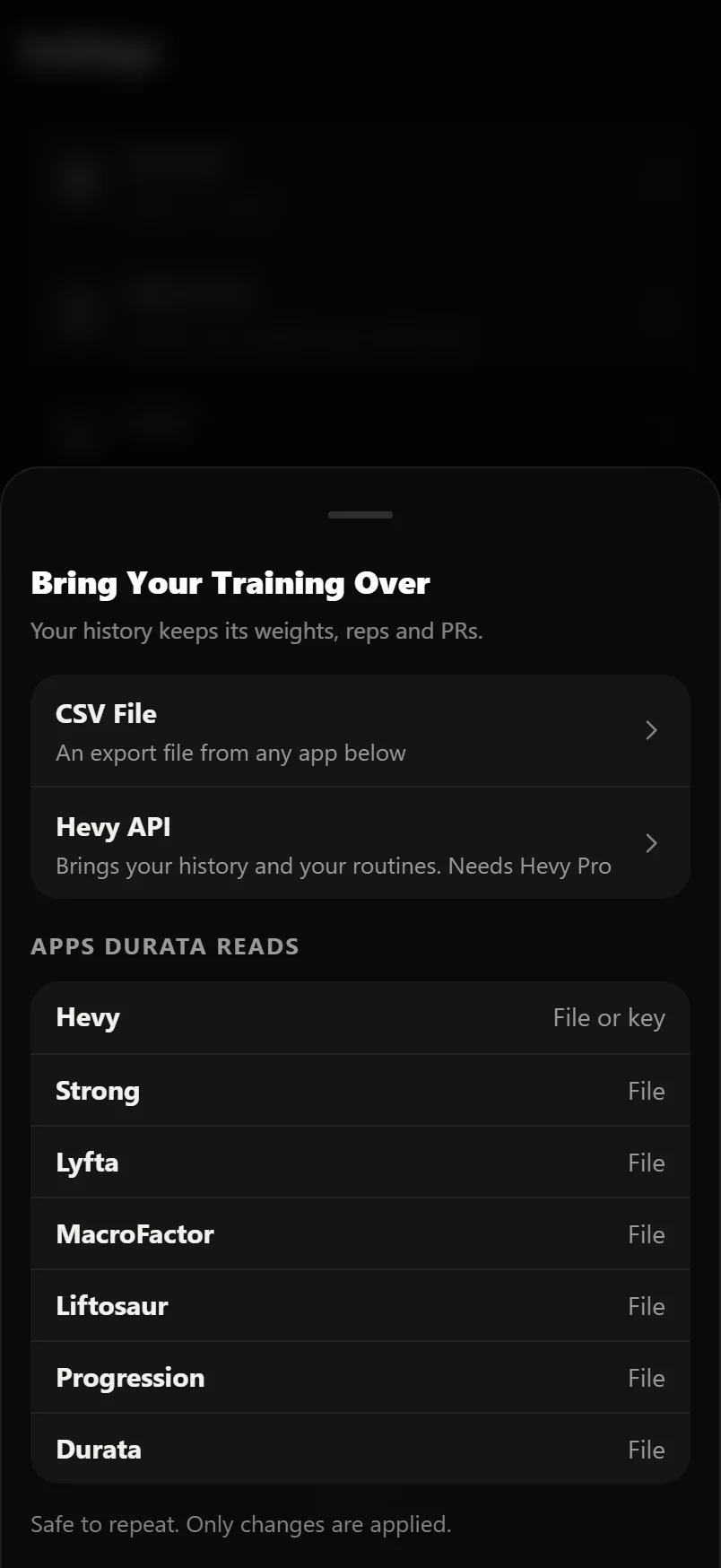
What comes across
Each workout keeps its name, its date and its length: Progression records when a session finished and how long it took, so Durata works out when it started. Each set keeps its weight and reps in the unit it was logged in, along with its RPE, its time or distance, and its comment. Session comments come across too. Empty sets are skipped.
Progression's CSV has no set types, so every set comes in as a normal set. Warm-up and other set marks are only in Progression's own backup file, which Durata does not read.
Exercise names are matched with a list of Progression's lifts checked by hand, with the equipment in the name moved into Durata's own naming. A lift Durata has only in different equipment comes in as your own exercise rather than being filed under the wrong one.
Running it again, and what happens next
Each workout is recognised by its start time, so importing a newer export skips what you already have and adds the rest. A workout on the same day and with the same name as one you logged in Durata by hand is skipped, not overwritten.
An earlier version of Durata read Progression files as if they came from Strong and left the reps out. If you imported one then, import it again: those rep-less workouts are replaced by the full ones.
When an import adds workouts, the Instant Insights reel opens: what just landed, then your totals, records and trends. Its last screen offers to rebuild the workouts you repeated as Durata sessions and to group them into a weekly plan.
On an account with no workouts yet, Durata takes the unit of your Progression log. Once you have training of your own, imports are converted into your Settings unit.
Common questions
Does Durata read Progression's backup file?
No, it reads the CSV export. The backup file is the only place Progression keeps set types, so every imported set comes in as a normal set.
Are my RPE and comments kept?
Yes. Each set's RPE and comment come across, and so do session comments.
I imported my Progression file before and the reps were missing. What now?
Import the same file again with the current version of Durata. The earlier rep-less workouts are replaced by complete ones.
Will importing twice duplicate my workouts?
No. Each workout is recognised by its start time, so a newer export only adds what is new.
Put it into practice
Durata is free to use — 84 proven programs, automatic progression, rest timers and PR tracking, all on your phone.