


Sharing sessions and plans
You can share a session or a plan you built as a link or a QR code. Anyone who opens it sees the workout on a web page, with every lift, set and rest, and can add it to their own Locker in Durata. Your weights, training maxes and logged workouts are never shared.
Last reviewed 2026-11-21 · matches app v1.2
Sharing a session or a plan
For a session, tap the ⋯ on its row in your Locker and choose Share. For a plan, choose Share Plan from the plan's menu: the ⋯ on its Locker row, the ⋮ in the planner, or the ⋯ on its program page.
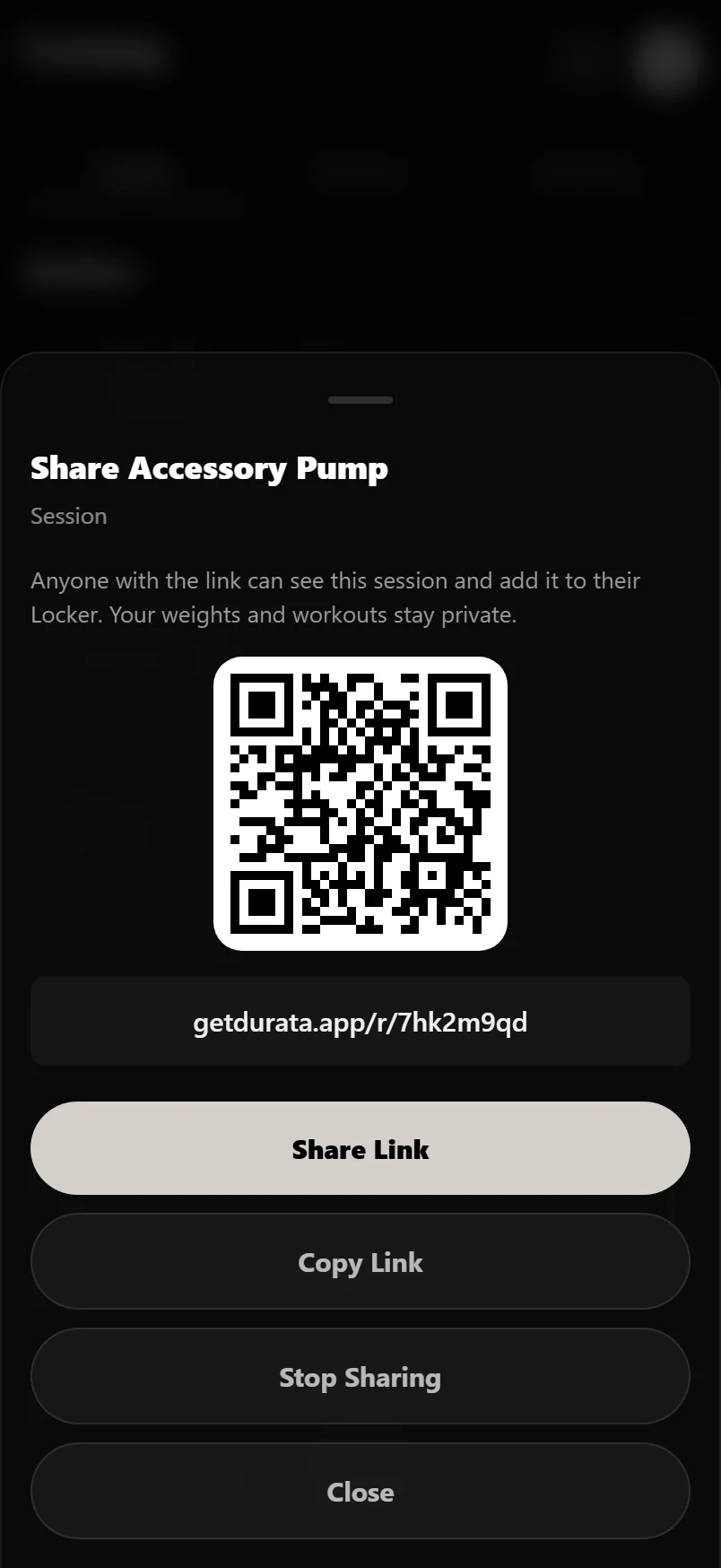
The Share sheet shows a QR code and the link. Share Link opens your phone's share menu, Copy Link copies it, and a training partner beside you can scan the code. Share as Text, under Share in a session's menu, sends the session as plain text instead.
You need to be signed in to share, because your links are kept on your account. That is what lets you stop sharing from any device. If you share the same session again without changing it, you get the same link.
Opening a shared link
The link opens a web page anyone can read, with or without Durata: the plan's or session's name, its sessions, and a table for each day of exercises, sets and reps, and rest. A long plan shows its first week. A plan with progression rules says how it progresses. The page also shows an eight-character code.
Start This Plan, or Add to Locker for a session, opens it in Durata. In the app you can also tap + in Training, choose From a Link or Code, and paste the link or type the code. A preview shows what you are adding before Add to Locker puts it in your Locker.
You start a shared plan from your own weights, since none are shared. On a free account the plan or session comes in without its progression rules, so you set the weights yourself; Pro keeps the rules. Each session added counts towards a free account's four, and the preview says how many you have left before you add it.
Someone without the app can install Durata, tap New, choose From a Link or Code and type the code from the page.
Stopping a share
Open the Share sheet again and tap Stop Sharing. The link stops working, and its page says it is no longer available. Anyone who already added the session or plan keeps their copy.
You can make up to 20 links a day. A name with something in it that cannot be shared is refused with a message asking you to rename it, and a very large plan may be too big to share as one link.
Common questions
Does the person I share with need Durata?
No. Anyone can read the shared page on the web. To train it, they add it to their Locker in Durata, from the page or by typing its code under New, From a Link or Code.
Can people see my weights?
No. Weights, training maxes, progress and logged workouts are never shared, and the page does not say who shared it.
Do I need Pro to share?
No. You need to be signed in to make a link. Receiving is free too, though a free account gets a shared plan without its progression rules, and its sessions count towards the four free sessions.
Can I share a program from Browse?
Not as a link from the app. Every program in Browse has its own web page, such as getdurata.app/programs/phul, which you can send instead.
How do I stop sharing?
Open the Share sheet for that session or plan and tap Stop Sharing. The link stops working; anyone who already added it keeps their copy.
Put it into practice
Durata is free to use — 84 proven programs, automatic progression, rest timers and PR tracking, all on your phone.