


Share cards
Durata turns almost anything you log into a share card: a clean, branded image built for a phone screen. Finish a workout, set a record, complete a program, hit a goal, close out a month, or open a progress photo, and there's a card waiting, drawn from your real numbers, ready to save or post.
Every card is drawn on your device, so nothing leaves your phone until you send it. Most come in a square post format and a tall story format, and most can flip between a dark and a light look. This page walks through the whole set and where each one turns up.
Last reviewed 2026-10-26 · matches app v1.1.1.105
One card system, everywhere
A share card is a picture of a moment in your training. Under the hood there's a single card engine, and every screen that offers a card draws from it, so the wordmark, the typography and the way numbers are laid out stay identical on a single set and on a whole year.
Two controls show up on almost every card, in the same tab-strip pickers you'll recognise from elsewhere in Durata. A format toggle swaps between Square (1080×1080, sized for a feed post) and Story (1080×1920, sized for a full-screen story). A light toggle flips the card between the default dark look and a bright paper look, so it sits well against whatever you're posting to. Where a card can carry a photo, the photo becomes the background and the numbers sit over a shade so they stay readable. A Shade switch turns it off if the photo reads fine on its own.
Wherever you see a stack of cards, you're choosing between different treatments of the same moment: the same workout as a bold volume figure, a stark statement, a printed receipt or a muscle map. Swipe the stack, pick the one you like, then Save it to your device or Share it straight to another app.
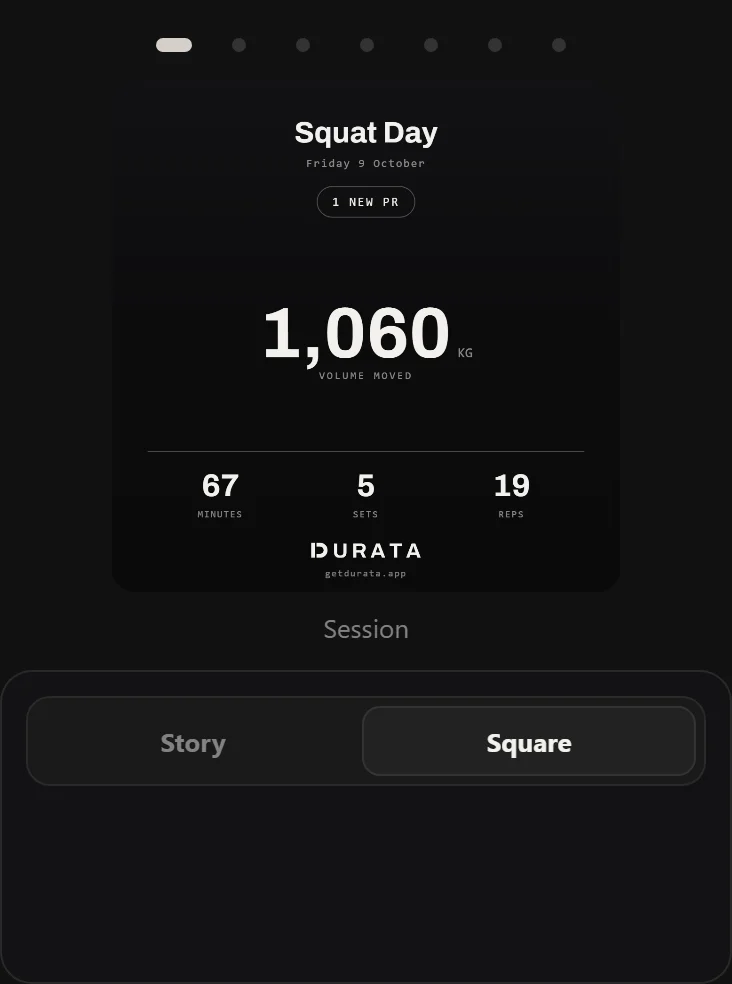
Save writes the finished card to your device gallery; Share hands the same image to your phone's share sheet for any app. Either save button flashes Saved once the file is actually written, so a save is never silent.
Where a card has no photo on it, the save menu also offers Save Transparent PNG: a sticker cut with the background dropped, from either the dark or the light look.
The numbers on every card come from the same engine as the rest of Durata, so a card never disagrees with what History or the PR board shows.
On the web dashboard a shelf browses with the mouse: scroll the wheel over the cards or use the arrows at either edge. Sharing still works best on your phone, where your apps are.
Workout cards
Finish a workout and the Complete screen offers a shelf of cards for that session; the same shelf opens for any past workout from Share Session Card in its ⋮ menu in History. On the Complete screen the shelf opens on the Photo card: tap it to take today's shot and it fills that card straight away. Behind it sits the core set, always there: a Session card leading with total volume moved, an Achievement card built around your biggest lift, a stark Ink statement, and a Muscle Map that paints the session's work onto a heat body, with harder-worked muscles shown hotter. It shows front and back views, or a single body when everything you hit sits on one side. A cardio-only session, with no weights logged, swaps the volume figure for your total time, with rounds or distance alongside it, since there's nothing to total in kilos.
Three more appear only when the session earns them. A Receipt itemises the workout like a till slip, line by line, with a barcode. A Record certificate is minted when you set a personal best, whether heaviest weight, best estimated 1RM or most volume in a session, and it shows the new mark, the one it beat and how long that old record had stood. And a Trend card draws one lift's estimated-1RM curve from your first session to now, with the gain called out.
Every record a session earns gets its own card: a set that beats its weight, e1RM and volume best at once gets three cards, one per record. Each has a style toggle so you can flip it between a straight Achievement figure and the old-to-new Record certificate framing before you share.
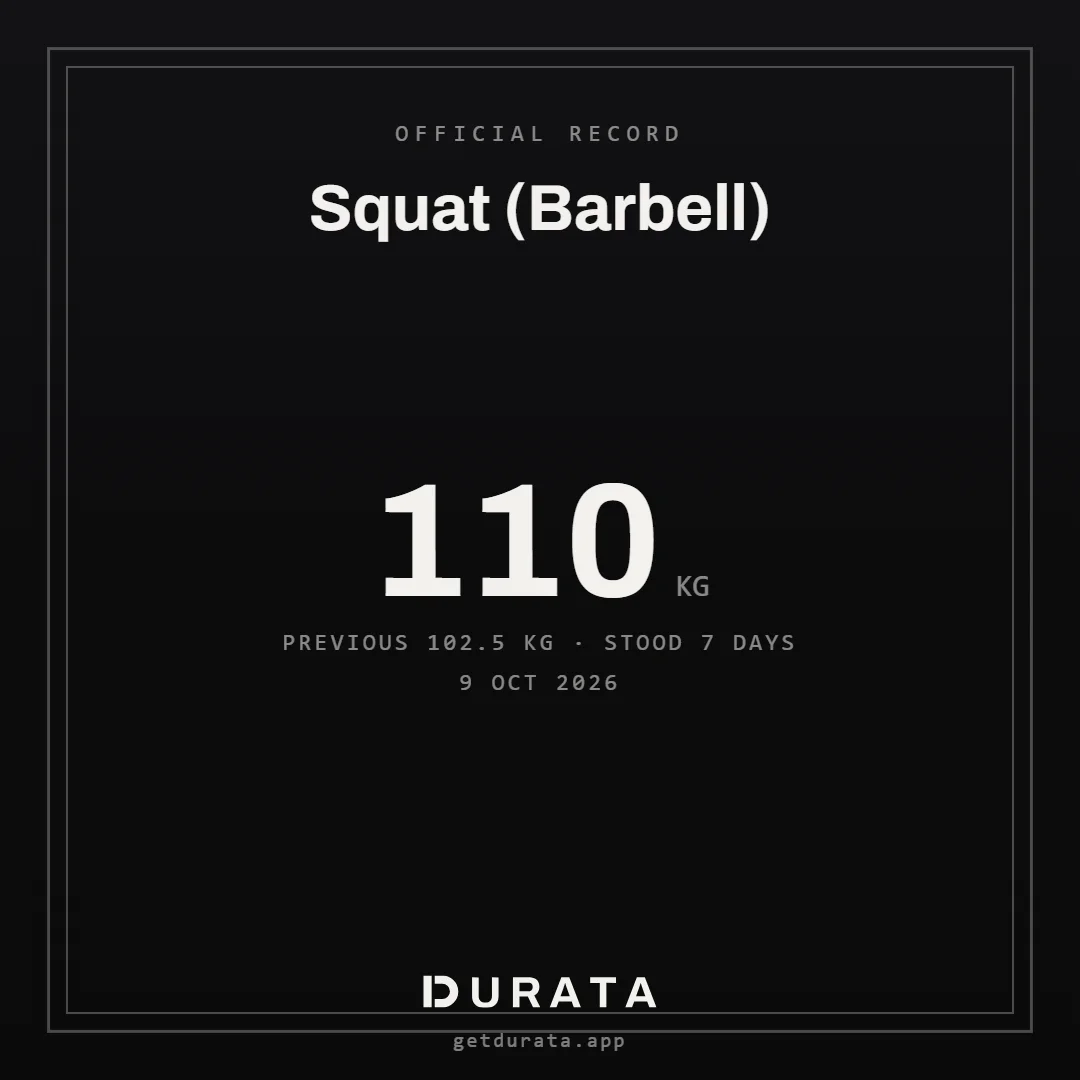
Each card in the shelf has its own light toggle and a camera button to attach or swap a photo. On a card that already has one, the same button offers Remove. Once the Photo card holds today's shot, every other card offers Use Workout Photo, so one photo can go on any card.
Once a card is carrying a photo, a Frame button opens a pan-and-zoom sheet: drag to reposition, pinch or use the slider to zoom. It frames the story crop and the square crop separately, so getting the shot right in one format never throws off the other.
Format is per card: the Photo card opens tall as a Story, the rest open Square, and the toggle under the shelf switches whichever card you're on. The stat pills beside it belong to the Photo card alone: once it holds a photo, choose which numbers go on it. The other cards have a fixed layout.
A record doesn't wait for the Complete screen, and it doesn't expire either: the record moment you get mid-workout, every card on the PR Board, and every record row in Top Sets on a past session all have a share button that opens a card for that record.
Long exercise names get two lines on the Achievement and Record cards rather than being cut short, so a full name like Barbell Bulgarian Split Squat reads in one piece.
Starting a program
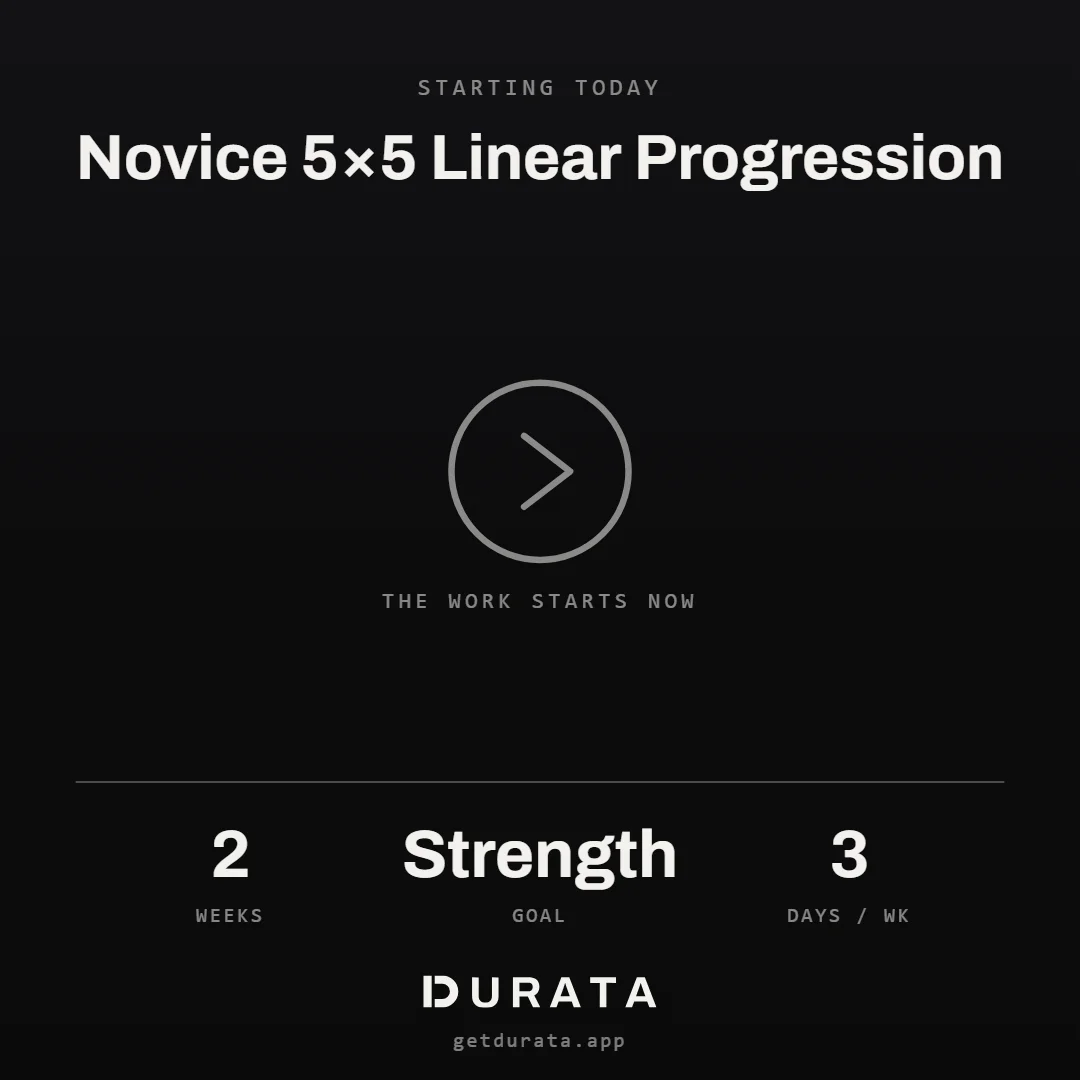
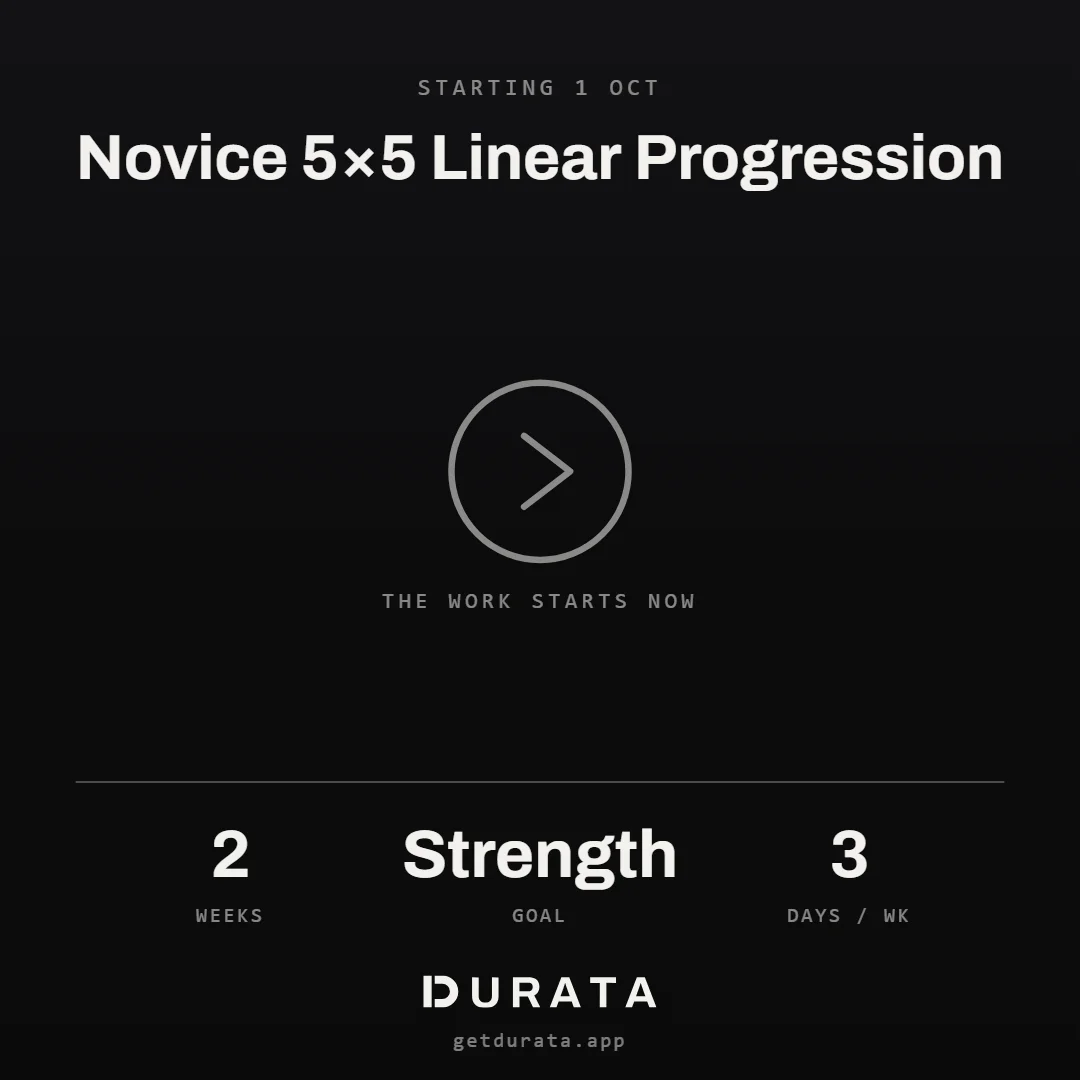
You don't have to wait until the end to share a program. The moment you set a start date, Durata offers a commitment card: the program's name, how long it runs, how many days a week, and what it's for, under a plain "Starting today". It carries no stats, because there aren't any yet. It's a statement of intent, and telling people you've started is one of the simplest ways to stay on it.
The offer appears once when you start. While the plan runs, Share Your Start in its Plan Settings brings the card back, and the plan's report leads with it until you finish. This card is not kept in Your Cards, which collects finished achievements rather than sessions you have only begun.
Start Again, on a finished plan's page, carries your working weights forward and offers the same card again.
Milestone moments
Some cards show up because of when you trained, not what you lifted. Log your very first session and a Day One card appears on the Complete screen: the date, your volume, one session on the ledger. Come back after three weeks or more away and it is a Comeback card instead: how many days you were off, and that you are back. Both count only sessions you've actually logged in Durata.
Hit a round number of training days in a row, like day 50, 100 or 365, and a streak card joins the Complete screen the same way. Cross a different streak milestone away from a workout, on a rest day, and the dashboard offers the same kind of card in a pop-up of its own, so a streak never goes unmarked just because you didn't just finish a session.
The dashboard mints one more occasional card of its own. On a day worth looking back on, meaning you trained a year (or two, or three) ago today and one of that day's lifts has come up meaningfully since, or you've just crossed a lifetime milestone like your 100th logged session, an On This Day card appears on the board, and its share button opens a then-and-now lookback: the set you did then, the set you do now, the gain between them and the estimated-1RM pair. It exists only when the moment earns it, and it never shows a lift that went backwards.
Like every other card here, each one can carry a photo and flips between dark and light.
Program and goal cards
Complete a program and Durata builds a Program card: the program's name, how many weeks and sessions it took, how many of the scheduled sessions you hit (as a fraction, so the card explains itself), and the total volume you moved across the whole run. If the program tracked its main lifts, a Key Lifts card lists where each one started and where it finished, so a twelve-week block reads as a set of before-and-after numbers. Both wait on the finished program's report, ready to re-share any time.
Reach a goal you've set and a Goal card marks it: the goal, the target, and the day you hit it. Every goal earns one, not only the ones you pinned, and the date on the card is the day you actually crossed the line rather than the day you got round to sharing it. The card appears as it happens and then waits on the goal itself, so you can share it whenever you like.
A habit goal earns a different card, because 'three workouts a week' is never finished and one that arrived every Sunday would mean nothing by the third. It marks the run instead, at 4, 8, 12, 26 and 52 periods kept: a Habit Streak card carrying the goal, its target and how many of the judged periods you hit. It keeps its own ledger, so a reached goal and a kept habit never silence each other, and importing a year of history gives you the highest milestone you crossed rather than four cards in a row.
Monthly and yearly recaps
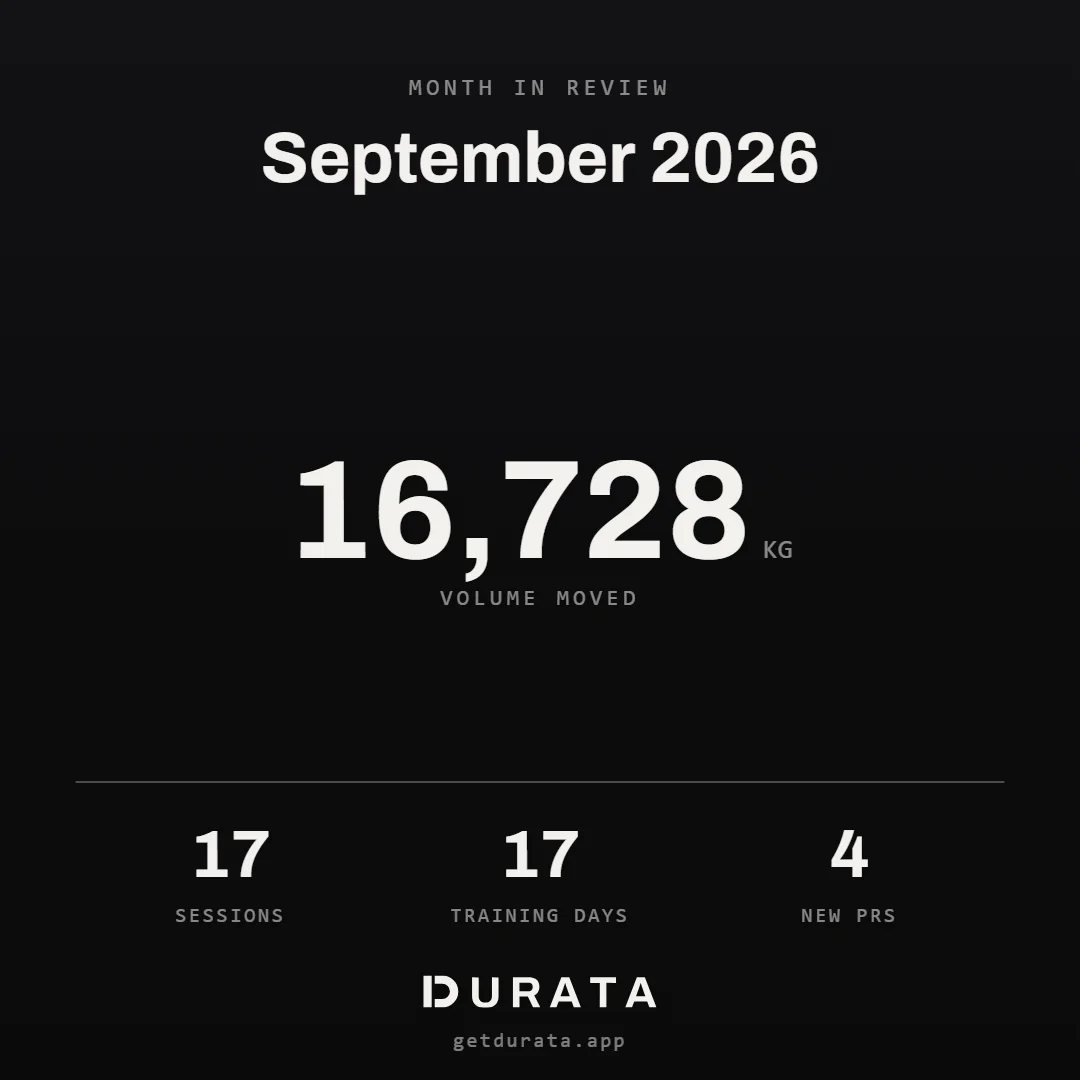
Review, the first tab of Progress, turns any month or year you trained into a report, and every report opens with a Recap card. It leads with the volume you moved over the period, with sessions, training days and PRs beneath. A period that was nothing but cardio leads with total time instead, since there's no weight to total. There's a stark Ink version of the same recap for a different feel, and on a month you also get a Calendar card: the month drawn as a grid with every trained day inked in.
A yearly review can add a Top lifts card for the whole year: each tracked lift's estimated 1RM from January to December. Every other report gets a Milestone card: your current streak if it's a week or longer, or your lifetime sessions and longest streak if it isn't. Recaps and milestones only count workouts you logged in Durata; imported history still adds to your volume, but it never mints a badge.
Once your logbook spans more than one calendar year, Your Cards on the You tab adds a whole-history set: a recap labelled with your span, a lifetime card with your total volume, Top lifts from first to last, and a muscle map of everywhere your sets went.
To share the week so far, tap the share button beside This Week at the top of Home. The week's recap card opens, with an Ink version beside it.
Progress-photo cards
Open any photo in the Gallery and it becomes its own share card, full screen. Leave it clean and it's a Ledger: your photo with a tidy line of stats underneath. Turn on a headline number, whether your weight, body fat, or a workout stat if the photo is tied to a session, and it becomes a Hero, leading with that figure at full size over the shot. Flip between story and square, and toggle exactly which numbers ride along. The weight it prints is the one you logged around the time of the photo, not just your latest, so an old shot never wears this week's number.
A Card / Photo strip above the stage switches between that share card and the bare photo underneath. On Card, a Frame button lets you drag, pinch or slide to reposition the photo inside it, framed separately for story and square, and a Shade toggle turns the gradient wash off if the photo reads fine without it.
On the photo viewer, Share sends the finished branded card, while Save keeps the clean original photo (the bare shot with no wordmark or stats) so you get both the shareable version and the untouched picture.
Under the card sit the notes about the photo rather than anything printed on it: a badge for the angle you tagged it with, which you can tap to set, change or clear, and, on a day that carried something, what else happened then. A program you started or finished, a lift that is still your best, a weigh-in that was your lightest or heaviest to date. None of it rides onto the card; the card's own controls decide what it carries.
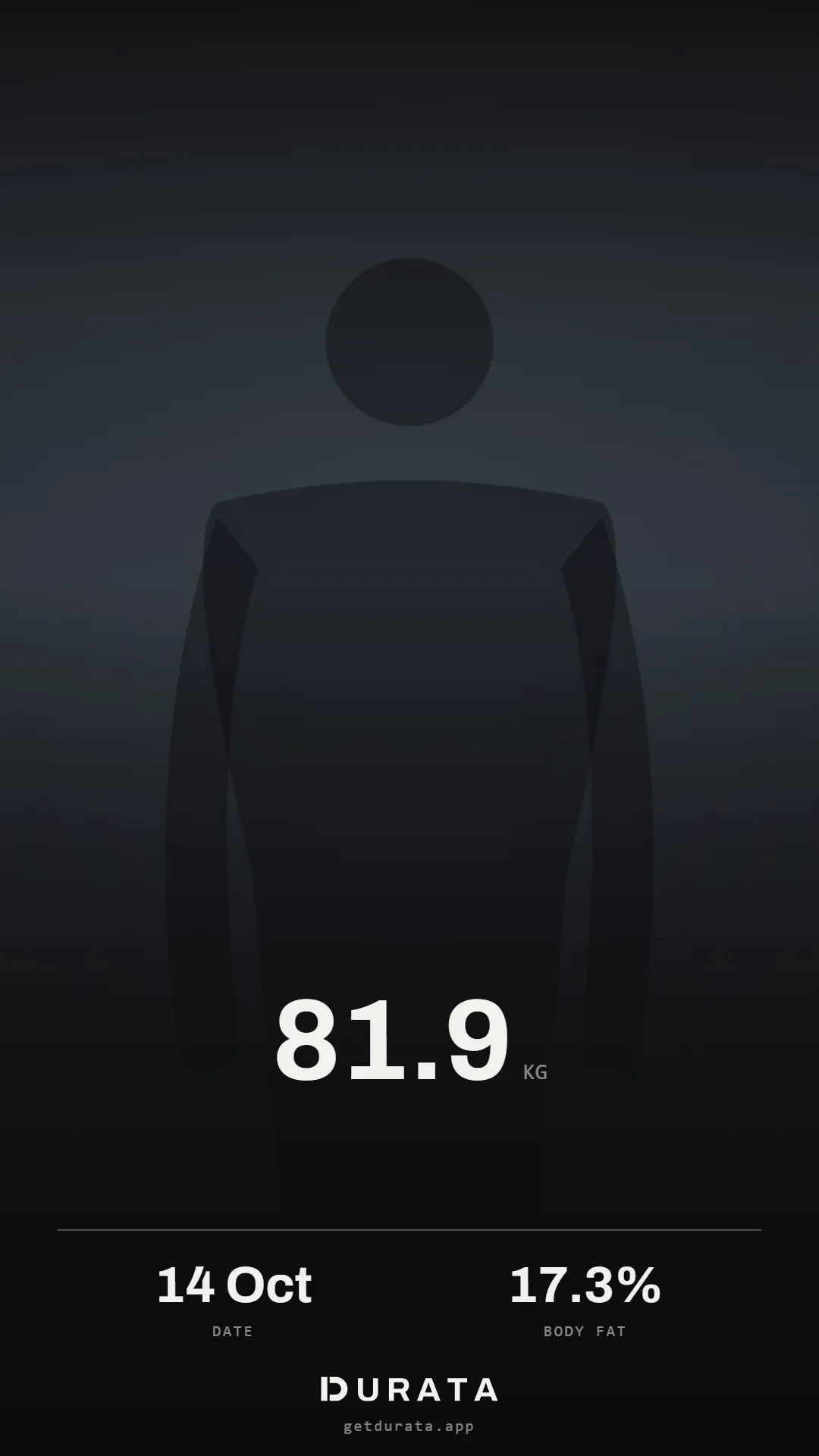
Weight and body-fat remember whether you had them on the last time; the rest reset for each new photo, since not every photo has the same stats to show.
Compare cards
Pick two photos and Durata puts them side by side on one card, oldest on the left, in the same branded language as everything else. It reads out the days between the two shots and, if you weighed in near each one, how your weight changed over that stretch. A Swap control flips which photo is the before and which is the after, and the weight change flips with it.
Both photos are always fitted whole, never cropped or stretched to fill. Save writes the finished compare card to your device gallery, and Share hands it to any app.
The sheet offers two ways of reading the same two photos, named rather than hidden behind an icon. Side by Side is the card. Wipe lays the two shots over each other with a divider you drag through them, each side keeping its date and the footer still reading the days apart and the weight change. Wipe is a way of looking rather than a second export, and the sheet says so: Save and Share send the side by side card either way. Swap flips the wipe exactly as it flips the card.
Two photos is also the one thing the Gallery will pick for you. The card at the top of the panel pairs your first photo with your latest, and tapping it opens that pair here with nothing to select. On a phone the same pair also appears as a card on your You shelf, labelled with the days between the two, and tapping that opens this sheet as well. Otherwise the Compare button turns into a counter while you pick two out of the grid, then opens them.
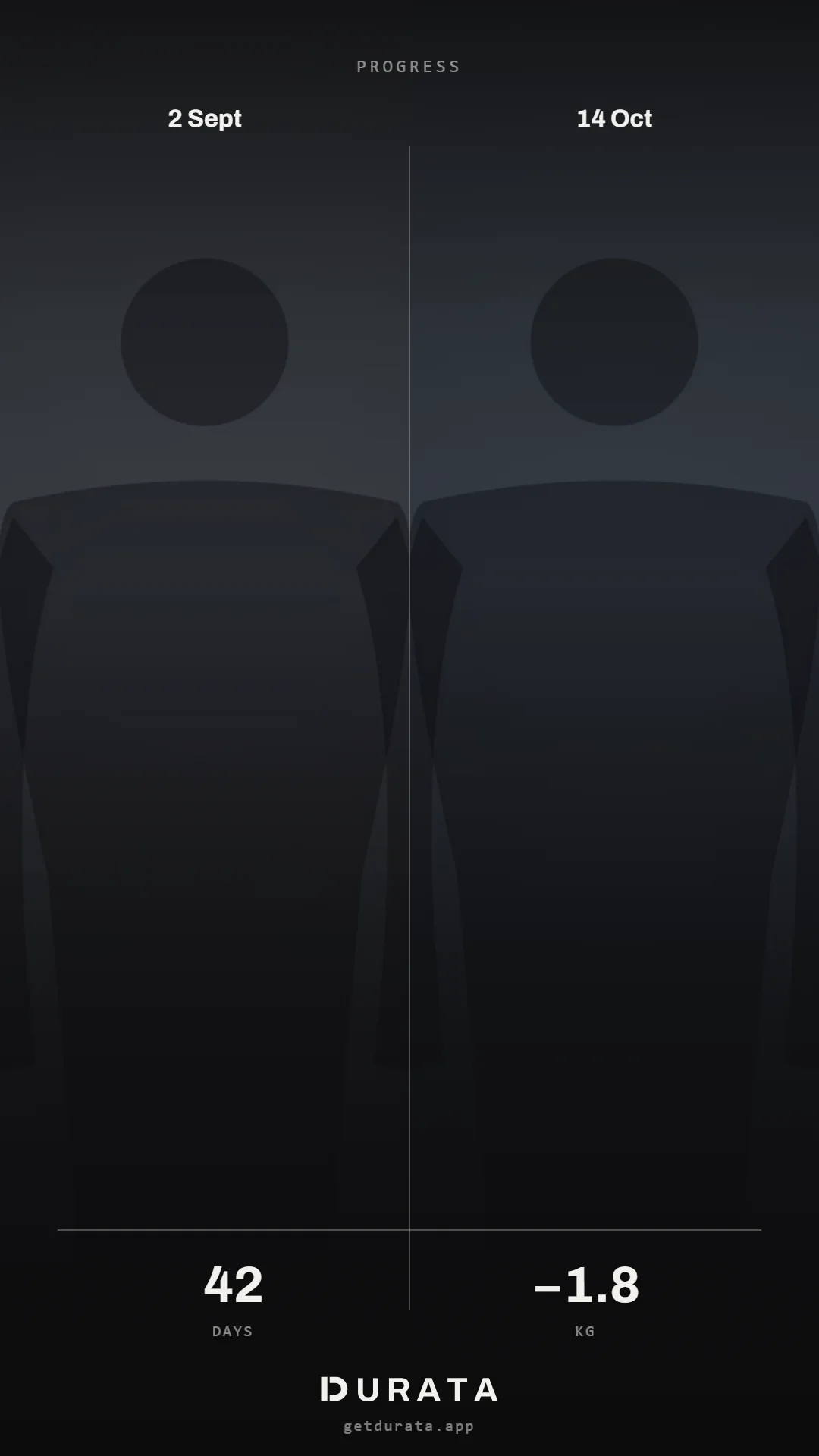
Tag your photos with an angle and filter the Gallery to one of them, and Compare stays inside that track, so you are putting front against front rather than front against back.
Time-lapse video
With three or more photos, Time Lapse builds a moving one: a crossfading, date-stamped, Durata-branded video of your transformation, framed at 4:5 portrait for social feeds. Drag the trimmer to pick the exact stretch, and a live label shows how many photos and weeks are in range. Time Lapse is part of Pro.
Download or Share exports a real video file. On a device that can't encode video, Durata falls back to a branded before-and-after still, so you always get something worth posting.
It builds from the photos the Gallery is showing, so a filter is also the way to keep one track: with the grid set to Front, the time-lapse runs on your front shots alone rather than cutting between angles.
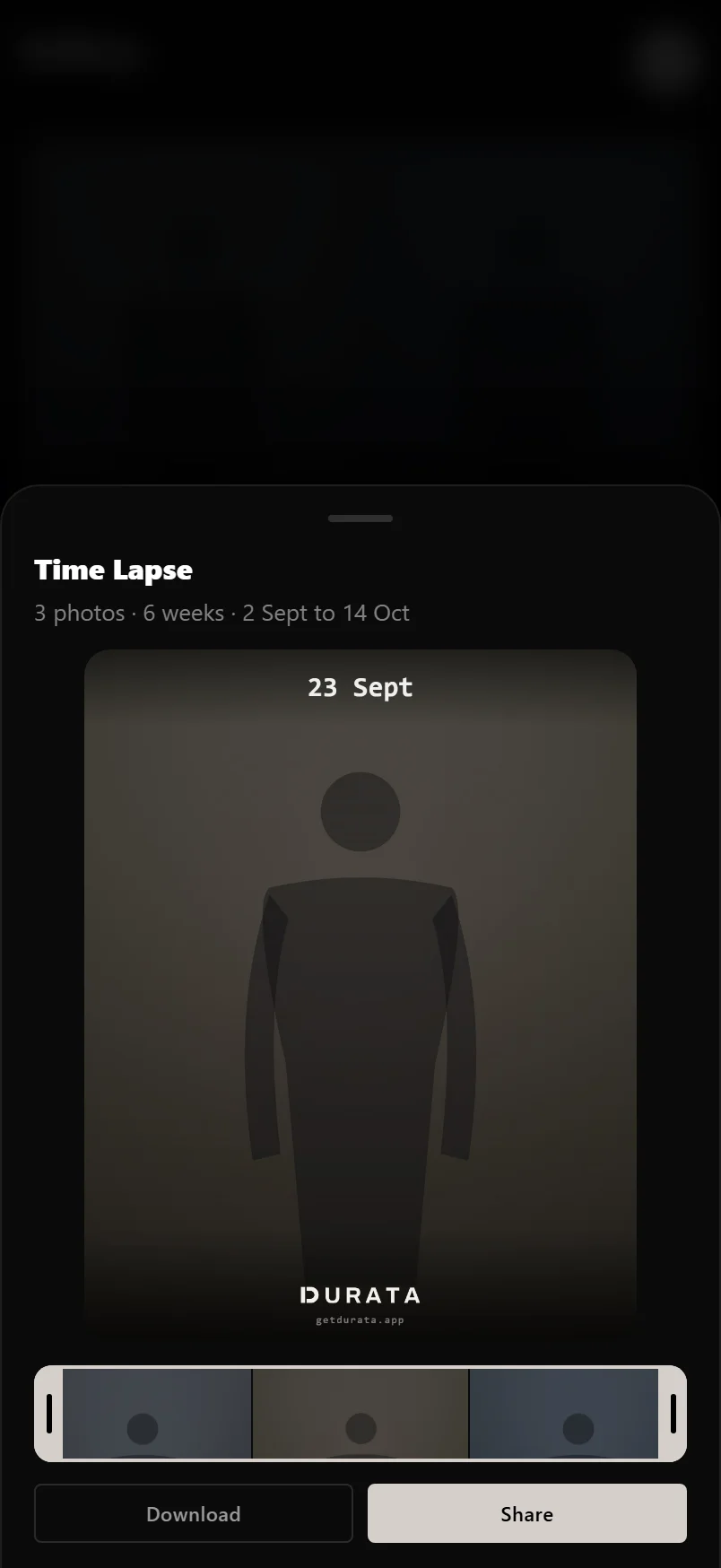
Tap the small preview to play the time-lapse full screen; tap again to return to the trimmer.
Common questions
Do my share cards get uploaded anywhere?
No. Every card is drawn on your device from data that already lives there. Nothing is sent until you choose Share, and even then it goes straight to the app you pick. Durata has no card server.
What's the difference between Save and Share?
Share hands the finished card to your phone's share sheet for any app. Save writes it to your device gallery, with one deliberate exception: on the single-photo viewer, Save keeps the clean original photo rather than the card, so you always have the untouched shot too. The compare card's Save writes the card. Every Save button flashes Saved once the file is written. Where a card has no photo, the menu also offers Save Transparent PNG: a sticker with no background, in the dark or light look.
Why do some card styles only appear sometimes?
A card only shows up when the moment earns it. The Record certificate needs a personal best, the Trend card needs enough history to draw a curve, the yearly Top Lifts card needs a program's lift data, and Day One, Comeback and the streak cards only show up on the session (or the dashboard visit) that actually earns them. If a style is missing, that session didn't produce what it needs. The Photo card is the exception on the Complete screen: it always leads the shelf, waiting for today's shot.
Do imported workouts show up on recap and milestone cards?
Imported history counts toward your total volume, but it never mints a PR, a streak or a milestone badge. Recap cards and milestones are built from workouts you actually logged in Durata, so a badge always reflects real logged training.
Can I change how a card looks before sharing?
Yes. Every card flips between a square post format and a tall story format, each remembering its own choice, with the Photo card opening as a Story and the rest as Squares, and most flip between a dark and a light look. Any workout card can carry a photo, and once it does, a Frame button lets you drag, pinch or slide to reposition it, framed separately for story and square, with a Shade toggle to turn its gradient off. Choosing which stats appear is the Photo card's own control, and the one on a progress photo in the Gallery, because those are the cards built around a picture; the rest have a fixed layout. The card redraws instantly each time.
Can I share that I've started a program, not just finished one?
Yes. When you set a program's start date, Durata offers a commitment card straight away, and a share icon next to the program's name reopens it any time in the first weeks. The card shows the program, its length and its goal, with no stats, because nothing's been logged yet.
Put it into practice
Durata is free to use — 50 proven programs, automatic progression, rest timers and PR tracking, all on your phone.