


Body and progress photos
Your training shows up on the scale, the tape and in the mirror. Body Metrics and the Gallery, both on the You tab, keep all three, beside the lifting that caused them.
This guide covers logging weight and measurements, reading the trend, and progress photos: comparing them, tagging angles, and turning them into a time lapse.
Last reviewed 2026-10-20 · matches app v1.1.1.105
Weight, body fat and measurements
Body Metrics is the long view. Tap + to log today: weight (in your unit), body fat %, lean and bone mass if you have them, and ten tape measurements from neck to calves. The top tiles are Trend Weight (the smoothed line through your weigh-ins, with your last weigh-in under it), Body Fat, Lean Mass, and Entries in the range you are viewing.
Under the weight chart, one line gives your weekly rate over the last 28 days and, with a weight goal, when you should get there, or that you are moving away from it. The chart draws each weigh-in as a dot under the trend line, and a weight goal as a line across it.
A card under the chart covers your Current Phase if you have nutrition targets running, This Plan if a training plan is running, or else the Last 28 Days: how your body has changed since it started, with your main lifts beside it. A phase shows its weekly rate from its 14th day.
Body has the same Insights, Charts and History tabs as Cardio and Nutrition. Charts cover weight, body fat, lean mass, BMI and each measurement you log (pick one from the row above the chart). Sleep syncs from Apple Health or Health Connect. In History, tap a day you typed something for to edit or delete it. A weigh-in that only came from your health app cannot be edited here, because the next sync would put it back.
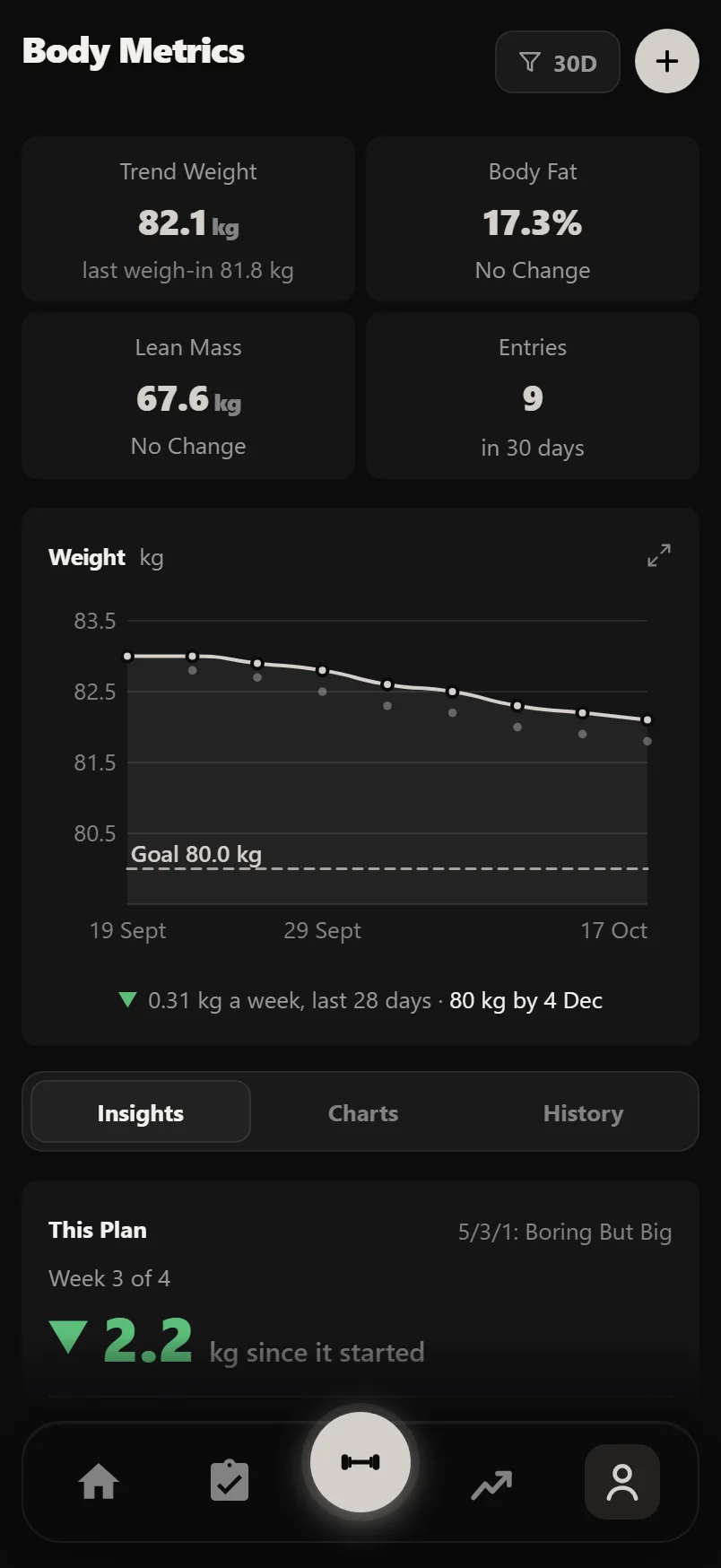
Every chart has an expand button for a full-screen view.
Progress photos
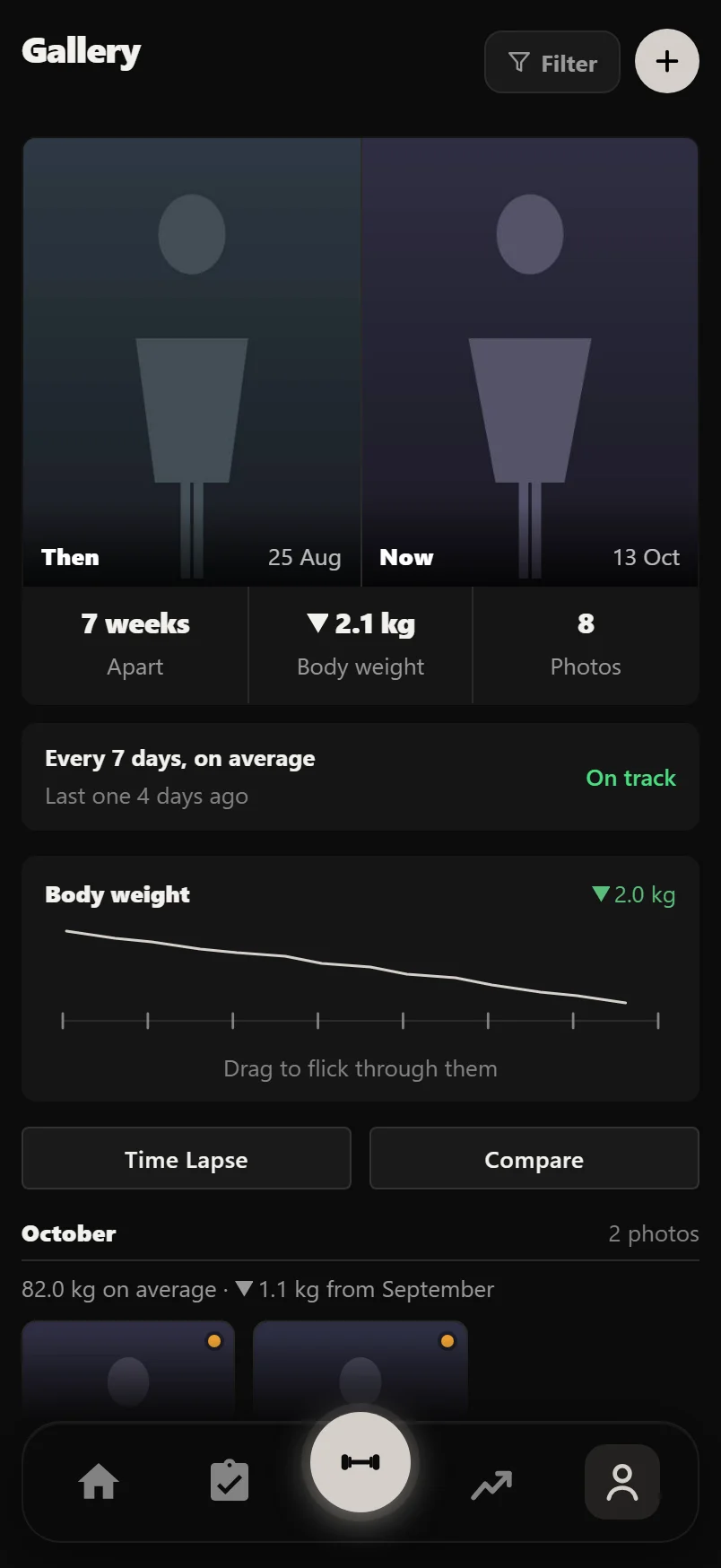
The Gallery opens on your first photo beside your latest, labelled Then and Now, with how far apart they are, how your weight changed, and how many photos you have. Tap it to open the pair as a compare card.
Under it, a line says how often you usually take a photo and when the last one was, with On track when you are inside your usual gap. Well past it, it says how many days it has been, with Take One to open the camera.
Then a strip you can drag: your weight across the time your photos cover, showing the photo under your finger with its date and the weight nearest it.
The grid is grouped by month, each with its photo count and, where you weighed in, your average weight and its change on the month before. The filter at the top separates body photos from post-workout photos, and front, side and back once you have tagged any.
Tagging an angle is optional. Durata asks once after you save a body photo, and stops asking after you say no three times. Filtering to one angle keeps Compare and Time Lapse on that angle too.
A photo taken on a day something else happened has a small mark, and opening it says what: a plan you started or finished, a lift that is still your best, or your lightest or heaviest weigh-in.
Tap a photo to open it full screen as a share card, with Share, Save and Delete. Share sends the card; Save keeps the clean photo. The share cards guide covers photo cards and Compare.
Tap + to take a photo or choose one from your library. Once you have two photos, Compare and Time Lapse appear. Compare puts two photos side by side; Wipe lays one over the other with a line you drag.
Every photo is also saved to a Durata album on your phone, so it backs up with your other photos. After a reinstall, iPhone brings them back on its own, with Restore From Device Album if you need it. On Android, tap Import Photos From Device on the empty Gallery and pick them; each keeps its date, and none come in twice.
Turn photos into a time lapse
With three or more photos, Time Lapse makes a video of your change: photos fading one into the next, dated and with the Durata mark, in a 4:5 frame for social feeds. Drag the handles on the strip to pick the stretch you want; a label shows the photos and weeks in it.
Download or Share saves a real video. On a phone that cannot make video, you get a before and after picture instead.
Time Lapse is part of Pro. Taking, keeping and comparing photos is free.
Tap the small preview to play it full screen, and tap again to come back.
Common questions
Do my progress photos upload to the cloud?
No. Photos stay on your phone, in the app and in a Durata album that backs up with your other photos.
Why does one of my photos have a mark on it?
Something else happened that day: you started or finished a plan, set a lift that is still your best, or weighed in at your lightest or heaviest. Open the photo to see what.
Do I have to tag every photo with an angle?
No. Untagged photos work as before. Tagging only matters if you want to filter to front, side or back.
Can I use miles instead of kilometres?
Yes. Distances follow the km or miles setting, and body weight your kg or lbs setting.
What is Trend Weight?
A smoothed line through your weigh-ins, so one salty dinner or a big glass of water doesn't look like a change. Your last weigh-in shows under it.
Is the time lapse free?
Taking, keeping and comparing photos is free. Making a time lapse video is part of Pro.
Put it into practice
Durata is free to use — 50 proven programs, automatic progression, rest timers and PR tracking, all on your phone.