


Review
Review is the first tab in Progress, and the one it opens on. It turns any month or year you trained into a report, compared with the month or year before.
It uses the same numbers as the rest of Durata, so the cards you share always match the report.
Last reviewed 2026-10-26 · matches app v1.1.1.105
One report per period
Review opens on your last full month. The button at the top right names the period: tap it to choose any year, or any month you trained. The last six months are listed, with Older Months under them.
The month you are in is fine to look at. It says "(so far)" and fills in as you train.
When a month you trained in ends, Home shows a card saying it is ready, and tapping it opens that report. In January the card points at the year just gone.
Only periods you trained in are listed, so there are no empty reports.
What the period did
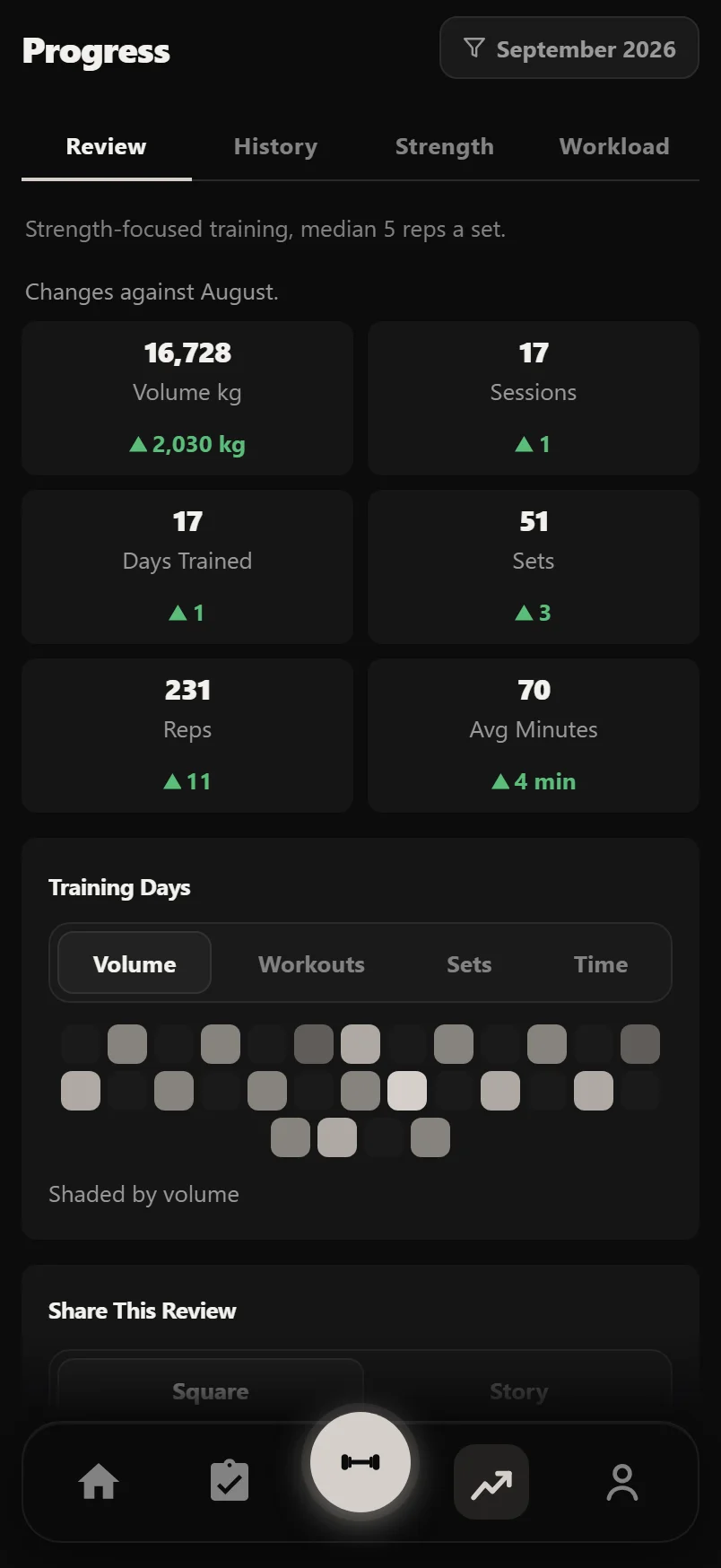
The report starts with the period's figures: volume, sessions, days trained, sets, reps and average minutes, each with its change. A line above them names what they are compared with, like "Changes against August." Tap a figure to see where it comes from: sessions, days and minutes open History at that month, and volume, sets and reps open Workload.
Training Days shades each day you trained, darker for a bigger day, by volume, workouts, sets or time. Tap a day to open its session. On a year, it shows the twelve months instead: tap one to open that month's report.
Lifts lists each lift once: any record you set, with how much it went up, and how your most-trained lifts' e1RM moved. Tap a record or an e1RM line to open that lift's chart.
Muscle Split shows where your sets went on a front and back body, with the six busiest muscles as bars under them. Show All lists every muscle. A lift's main muscle counts a full set and its other muscles half a set, so a muscle can show 2.5.
If you logged your weight, Body shows the change, coloured by your goal. If your health app sends food, Fuel shows how many days it reported, your average calories and protein against your targets, and training days against rest days. Tap Body for its chart, or Fuel for Nutrition.
Notables picks out your biggest day, your longest session, lifts you did for the first time, and your cardio minutes and push to pull balance when the period has them.
Plans lists the plans you ran in the period, with their state (Active, Paused, Archived or Completed). Tap one to open its Report Card. Back from anything you open brings you to the same place in the report.
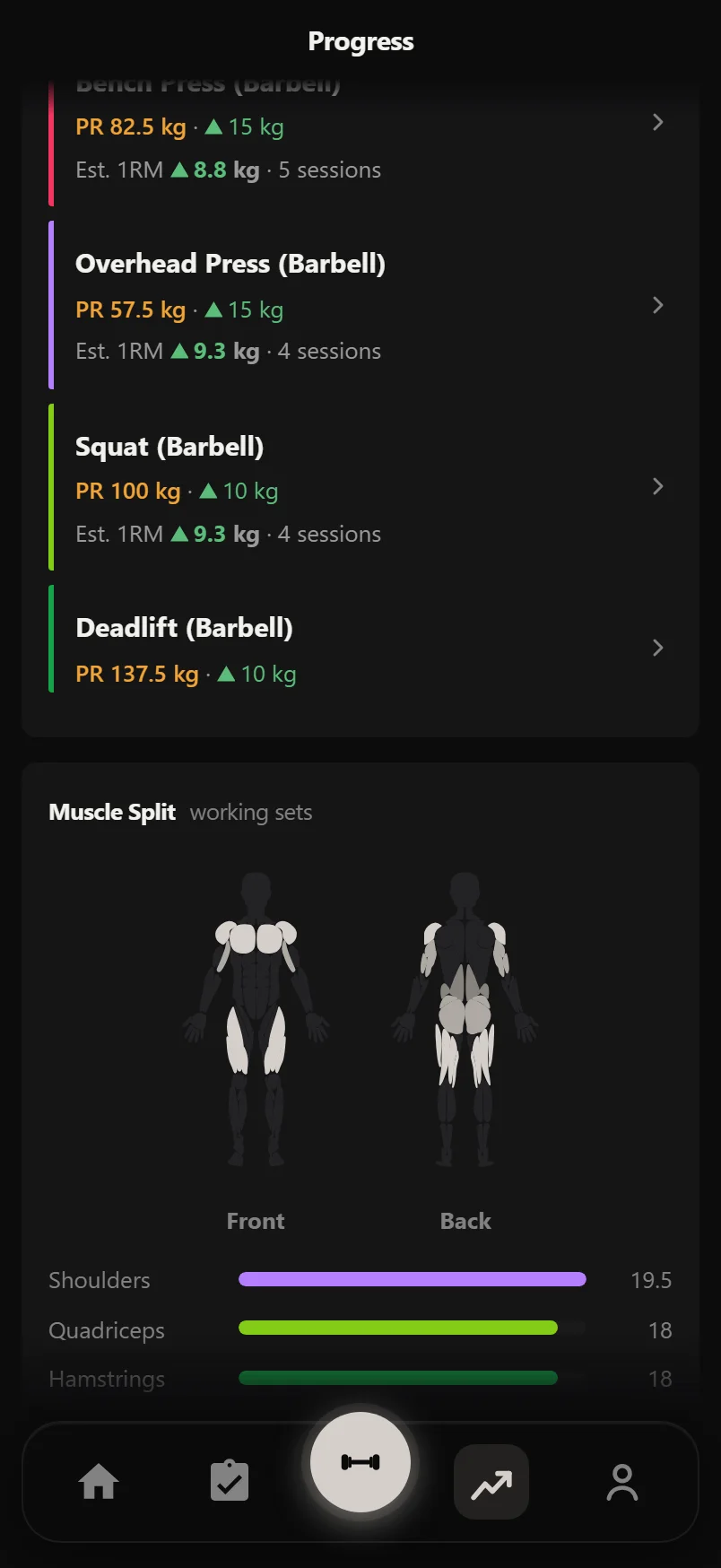
A lift with no e1RM, like a bodyweight or timed one, shows its total reps or time instead.
A year's Plans card shows the 30 most recent and says how many more there are.
Share This Review
Share This Review is a row of cards drawn from the period's own figures. Recap and Ink lead with the volume you moved, with sessions, training days and records under it. Once you have logged a workout in Durata, a Milestone card shows your current streak, or your sessions logged if you are not on one, against your lifetime volume. A month adds a Calendar card of the days you trained. A year adds a Top lifts card when a lift has an e1RM at both ends of the year.
Pick Square or Story, then share. The card is drawn on your phone; nothing is uploaded to make it.
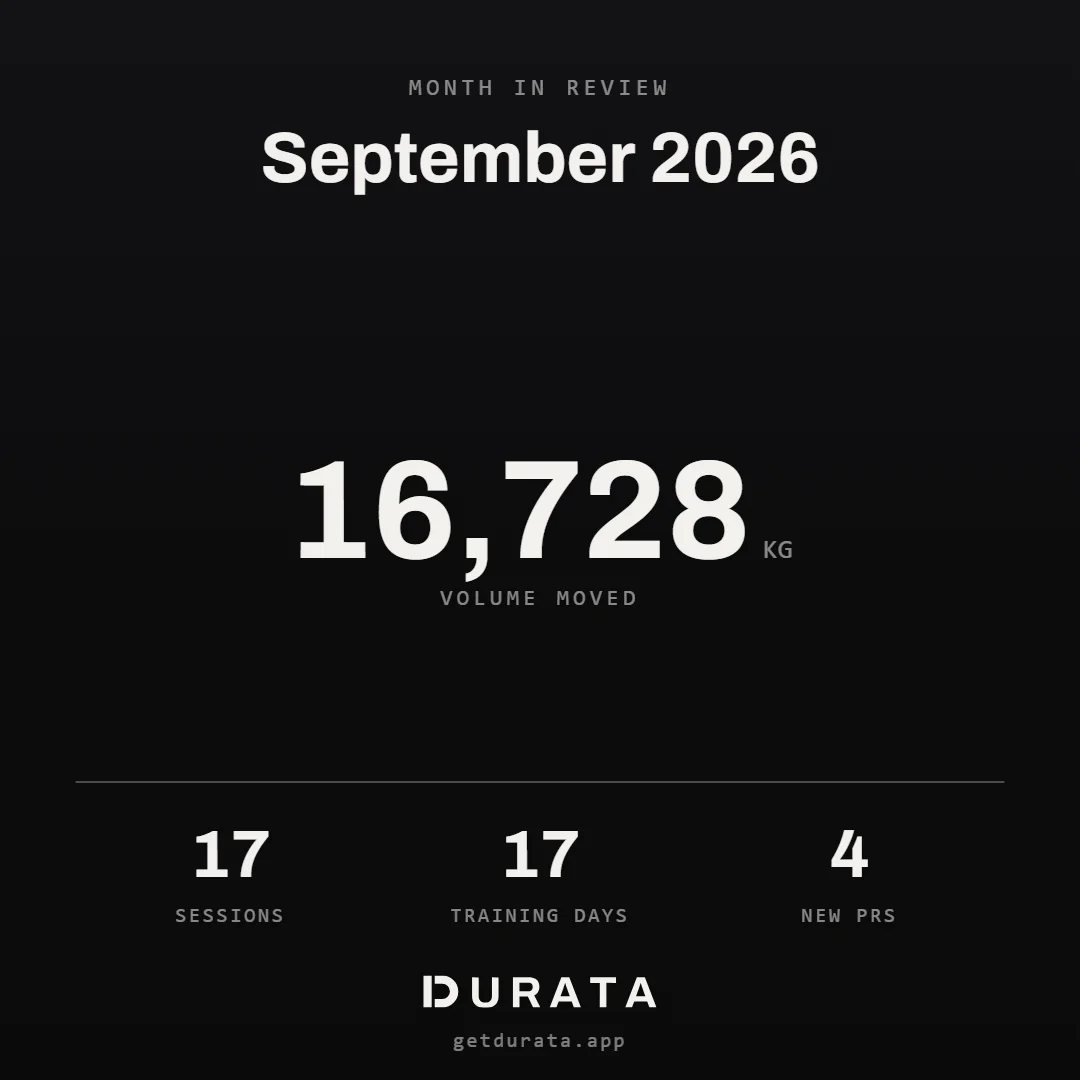
Swipe the cards sideways, or use the arrows on the web.
Your lifetime totals and the cards you have earned (finished plans, reached goals, milestones) are on the You tab, in Your Cards.
Common questions
Where do I find Review?
It is the first tab in Progress, and Progress opens on it. Tap the period name at the top right to pick another month or year.
Can I look at this month before it ends?
Yes. It says "(so far)" and fills in as you train.
Do imported workouts count?
They count towards your volume and the comparison. They never count as records, streaks or milestones, which only come from workouts logged in Durata.
How is the comparison worked out?
This period's logged training against the one before: a month against the month before, a year against the year before.
Is anything uploaded when I share?
No. The card is drawn on your phone and goes straight to the app you pick.
How do I get from a year to one of its months?
Tap the month in the year's Training Days. Back brings you to the year.
Put it into practice
Durata is free to use — 50 proven programs, automatic progression, rest timers and PR tracking, all on your phone.