


The exercise library
Durata has 560 built-in exercises: barbells, dumbbells, machines, cables, kettlebells, bands, bodyweight and cardio. 499+ of them have a how-to video, and each one has step-by-step instructions and form tips.
Each exercise also has a page about you: your records, every session you have done it, and charts of how it is going. This guide covers finding an exercise, reading its page, telling Durata how you set the lift up, and adding exercises of your own.
Last reviewed 2026-10-26 · matches app v1.1.1.105
Finding an exercise
The library is the Exercises tab on Training, beside Library and Discover. You can also tap an exercise's name almost anywhere in the app to go straight to its page.
Search matches the exercise name and its main muscle, so "chest press" or "hamstrings curl" both work. Filter, in the header beside Training, narrows the list to one muscle, or to Favourites. The + beside it creates a new exercise.
Recently Used sits at the top of the list: the last four exercises you logged, inside whatever filter you have on. It hides while you type a search. Below it the list runs A to Z, with your favourites first.
Tap the star on a row to make it a favourite. Exercises with a video have a play button: tap it to watch the clip without leaving the list.
Under the search box, List and Grid switch between rows of names and a grid of photo cards. Grid helps when a name like "Iso-Lateral Row" does not tell you what the machine looks like. Your choice is one setting for the whole app, so the picker you get in a workout opens the same way, and it follows you to your other devices. Switching keeps your place in the list.
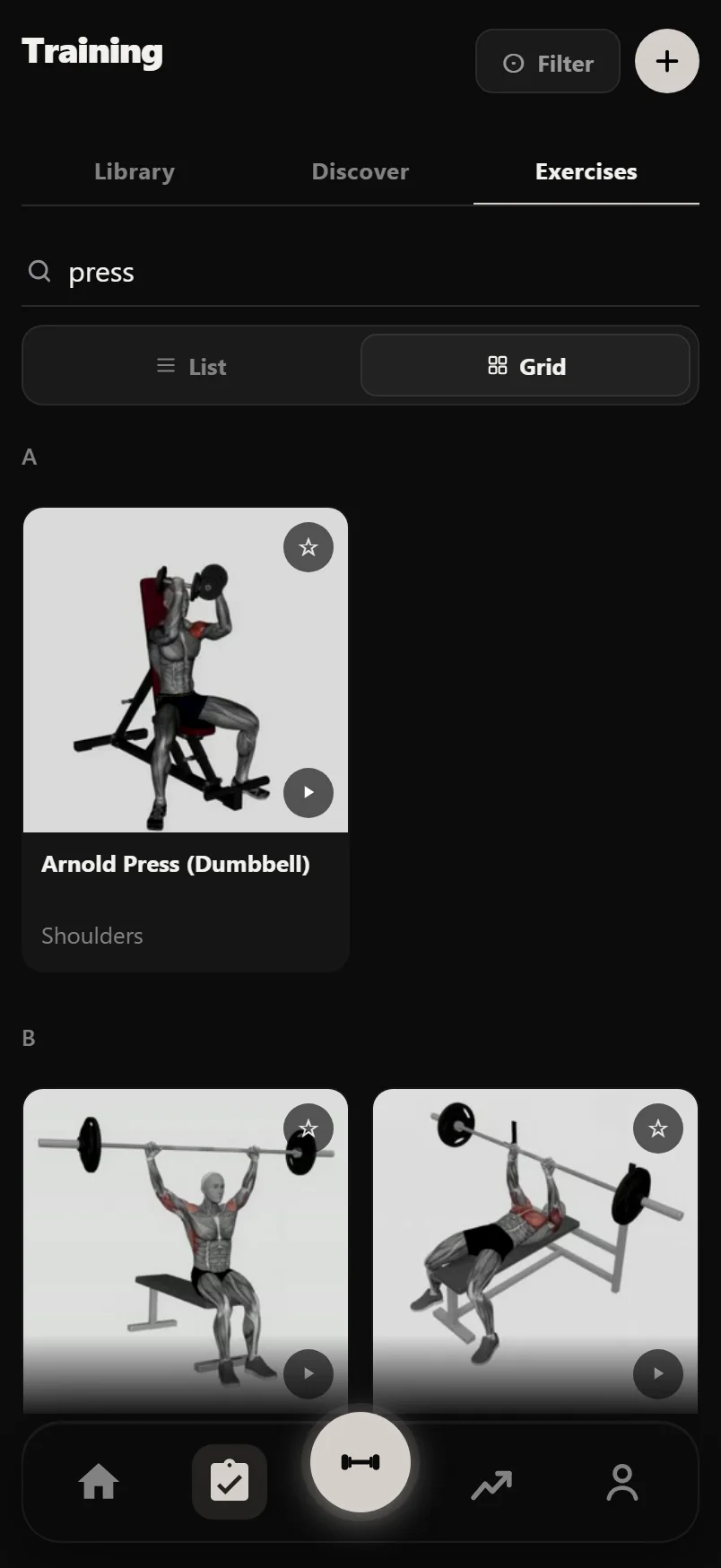
An exercise with no photo yet shows a simple mark in its muscle colour instead, so the list never has gaps.
In a workout, tap an exercise's name to open its How To tab, with what you did last time at the top. Press and hold the name to play its video straight away.
The exercise page
The top of the page has the exercise's name with its star, and a ⋮ menu. Under that are four tabs: Overview, How To, History and Charts.
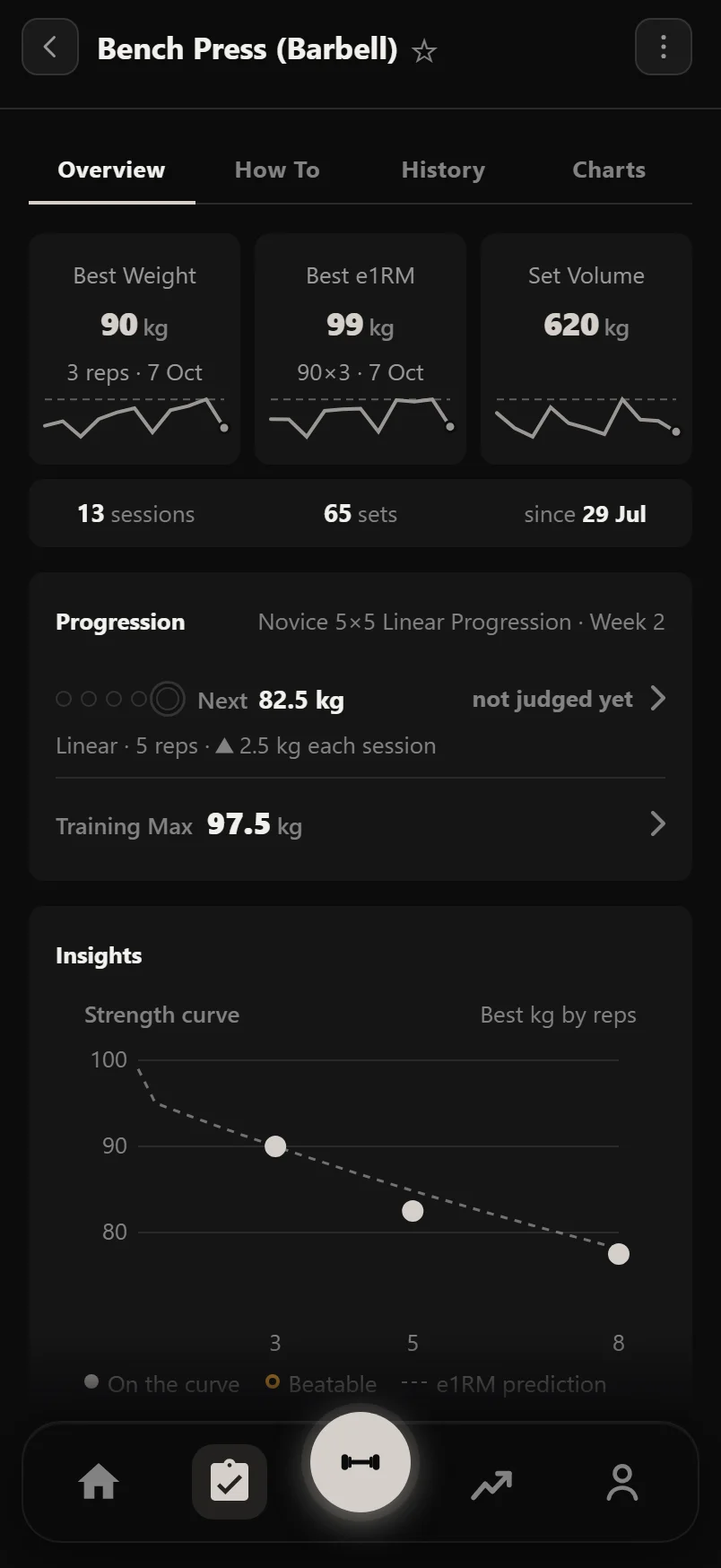
Overview starts with three records: Best Weight, Best e1RM (estimated one-rep max) and Set Volume, the most weight moved in one set. Each has a small line showing your best of each week over the last 12 weeks. A strip under them counts your sessions and sets, and the date you started.
If the lift is in a plan with a progression rule, a Progression card comes next: one row per slot in the plan, your recent results, the weight your next session loads, and the rule in plain words. Tap a row to see why the weight is what it is. The card's last row is your Training Max, if the lift uses one.
Training Max only shows on a lift that needs it: one with % TM or % 1RM sets in a session or in your history, or one you have set a Training Max for. Until you set one, it shows the e1RM those sets use instead. Tap the row to set or change it. On any other lift, Set Training Max is in the ⋮ menu.
Muscles Worked names the muscles the lift trains and shows them on a front and back body. Once you have done the lift twice, Session Comparison lines up your last session against the one before, set by set, with the change in weight and reps. A drop on a planned deload or lighter week is not shown as a miss.
Insights is part of Pro. It reads your numbers for you: a plateau if you have not set a new best e1RM in three weeks, your volume trend, how regularly you train the lift, and a strength curve that shows the rep range you are strongest in and the record nearest to falling. If a plan runs the lift, Insights reports on it but does not tell you to train more often, since the plan decides that. On a free account it shows a short locked preview.
How To, History and Charts
How To has the video, the instructions and the form tips. Your own note for the lift sits at the top. Tap it to change it, or tap Add a note. A web link in a note becomes a link you can tap.
History lists every session you have done the lift, newest first, grouped by month. Each row gives the top set, the e1RM, the volume and the session's name. A trophy marks a session that beat everything before it. Tap a row to open its sets. The newest one is already open.
The set table lines its figures up in columns: the set, weight × reps, e1RM, % 1RM and volume. % 1RM is the set's e1RM as a share of your best, coloured from green to red.
Charts draws Estimated 1RM, Best Weight, Session Volume, Rep Ranges, Training Frequency and an RPE trend, from your real sets, with a dashed trend line. Every chart has an expand button for a full-screen view. Expanding Estimated 1RM opens the Strength story (see its own guide).
History and Charts share a time range in the header: 7 days, 30 days, 90 days, a year or all time. If you train at more than one gym, Charts can show one gym at a time.
The charts are free. Rep Ranges and the rate of progress figure are part of Pro, alongside Insights.
Bodyweight lifts, reps and holds
On dips, pull-ups, chin-ups and push-ups, volume includes your body weight, and the page says so. Durata uses your most recent weigh-in on or before the day of the session, up to 30 days old. With no weigh-in in that window, the session counts the added weight only. To bring older sessions in, log a weigh-in under Body dated around when they happened.
To log added weight or assistance, use the "(Weighted)" or "(Assisted)" version of the exercise. The plain one is reps only. On the weighted and assisted versions, Best Weight and Best e1RM are in added weight.
A reps-only exercise, like the ab wheel, shows Best Set, Best Session and Total Reps instead. A timed hold, like a plank or a dead hang, shows Best Hold, Best Session and Total Time. An exercise you have only ever logged without weight gets the same view, and switches to the weight view once you log a weighted set.
Setup: how you do this lift
Setup, in the ⋮ menu, holds how you do the lift: the bar and rack settings, the bench angle and seat notch, the pin or plates on a machine, the pulley height on a cable, the kit you use, and a note. It is the same sheet you get from the Setup chip in a workout and in the session editor.
What you have set up comes first. Anything empty folds into one row, like Add kit or Add a note.
Only the parts that fit the lift show up. A squat is never asked for a bench angle. On a machine, Loaded By says how it is loaded: Pin Stack, Plate Loaded, Added Weight, Cable Column or Plate Loaded Cable. Durata guesses from the name, and you can change it in one tap. A plate-loaded machine also asks Loaded On, for machines that take plates on one side only. A cable asks whether its pulley is numbered from the bottom or the top.
Your note is the same one that shows on How To and in the logger. Setup, favourites and Training Maxes sync to your account, so they follow you to other devices.
Custom exercises
Tap + on the Exercises tab, or + in the picker during a workout, to make your own exercise. Give it a name, then pick its Primary Muscle, any Secondary Muscles, its Equipment / Category, and What To Track: Weight × Reps, Reps Only, Added Weight × Reps, Time / Hold, Distance, Distance + Time, or Weight + Distance.
It needs a name and a primary muscle, and the name cannot match one you already have or a built-in. If something is missing, the sheet tells you what to fix.
Made from the picker in a workout, the new exercise is ticked ready to add, and the search and filter clear so you can see it.
You cannot change a built-in exercise, but Duplicate in the ⋮ menu makes a copy you can. The copy is named with "(Custom)" at the end. Your own exercises have Edit and Delete in the same menu.
Custom exercises sync to your account and are in your backups. When you import from Strong or Hevy, anything Durata cannot match to its library becomes a custom exercise, so nothing is lost.
Picking a muscle as primary takes it off the secondary list, so it is never counted twice.
Comparing lifts
Compare, in the ⋮ menu, puts the lift on one chart beside up to three others. Switch the chart between Est. 1RM, Weight, Volume, Reps and Frequency. Each lift gets a card with its best e1RM, best weight, max reps, sessions, trend and the date of its last record.
Equipment tags
If your gym has no safety bar or trap bar, you can hide those tags. Go to Settings, then Equipment Tags. Each tag has a switch: on means it is offered when you log. A built-in tag you switch off stays in the list, so you can switch it back on. You can also add tags of your own there.
Common questions
How many exercises does Durata include?
560 built-in exercises, 499+ of them with how-to videos, plus any you make yourself.
Where is the exercise list?
On the Training tab: Library, Discover, then Exercises. You can also tap an exercise's name almost anywhere in the app to open its page.
Can I watch a video without opening the exercise?
Yes. Tap the play button on its row in the list, or press and hold its name in a workout.
Can I see photos instead of a list of names?
Yes. Pick Grid under the search box. It is one setting for the whole app, so the workout picker opens in grid too.
Can I edit a built-in exercise?
No, but Duplicate in its ⋮ menu makes a copy you can rename and change.
Do my custom exercises move to a new phone?
Yes. They sync to your account and are in your backups, so they come back when you sign in.
What happens to exercises I import from Strong or Hevy?
Durata matches them to its library where it can. Anything it cannot match becomes a custom exercise, so your history stays whole.
Why is there no Training Max on this exercise?
It only shows where % TM or % 1RM sets can use it. On other lifts you can still set one from the ⋮ menu.
Put it into practice
Durata is free to use — 50 proven programs, automatic progression, rest timers and PR tracking, all on your phone.